Session expiry logs users out automatically after a set period of inactivity. It is configured once for the whole client space.
Who can manage session expiry?
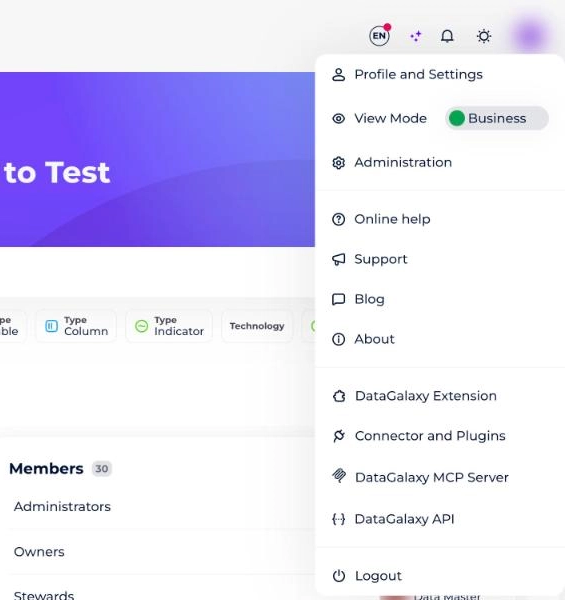
To manage session expiry, you must be a client space administrator. To check whether you have these rights, go to your profile and open the drop-down menu: the Administration option should be present. If it isn't, you are not an administrator.
To learn more about the administrator profile in DataGalaxy, see Overview of License Management.
How to manage session expiry
Session expiry is managed at the client space level: it affects all users of the client space.
- Click on the icon at the top right of the screen.
- Select Administration in the drop-down menu.
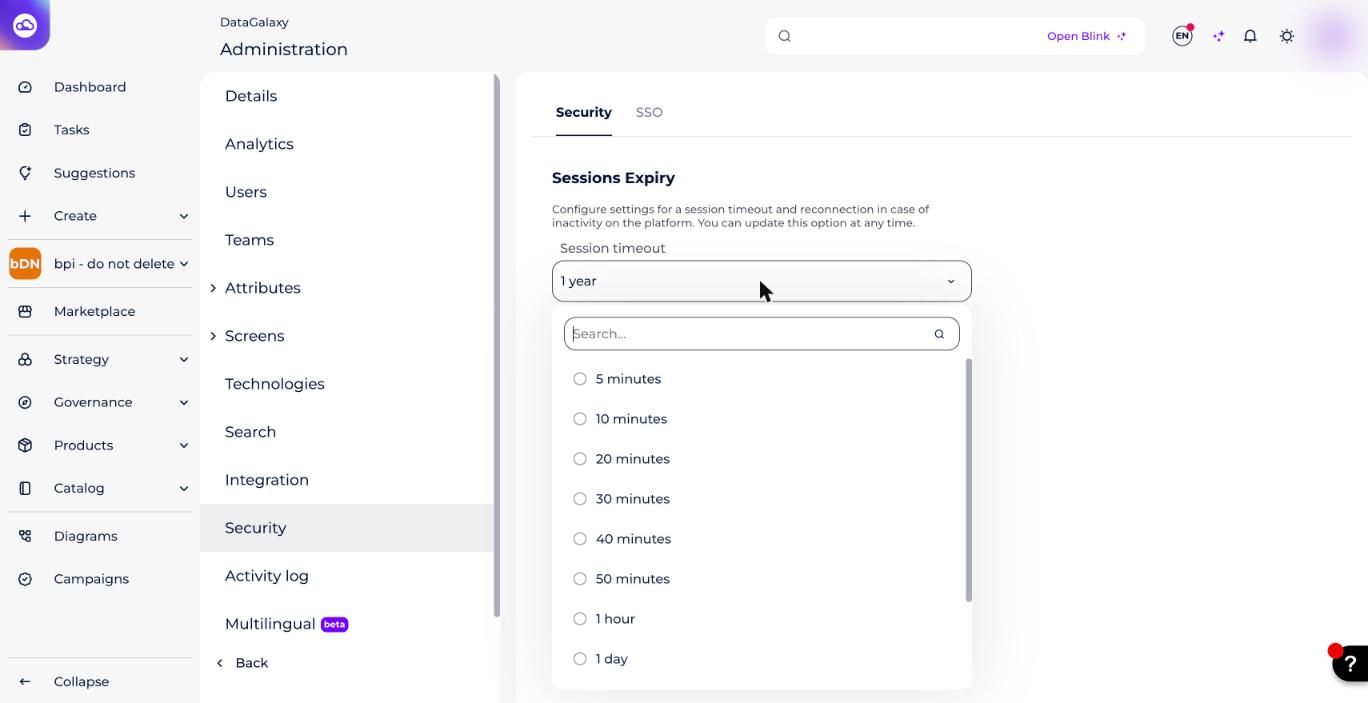
- Go to the Security section.
- Open the Session timeout drop-down, under Sessions Expiry, and choose from:
- 5 minutes
- 10 minutes
- 20 minutes
- 30 minutes
- 40 minutes
- 50 minutes
- 1 hour
- 1 day
- 1 week
- 1 month
- 1 year
How does session expiry work?
When the duration of inactivity exceeds the time set in the administration, users are automatically disconnected from the platform and see the following modal.
When users log back in, they are automatically redirected to the last page they were on before logging out.