You can contact our Support team at any time to ask a question about using a feature, report a functional problem, or share feedback for another reason. For feature requests, contact your DataGalaxy Account Manager.
You can submit a question or incident ticket from the DataGalaxy application or the knowledge base portal.
Create a ticket from the application
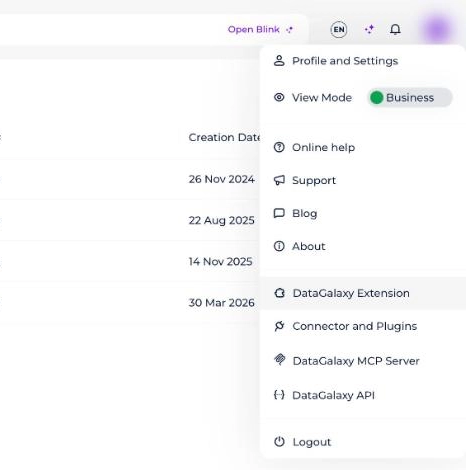
- Click your profile picture at the top right of the home page.
- Click Support.
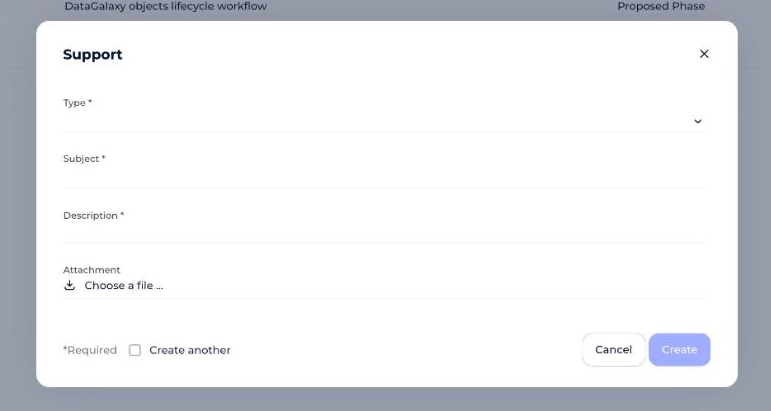
- Select the type of your message.
- Enter a Subject and describe your message as precisely as possible in Description.
- Import attachments to illustrate your message, if possible.
- Click Create. The ticket is sent.
Create a ticket from the portal
- Open datagalaxy.freshdesk.com.
- Scroll to the bottom of the home page and click Submit a Ticket, under Can't find what you're looking for?. The ticket form opens.

Capture and export a HAR file
When something goes wrong, Support may ask you to provide a HAR file to help diagnose the problem. This file captures a web browser's interaction with a site and may show where and why a specific request is failing.
HAR files may contain sensitive data, as they include any pages you visited and associated cookies while recording. Depending on what has been recorded, someone with your HAR file may be able to impersonate accounts or access other personal information submitted during the recording.
Capture and export a HAR file in Chrome
- Press F12 to open the developer tools.
- Click the Network tab after it loads.
- Click the Record button in the upper-left corner of the tab. It turns red to indicate that the session is being recorded.
- Check the Preserve log box.
- Click the Clear button to remove existing network recordings from the current session.
- Repeat the initial steps to reproduce the issue or unexpected behavior.
- Click Download after completing the reproduction steps.
- Save the file on your computer by selecting Save as HAR with Content.
Capture and export a HAR file in Firefox
- Press F12 to open the developer tools.
- Click the Network tab after it loads.
- Click the Clear button in the upper-left corner to remove any existing network recording from the current session. Recording starts automatically.
- Repeat the initial steps to reproduce the issue or unexpected behavior.
- Right-click anywhere in the File column and select Save all as HAR to save the file on your computer.
Capture and export a HAR file in Edge
- Press F12 to open the developer tools.
- Click the Network tab after it loads. Recording starts automatically.
- Repeat the initial steps to reproduce the issue or unexpected behavior.
- Click Export HAR in the upper-right corner and save the file on your computer.
Check support availability on public holidays
DataGalaxy Support is not available on the following public holidays. Tickets submitted on these days are handled from the next business day.
| Holiday | Date |
|---|---|
| New Year's Day | Jan 01 |
| Easter Monday | Apr 06 |
| Labor Day | May 01 |
| WWII Victory Day | May 08 |
| Ascension Day | May 14 |
| Whit Monday | May 25 |
| Bastille Day | Jul 14 |
| Assumption of Mary | Aug 15 |
| All Saints' Day | Nov 01 |
| Armistice Day | Nov 11 |
| Christmas Day | Dec 25 |