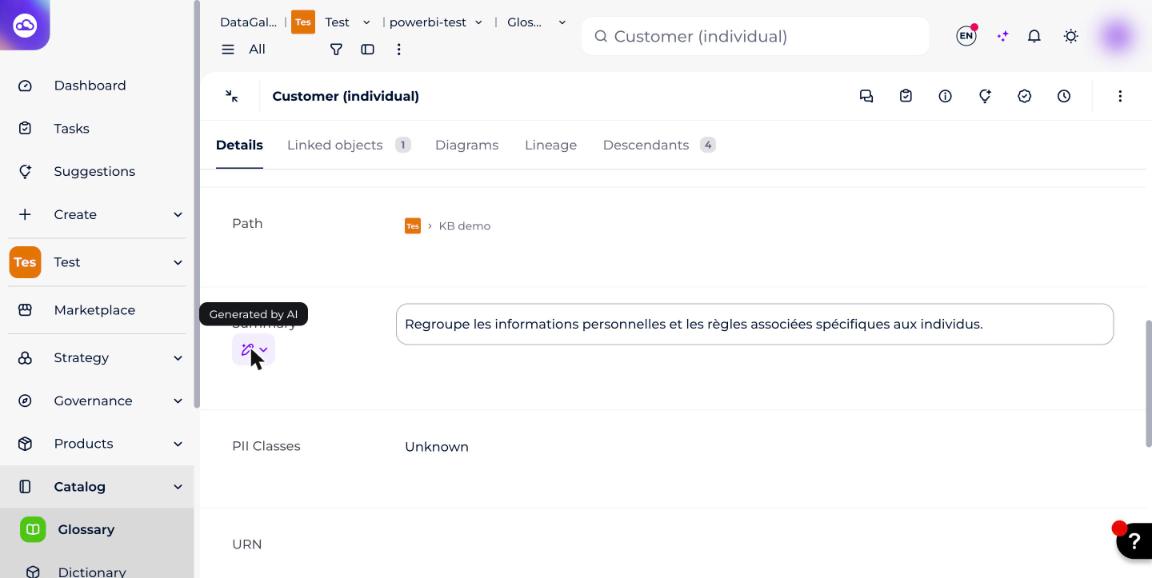
Description Generation by Batch automatically generates descriptions and summaries across your data catalog. It helps increase catalog completeness and reduce manual effort, especially for objects with missing metadata.
What are the benefits?
- Saves time: automatically generates missing descriptions and summaries.
- Improves catalog completeness: fills in metadata gaps at scale.
- User-friendly: workspace admins can easily initiate and manage batches.
- Reversible: the last batch can be reverted if needed, so there's no risk from generation.
Who can run a batch?
Only Workspace and ClientSpace Admins can initiate or revert a batch.
All other users can watch the generation history and progress.
When is a description generated?
Descriptions are generated only if there is enough context: at least two of the three neighbor types (parent, child, or linked objects) already have an object with descriptions.
If there's not enough data, the system does not generate a description.
What gets processed?
- All objects with empty descriptions or summaries (more fields may be added in the future) from the workspace chosen for generation.
- Only if the user has the relevant permissions.
- Read-only workspace versions are excluded from generation.
How to run a batch
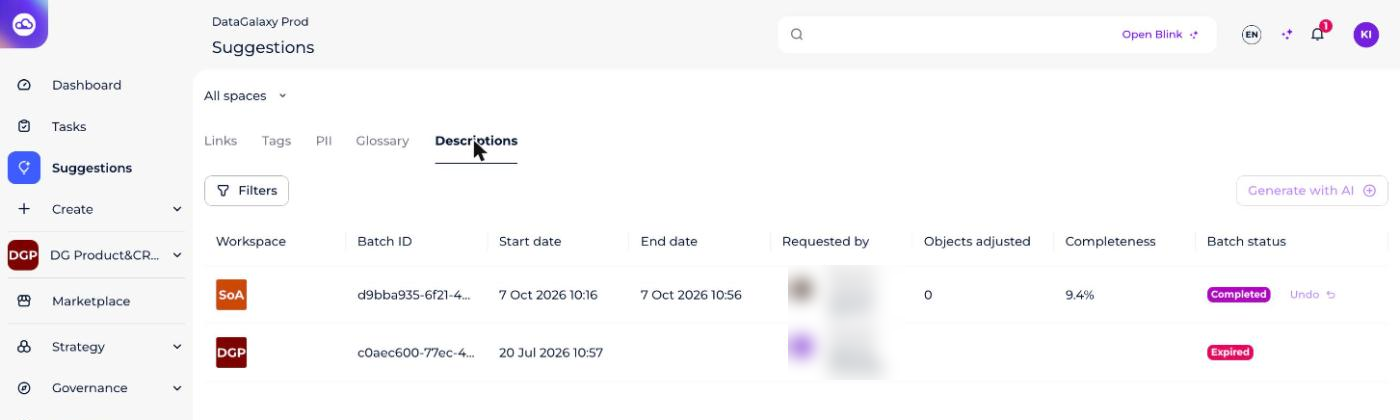
- In the main navigation panel, go to Suggestions → Descriptions.
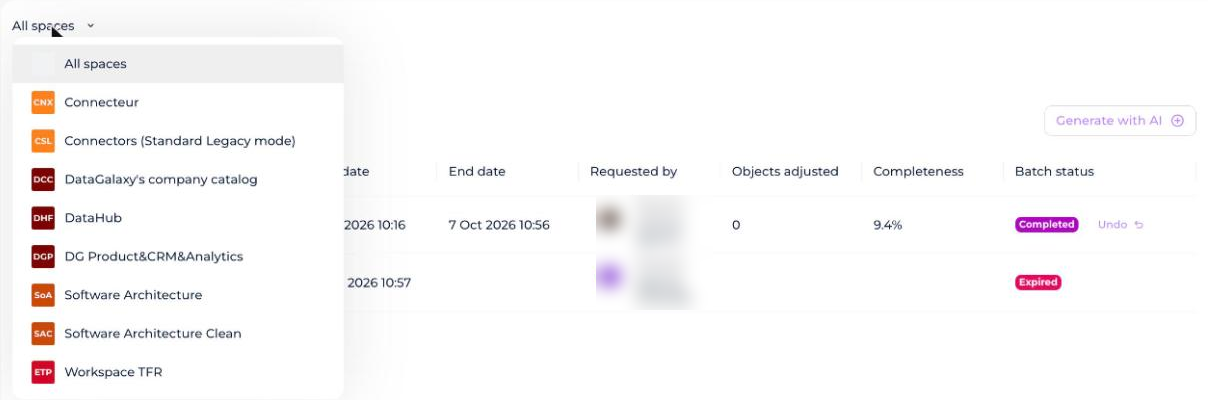
- Choose the workspace for the automated generation of descriptions and summaries. If your workspace has multiple versions, select one.
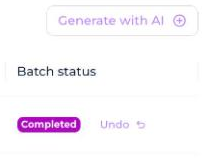
- Click Generate with AI. The button is available only if no batch is in progress.
How to cancel or revert a batch
You can cancel a batch in progress.
You can also undo the last batch if no new one has started.
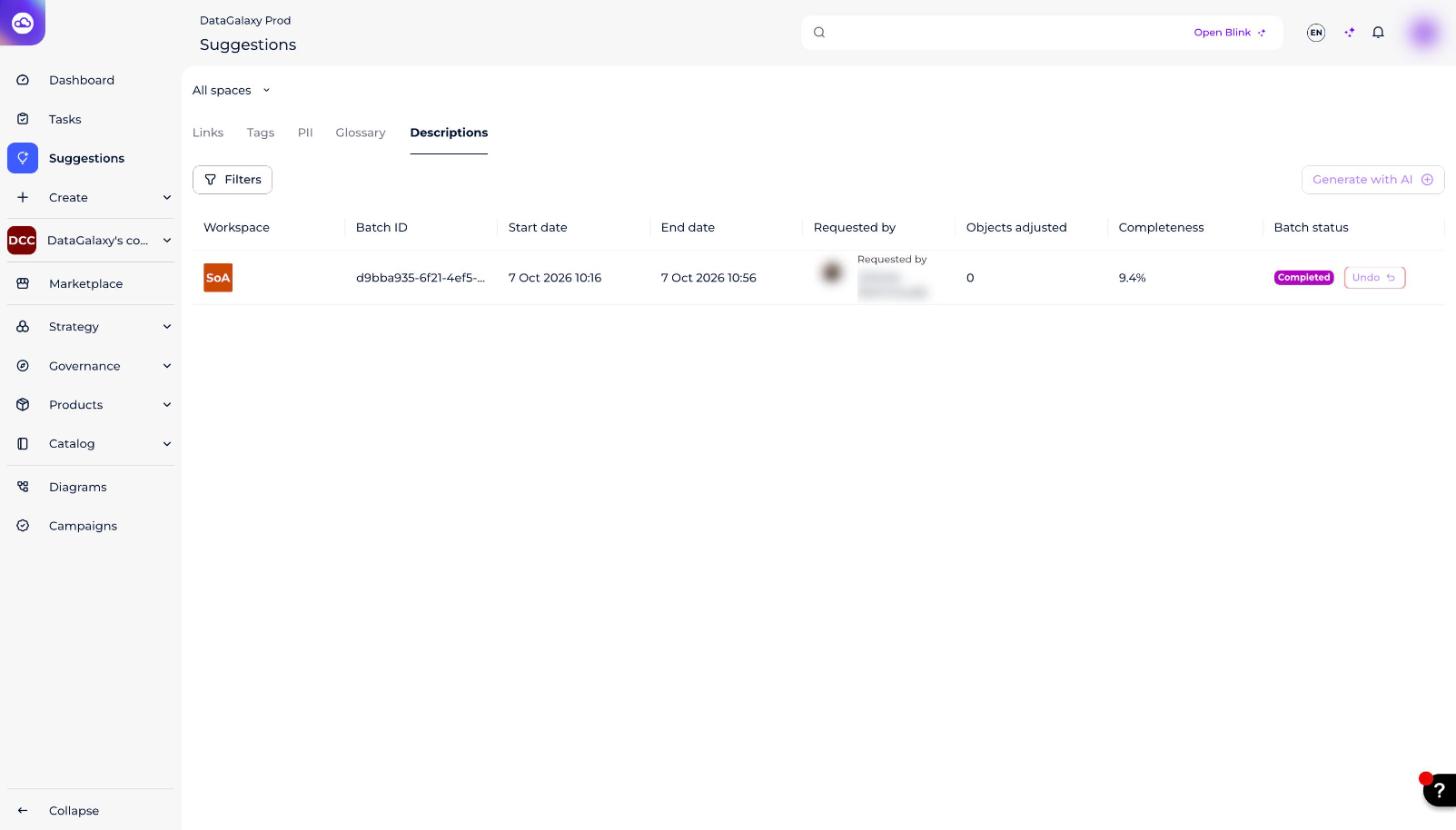
For these actions, use the buttons near the status of a batch.
What do the batch statuses mean?
| Status | Meaning |
|---|---|
| Main statuses to follow | |
| In Progress | Batch is running. Can be cancelled. |
| Cancelled | User stopped the batch, or it failed. |
| Failed | Batch was not completed due to technical reasons. Please contact our support team if this happens. |
| Completed | Batch successfully finished. You can revert it unless a new one starts. |
| Other statuses | |
| Created | User initiated a batch (usually this stage is fast, so not visible in the UI). |
| Expired | Batch expired due to long processing. |
| Reverting | User initiated the reverting; it is currently in progress. |
| Reverted | Batch was reverted by the user. |
| Canceling | User initiated cancellation of the processing batch; cancellation is in progress. |
You can filter the list of generations by batch status.
What information is shown for each generation?
On the Descriptions page, you can see information about each generation:
| Column | Description |
|---|---|
| Workspace | We keep the icon of your workspace — useful if you check all your workspaces. |
| Batch ID | Unique ID of your generation. |
| Start date | Timestamp showing when the generation was started. |
| End date | Empty until the generation is finished. |
| Requestor | Who launched the batch. |
| Objects Done | Number of objects with newly generated descriptions/summaries. |
| Completeness | Proportion of described objects vs. total objects in the workspace. |
| Batch Status | In Progress / Cancelled / Completed / etc. — shows the current status of a batch. |
| Actions | "Cancel" or "Undo" buttons based on status. |
How to check the results of a batch
- Use the metrics from the table to monitor your catalog completeness.
- Apply the filters Description is not empty and Updated On with the date of the batch generation — this lets you see the latest updates.
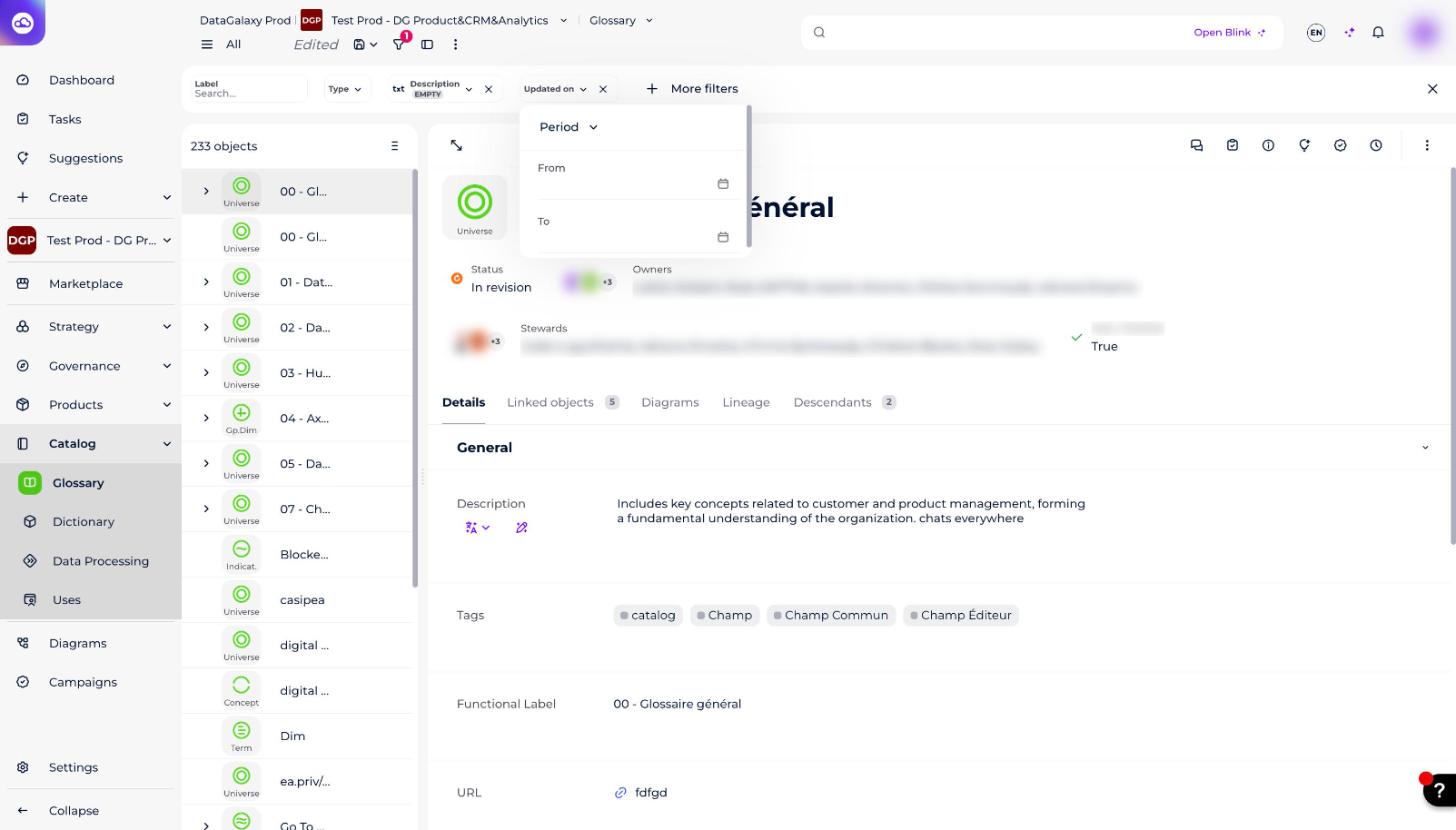
- Open the AI toggle on any AI-generated description or summary to regenerate or report it.