The purpose of this article is to explain how to import dictionary objects from a CSV file.
To understand more in-depth the concept of property and objects, you can consult this article.
As a reminder: the module dictionary describes the data sources.
The goal of this feature is to:
- Ease the import of dictionary type object,
- Accelerate the objects update with the import of data previously exported.
The import option is available:
- from the "Shortcuts" widget on the home page of the clientspace or workspace
- from the Dictionary module when it is empty
- from the contextual menu of the Dictionary module, to the right of the filtered views.
- from the contextual menu of the source you want to import in the Dictionary module (which is in the upper right-hand corner of the object card)
Which elements can be imported?
The dictionary module is made of 4 sources type: Database, FileStore, NoSQL & Tagbase data source. Different type of sources means different kinds of objects are managed :
You can also import information about your objects using the attributes. This feature is available for sources, containers, structure and field objects.
| Source type | Container | Structure type | Sub-structure | Fields type | Primary Keys | Foreign keys | Relations) |
|---|---|---|---|---|---|---|---|
| DataBase | Model | Table | N/A | Column | Yes | Yes | Yes |
| FileStore | Folders | File | Yes | Field | N/A | N/A | N/A |
| NoSql | Model | Table | N/A | Column | N/A | N/A | N/A |
| NoSql | Folders | File | N/A | Field | N/A | N/A | N/A |
| NoSql | Folders | Document | Yes | Field | N/A | N/A | N/A |
| Tagbase | Equipement | Tag | N/A | Field | N/A | N/A | N/A |
What are the mandatory elements when importing
For containers, structure and field objects, if some options can be set later, the file to be imported must always contain the following columns:
- The object path
- The object type
- + a column for each attribute that is part of the object card that you want to import
Example of a CSV file to import for a container of a FileStore type source:
"Type";"Path";"Summary";"Status";"DataOwners"
"\Directory";"\Workspace";"Home";"Proposed";"dataowner@datagalaxy.com"
"\Directory";"\Users";"Files of users";"Proposed";"dataowner@datagalaxy.com"
For primary keys import, the file to be imported must always contain the following columns:
- The Table object path
- The column name of primary key
- + a column for each attribute that is part of the object card that you want to import
Example of a CSV file to import in a Database type source:
"TablePath";"TableType";"ColumnName";"PKTechnicalName";"PkOrder"
"\pays";"\Table";"id";"PK_PAYS";"1"
For foreign keys import, the file to be imported must always contain the following columns:
- The Table object path of primary key
- The column name of primary key
- The Table object path of foreign key (child)
- The column name of foreign key
- The technical name of primary key
- The technical name of foreign key
Example of a CSV file to import in a Database type source:
"FKTechnicalName";"PKTechnicalName";"PkTablePath";"PkTableType";"PkColumnName";"ChildTablePath";"ChildTableType";"ColumnName"
"FK_PK_PAYS";"PK_pays";"\pays";"\Table";"id";"\map";"\Table";"id_pays"
For functional keys (relations) import, the file to be imported must always contain the following columns:
- The Parent Table object path
- The Parent Table object type
- The Child Table object path
- The Child Table object type
- The functional label of relation
Example of a CSV file to import in a Database type source:
"ParentTablePath";"ParentTableType";"ParentTableTechnicalName";"FunctionalLabel";"ChildTablePath";"ChildTableType"
"\AGG_COMMISSIONS_MOIS";"\Table";"Aggregate at the monthly level";"\FAIT_COMMISSIONS";"\Table"
Which columns can you add to your file?
On top of the mandatory columns (Path and Type), you can add one column for each attribute you want to fill in. In the Mapping step, each column of your file is matched with a DataGalaxy attribute:
- if the column name matches the attribute name (for example Summary, Status, DataOwners), the match is made automatically;
- otherwise, drag and drop the column onto the target attribute;
- unmapped columns are not imported.
Only the attributes available on the object card (system or custom) can be mapped.
The Path and Type columns
Path: the full path of the object in the source, with each level preceded by a backslash "\". The last level is the technical name of the object. Example for a column: \public\customer\customer_id
Type: the type of each level of the Path, in the same order and with the same number of levels. Example: \Model\Table\Column
If the Path and the Type do not have the same number of levels, or if a type is not compatible with the source (for example a File in a Database source), the line is rejected in the Checks step.
Field (column) attributes
| Attribute | Expected value | Example |
|---|---|---|
| Technical Label | Name of the field as it exists in the source. | customer_id |
| Functional Label | Business name displayed in DataGalaxy. | Customer ID |
| Technical Comments | Free text, for example the field comment in the database. | Technical key of the customer |
| Data Type | Name of the data type of the field. See the list of types below. | VariableString |
| Size | Whole number. Fill it in for types that require a size. | 50 |
| Precision | Whole number: the number of digits after the decimal point. Fill it in for the Decimal type. | 2 |
| Mandatory | Boolean: whether the field is mandatory (not nullable) in the source. | True |
| Order | Whole number: position of the field in its structure. | 3 |
| Technical / Is Functional Data | Boolean: whether the field is technical data or functional data. | False |
Primary and foreign keys are not imported with the fields: use the dedicated imports described above.
Field data types
The Data Type attribute describes the type of the field in the source (for example VARCHAR or DATE in a database). DataGalaxy does not store the data itself: this type is documentation.
DataGalaxy provides the following system types. They are available in every source:
| Type | Size / precision | Description | Common equivalents |
|---|---|---|---|
| VariableString | Size | Variable-length string. The size is the maximum number of characters. | VARCHAR, NVARCHAR |
| FixedString | Size | Fixed-length string. | CHAR, NCHAR |
| String | Size | Generic string, with no distinction between fixed and variable length. | STRING |
| LongText | Size | Long text. | TEXT, CLOB |
| Integer | None | Whole number. | INT, BIGINT, SMALLINT |
| Decimal | Size and precision | Decimal number. The size is the total number of digits, the precision the number of digits after the decimal point. | DECIMAL(10,2) |
| Numeric | Size | Numeric value. | NUMBER, NUMERIC |
| Boolean | None | True / false value. | BOOLEAN, BIT |
| Binary | Size | Binary data. | BINARY, VARBINARY, BLOB |
| Date | None | Date only: day, month and year, with no time. | DATE |
| DateTime | None | Date and time (hours, minutes, seconds). | DATETIME |
| TimeStamp | None | Timestamp: date and time, usually with fractions of a second. | TIMESTAMP |
Date, DateTime or TimeStamp?
- Use Date when the field only holds a day, with no time. Example: a date of birth (2026-03-15).
- Use DateTime when the field holds a date and a time. Example: the date and time of an order (2026-03-15 14:30:00).
- Use TimeStamp for a technical timestamp, often more precise than the second. Example: the last update date of a row (2026-03-15 14:30:00.123).
The simplest is to use the type declared in your source.
Good to know:
- If the type in your file does not exist in the source, it is created automatically as a custom type of the source (a warning is shown in the Checks step). Use the exact name of an existing type to avoid creating duplicates.
- If the cell is empty, the VariableString type is applied by default.
- For Integer, Boolean, Date, DateTime and TimeStamp, do not fill in a size or a precision.
- A size that is not a whole number blocks the import of the line.
Value format by attribute type
Common attributes (Summary, Description, Status, Owners, Stewards…) and custom attributes are imported according to their format:
| Attribute format | Expected value in the file | Example |
|---|---|---|
| Text | Free text, 512 characters maximum. | Customer data |
| Formatted text | Long text. | Detailed description… |
| Number | Whole or decimal number. | 12 |
| Date | yyyy-mm-dd format. Other formats (dd/mm/yyyy for example) are rejected. | 2026-03-15 |
| Value list, multiple value list, tag, hierarchy | Exact label of a value that already exists in the attribute. An unknown value is reported as an error. | Finance |
| User, Owners, Stewards | Email address of a user of the client space. For Owners and Stewards, if the user does not exist or does not have the role in the workspace, the default owner is applied. | first.last@example.com |
| Person | firstname|lastname|email. Separate several persons with a comma. | Mary|Martin|mary.martin@example.com |
| Hyperlink | Full URL. | https://www.example.com |
| Time series | Value::Date. The date cannot be in the future, and only one value is accepted per period (day, week or month depending on the attribute frequency). | 98::2026-03-15 |
By default, an empty cell does not erase the existing value. To clear existing values, check the Update existing values option in the Mapping step.
Example file for fields
"Path";"Type";"DisplayName";"DataType";"Size";"Precision";"IsMandatory"
"\public\customer\customer_id";"\Model\Table\Column";"Customer ID";"Integer";"";"";"True"
"\public\customer\name";"\Model\Table\Column";"Customer name";"VariableString";"100";"";"True"
"\public\customer\revenue";"\Model\Table\Column";"Revenue";"Decimal";"12";"2";"False"
"\public\customer\birth_date";"\Model\Table\Column";"Date of birth";"Date";"";"";"False"
"\public\customer\order_datetime";"\Model\Table\Column";"Order date and time";"DateTime";"";"";"False"
How to do it?
In this example, we will update a relational database with an import of structures:
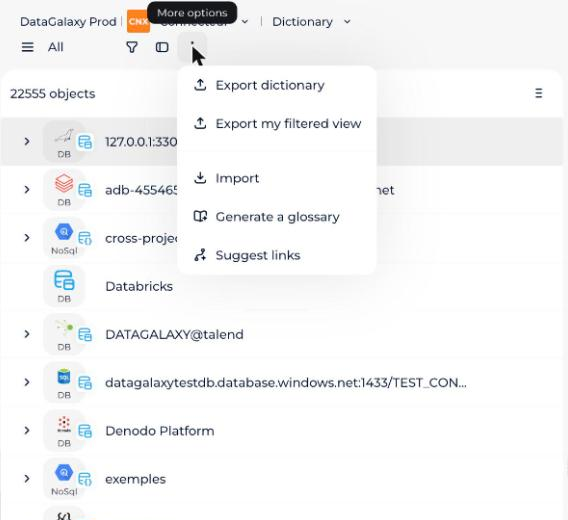
- Go to the Dictionary module
- Click on the 3 dots icon
- In the drop-down menu, click on Import
- Select or drag and drop your file to be imported into the CSV File area available at the top left.
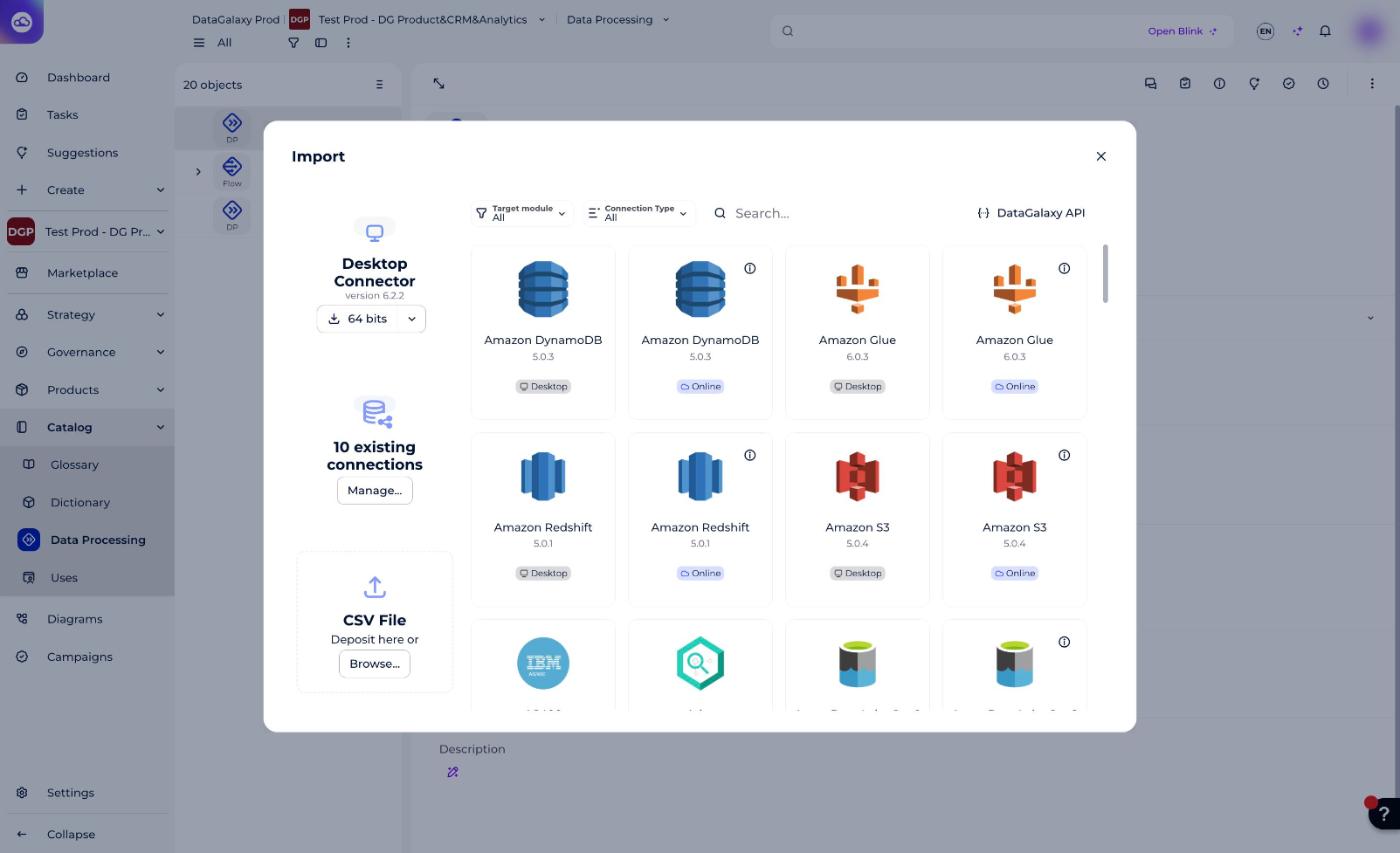
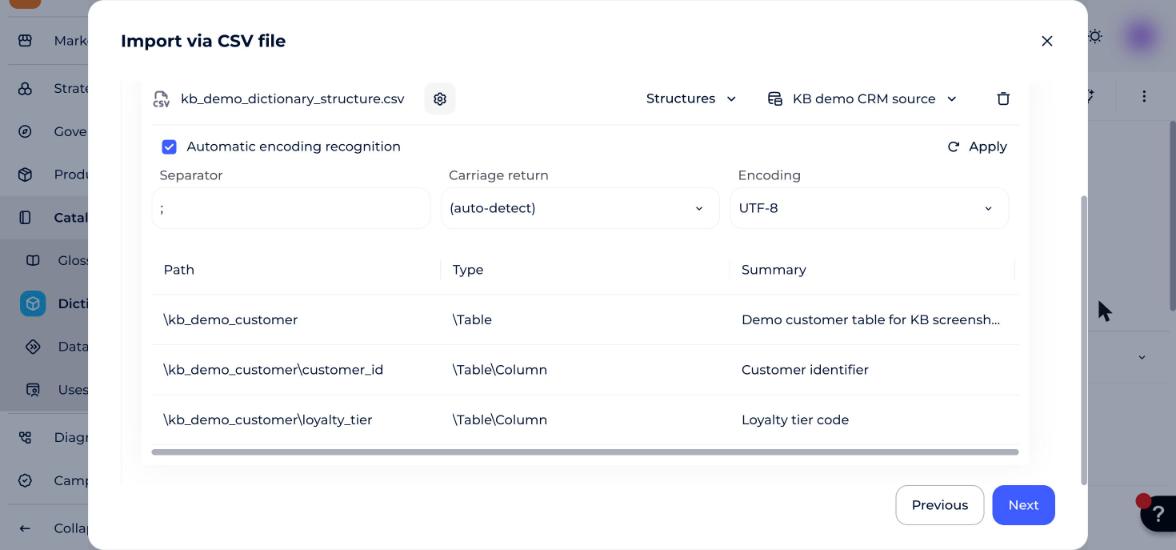
- Select Structures in the Dictionary module
The central area allows you to adjust the technical parameters of the file (encoding, separator) and the table gives you an overview of the file content.
When selecting an item in the Dictionary module, the source setting is mandatory. You must choose one of the following options:
- Create a new source: allows you to create a source and import the elements in it
- Update an existing source: allows you to import elements into an existing source
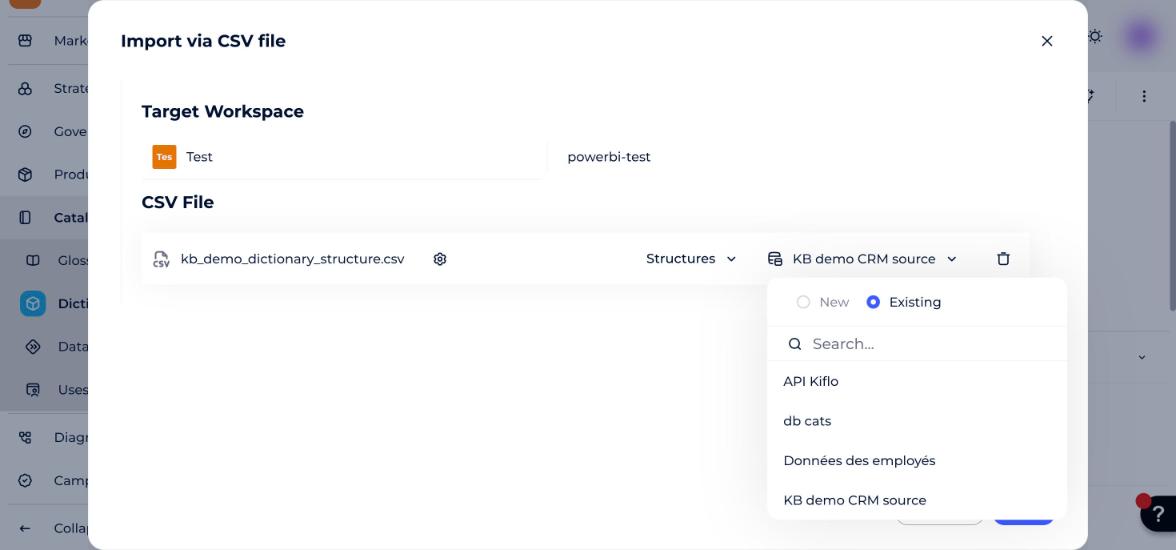
In the example, select an existing source and click on the Next button
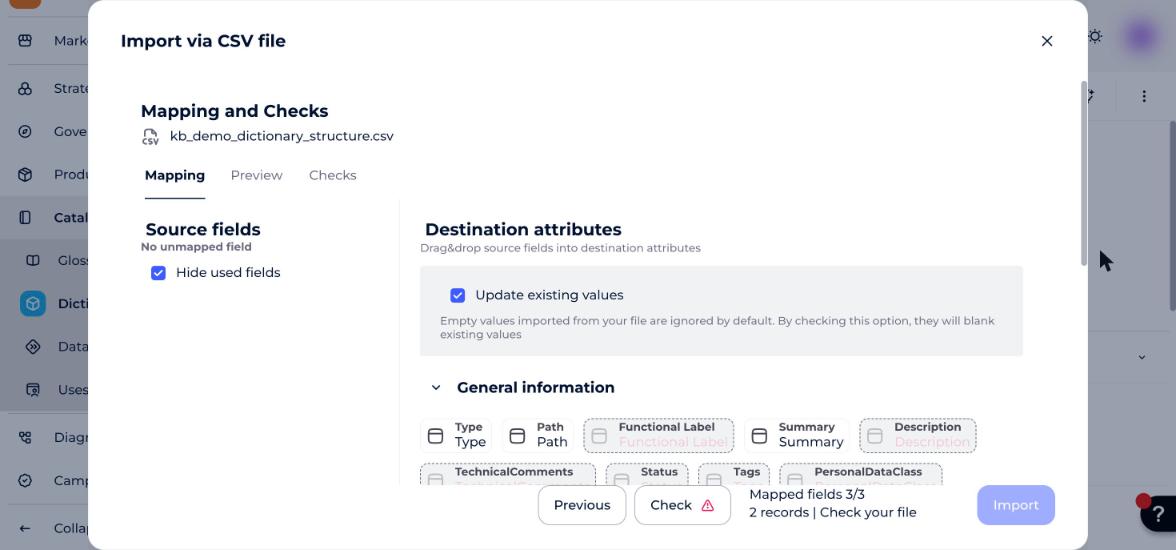
- The next step allows you to map properties and perform functional checks before importing. When possible, an automatic mapping between source and target fields is performed and the verification of your file is launched.
- If the mandatory fields are not mapped, the verification is not launched and the import is not possible.
- if the check is success, the import is available (the Import button is immediately active).
- if the check is failure, the checking are in the Checks tab.
By clicking on the check status, the tab opens with the list of failures checking has been detected:
- When a blocking error can be solved, the solution is in the "Action" column.
- These controls are mandatory and must be re-launched when a modification in the Mapping tab is made.
- Check the accuracy of the fields to be recovered in the Mapping tab
- You have to drag the fields of the left column on the corresponding fields on the right.
- Only the fields type and path, identified in red, are mandatory.
- For files with many attributes: it is possible to search for attributes and hide the fields used by checking the box.
NB : In the case of updating your objects via this import, if you import empty values of the attributes in your file, which are already filled in your object cards, these empty values will be ignored by default and your existing values are saved. But, by checking this option (figure below), they will empty the existing values.
- The Preview tab allows you to preview the values for each attribute to be imported, for which a match has been defined.
- When these steps are completed and the check is successful, the Import button becomes active. Click on Import to launch the import. A confirmation message displays with the number of elements impacted by the import or an error message with a table listing the errors found.
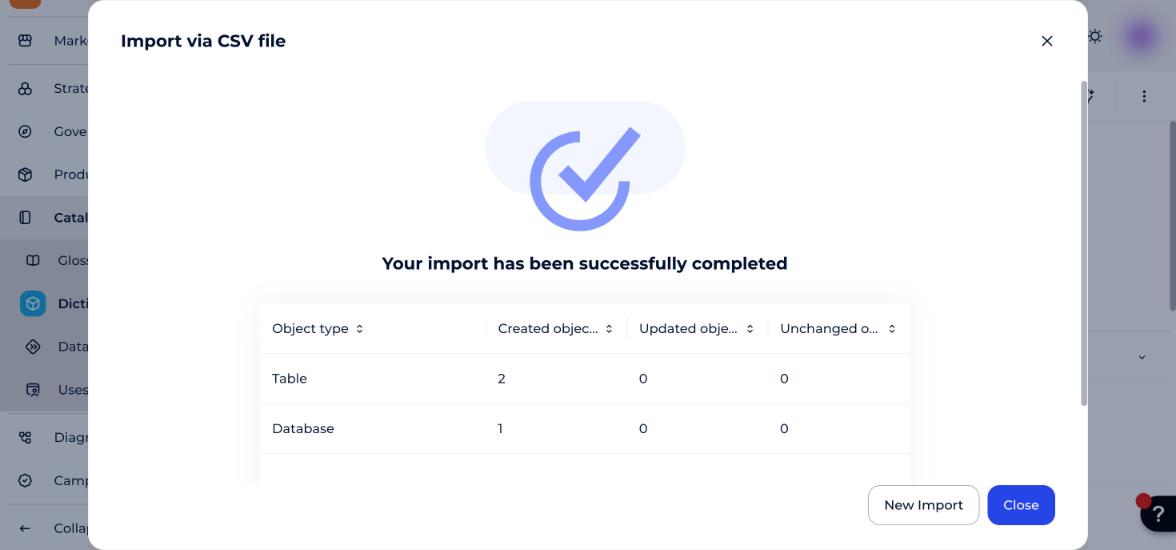
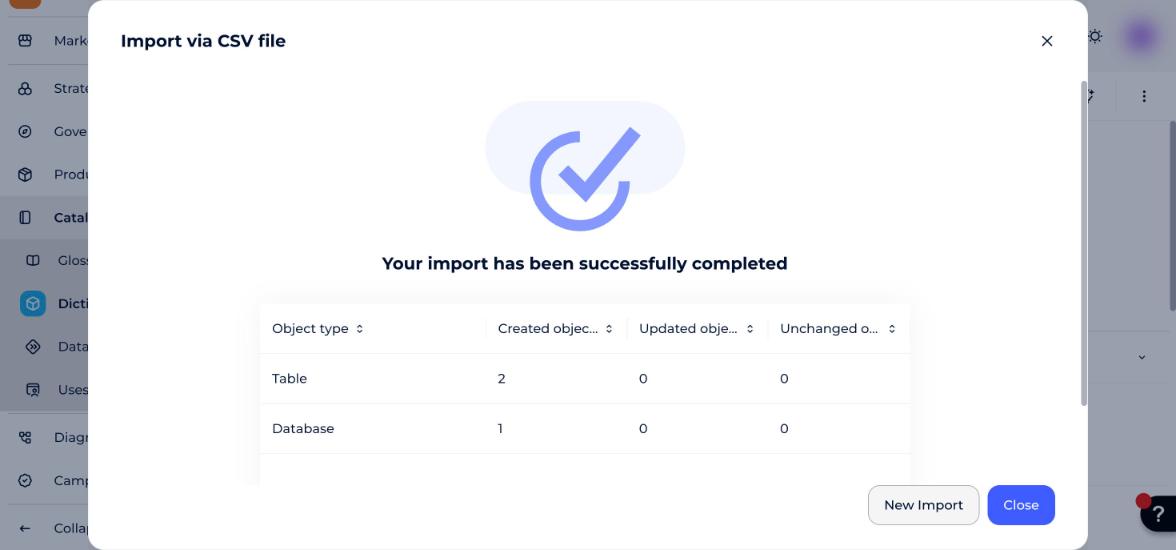
- Click on close to close the import features or new import to import other items from the Dictionary: fields, primary keys, foreign keys...
Import behavior
Containers, structures & fields will be loaded thanks to this logic :
- New ones will be created,
- The old one that is modified will be updated.
- The old one unmodified by the import won't be modified.
Primary keys, foreign keys and relations are loaded thanks to this logic:
- If modified, the old one (of the same table) will be deleted as well as their representation.
- A new one is created.
Releases
| Date | Plugin version | DataGalaxy release | Desktop connector version (minimum) | Description |
|---|---|---|---|---|
| 26/07/2024 | 5.0.1 | v3.62.0 | 5.0.3 | Migrated from java 11 to java 17 |