Say hello to Blink, your smart, friendly chatbot that helps you explore your catalog and get quick answers about your workspace.
Blink makes finding information easier, faster and more conversational, right where you are working.
What is Blink?
Blink is your in-app chatbot, designed for stewards and readers across all markets.
With Blink, you can:
- Ask questions about your data and metadata
- Search using natural language
- Get quick, to-the-point answers, without leaving the app or the extension
Watch the interactive product walkthrough
What can Blink do today?
- Search objects by name, meaning, owner, tag, status or other attributes
- Explain tables, columns, business terms, dashboards and more, using your workspace's existing metadata
- Trace lineage: see how data flows between sources, processings and targets
- List relationships: linked objects, children, fields and usage
- Show details: attributes, owners, stewards, comments and tasks
- Draft SQL queries based on the structure of catalogued tables
- Run governance checks: for example, missing descriptions, obsolete-but-used objects and PII flags
- Understand general data-related questions and recognize your language automatically
- Return rich answers (lists, formatted text) with clickable links to the objects it mentions
- Blink searches only the version of the workspace you are working in.
- Data is loaded with a 1-day delay: data added today shows up tomorrow.
- Blink keeps a lightweight context (client, object, version and workspace identifiers only).
- Blink cannot edit the catalog yet: it reads and explains, it does not change your objects.
- Blink works inside the app and the extension. The list of capabilities is updated regularly, as Blink keeps improving.
How to get the best answers from Blink
- Ask precise questions related to your data or catalog
- If Blink doesn't understand, simply rephrase your question
- Open Show steps if you want to see how Blink reached an answer
- Use the thumbs up or thumbs down to tell us what worked and what didn't
- Start a new conversation when you change topics
How to open Blink
Click the chatbot icon in the top-right corner, or the Open Blink button in the search bar.
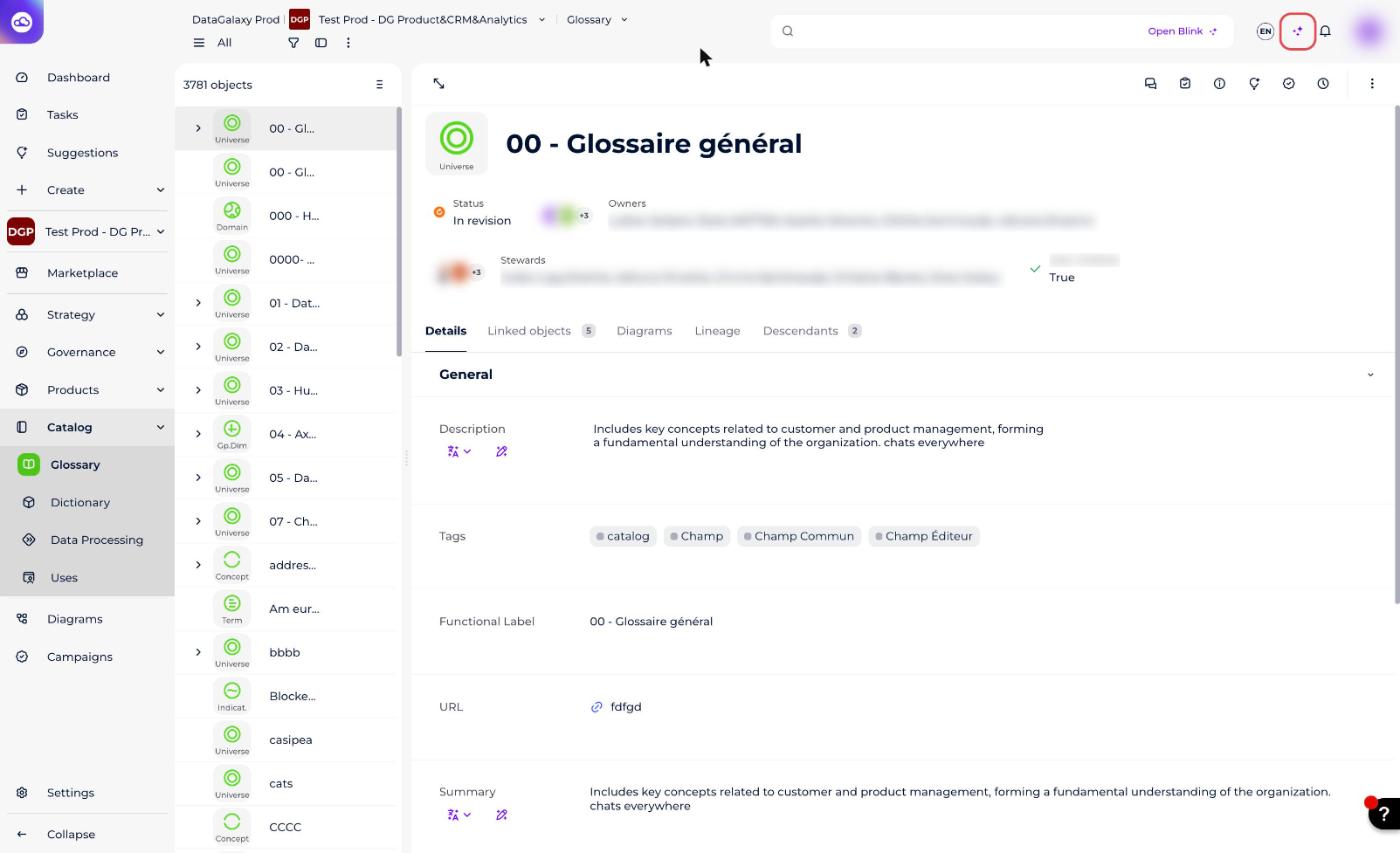
What happens the first time you open Blink
If it's your first time using Blink, you'll go through a quick onboarding:
- Read the Welcome Screen, a short intro with a friendly mascot.
- Review the AI disclaimer, then click Accept to launch the chat, or Cancel to return to the home screen.
Once in the chat, Blink greets you by name and suggests what you can ask: search for a specific object, explore terminology, or ask about data governance.
How to chat with Blink
How conversations work
- Start a new chat anytime you need one, using the new-conversation icon at the top right of the Blink panel
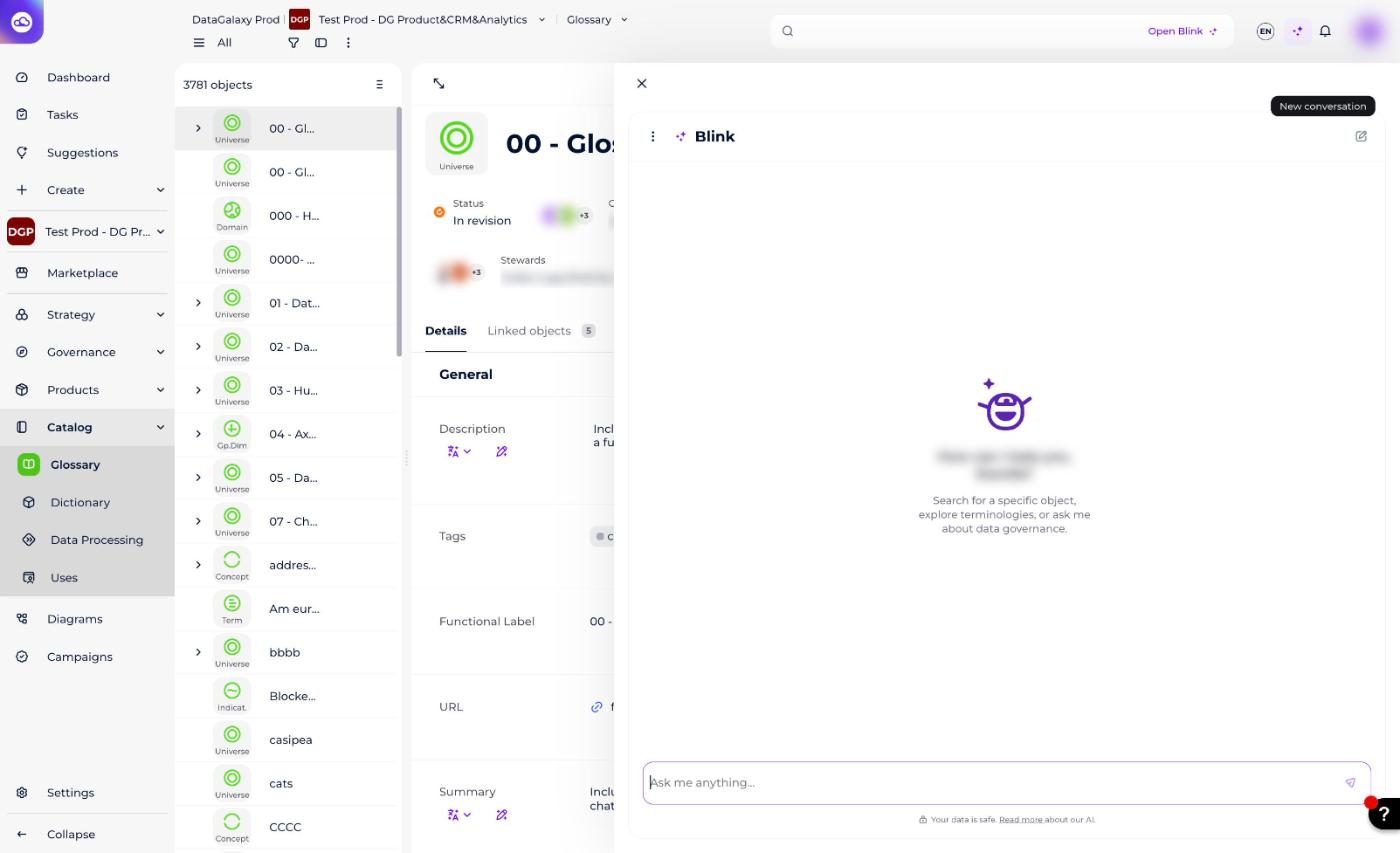
- Scroll to see previous messages — Blink always loads your chat history in batches
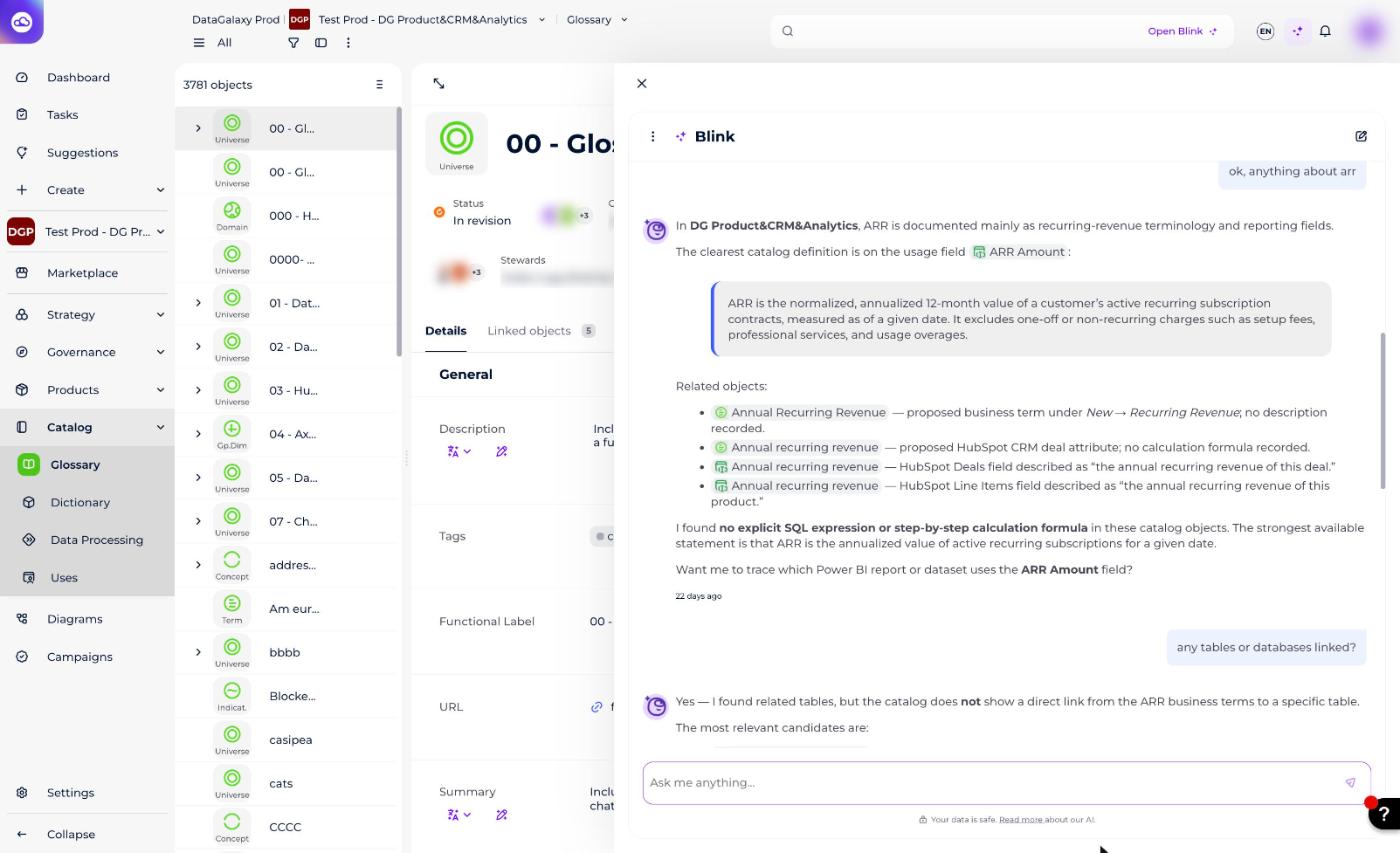
How to follow Blink's work
While Blink prepares an answer, it shows what it is doing, step by step (for example: gathering context, searching the catalog, reading the object's details, putting the answer together).
- Once the answer is ready, the steps are folded into a Worked through N steps line above it. Click Show steps to see how Blink got there, or Hide steps to fold them again
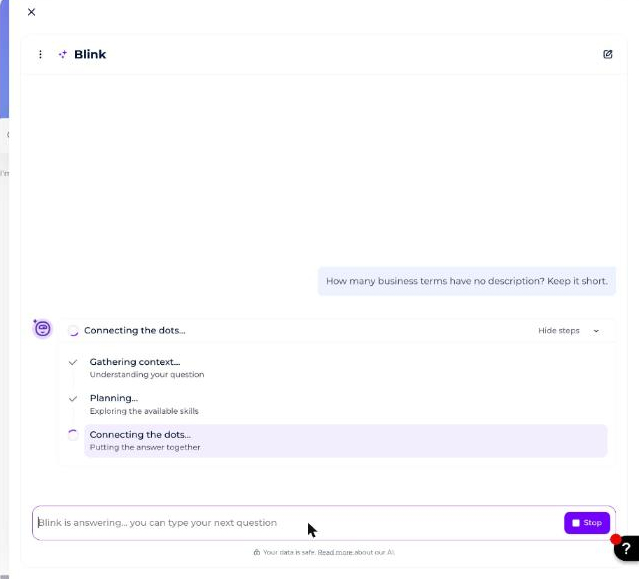
- If Blink is going in the wrong direction, click Stop in the message box to interrupt the answer
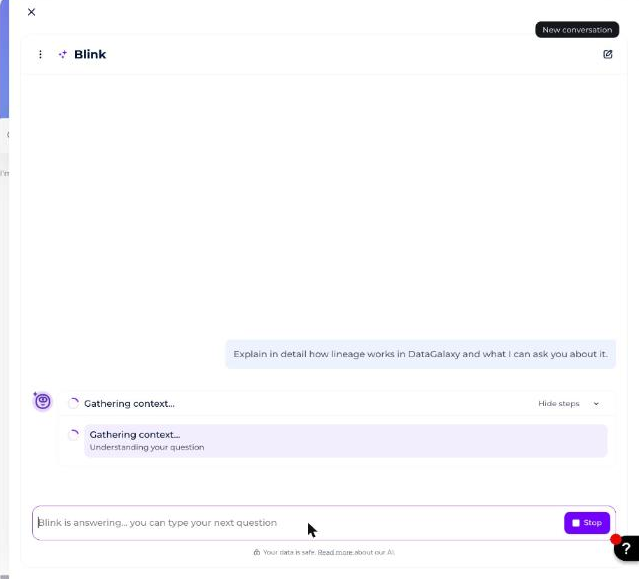
- While Blink is answering, you can already type your next question, and send it once the current answer is finished
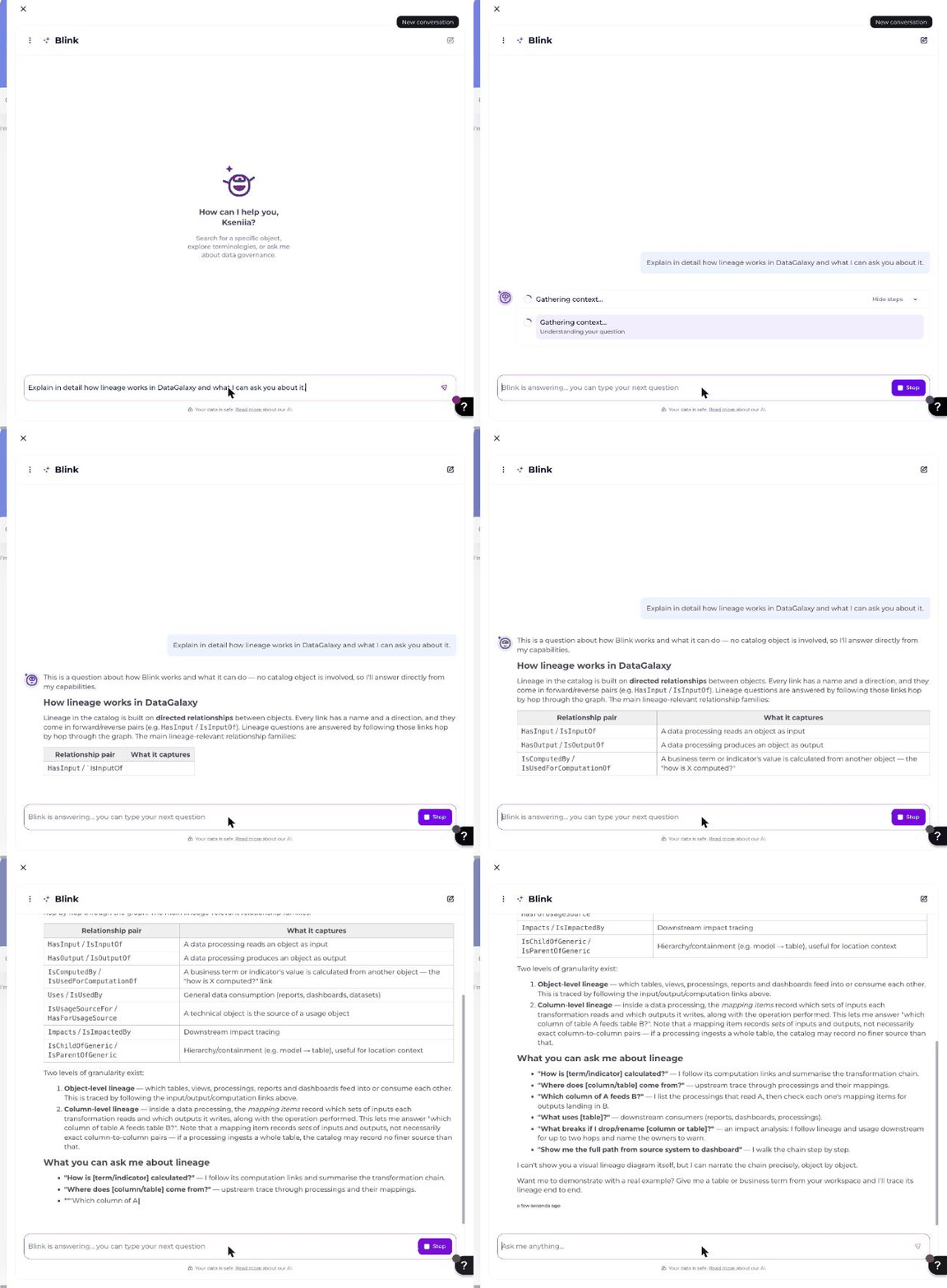
How answers appear as they are written
Blink writes its reply live, so you can start reading while it is still being generated.
- The answer builds up progressively on screen: headings, lists and tables are formatted as they appear
- The conversation scrolls down automatically to follow the answer as it grows
- The message box shows Blink is answering… and the send arrow becomes a Stop button until the answer is complete
- The timestamp appears once the answer is complete
What the rules of a conversation are
- You can't send a new question in the same conversation until Blink has answered the current one (but you can start another conversation).
- Blink adapts the length of its answers to your question: they can be long and structured (lists, tables), and you can ask for a shorter answer at any time.
- Only the last 50 messages are used to generate a new response. Blink cannot remember longer conversations.
How to use your conversation history
- When you start a new conversation, the previous one is saved in your conversation history. Open it with the history icon at the top left of the Blink panel.
- Conversations are grouped by period (Today, Last 7 days, Last 30 days, Older) and ordered by last modification.
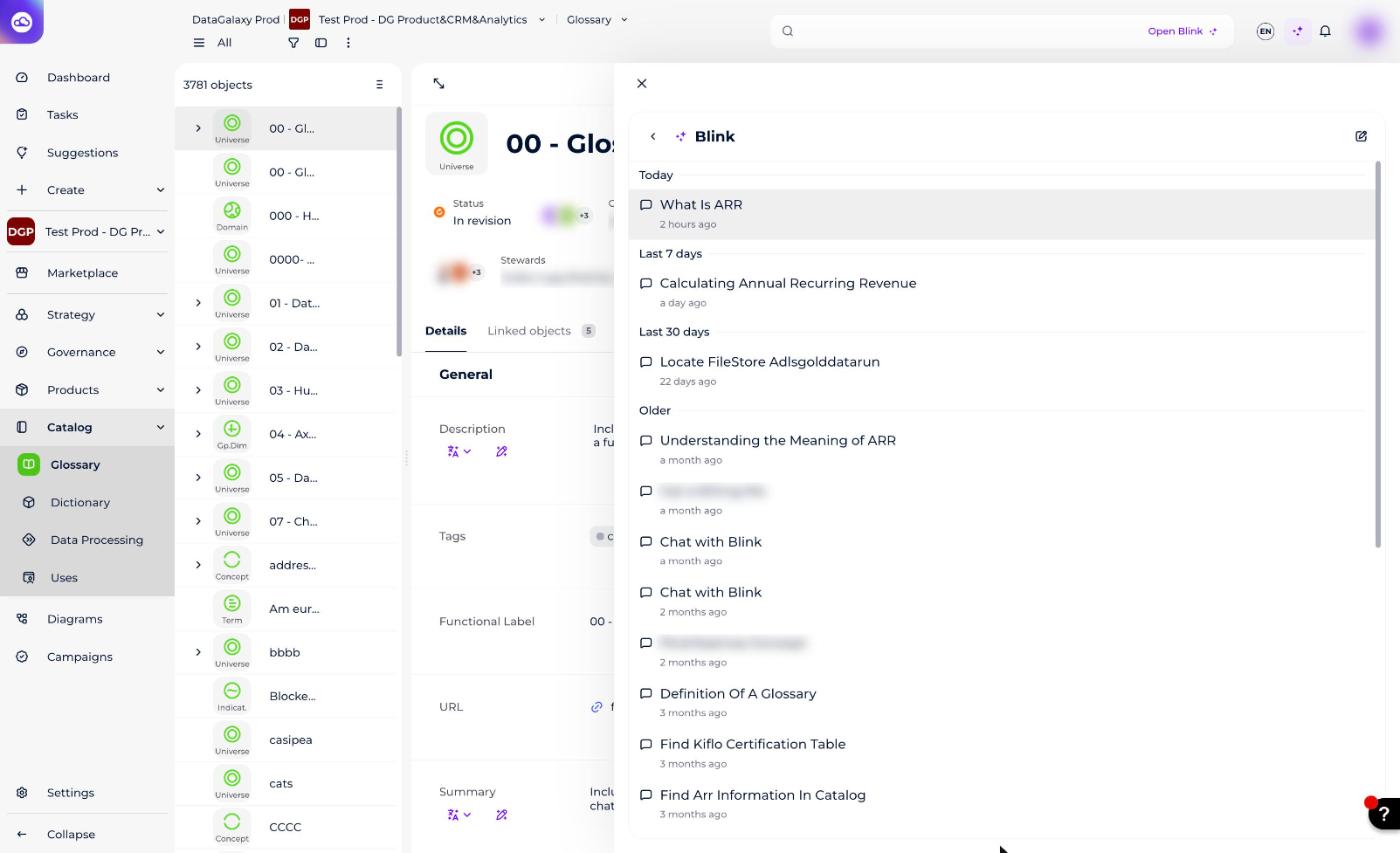
- You can come back to a previous conversation at any time and ask a new question there.
- A conversation's title is generated by Blink, but you can rename it: hover over it in the history and click the pencil icon.
- You can delete a conversation: hover over it in the history and click the trash icon.
What you can do with a message
- Blink's replies include timestamps and are styled differently from your messages
- Object names in answers appear as clickable chips that open the object
- When you hover over a message, you can:
- Give positive feedback
- Give negative feedback
- Copy the message
How security and permissions work
Blink shows only the content you're allowed to access.
When you ask about objects, Blink checks:
- Who you are
- What workspace and version you're in
- Whether you're allowed to see the objects needed for the answer
To learn more about how DataGalaxy handles AI, see our AI policy.