Using the DataGalaxy API securely requires an authentication token. Two types of tokens exist:
- Personal access token (also called PAT): tied to your personal account, it carries the same rights and uses the same license as your account.
- Integration token: an administrator must create it from the platform. It automatically creates an associated user whose rights and restrictions can be set in the same way as for a regular user.
Use an integration token when you want to keep API activity separate from your own user account, for example:
- When you want to restrict or extend the available operations, such as when you have administrator rights that are not needed for the API tasks.
- When you want those operations to continue working if your account is deactivated, such as when syncing metadata into DataGalaxy from a third-party system.
This is different from the integrations available in the Settings tab of workspaces, which correspond to solutions already configured in DataGalaxy.
See Get Started with DataGalaxy Public API v2 for more on authentication and API usage.
How to activate your personal access token
By default, the access token tied to your account is not activated. Open your profile page to check whether it has already been set, and generate it if needed.
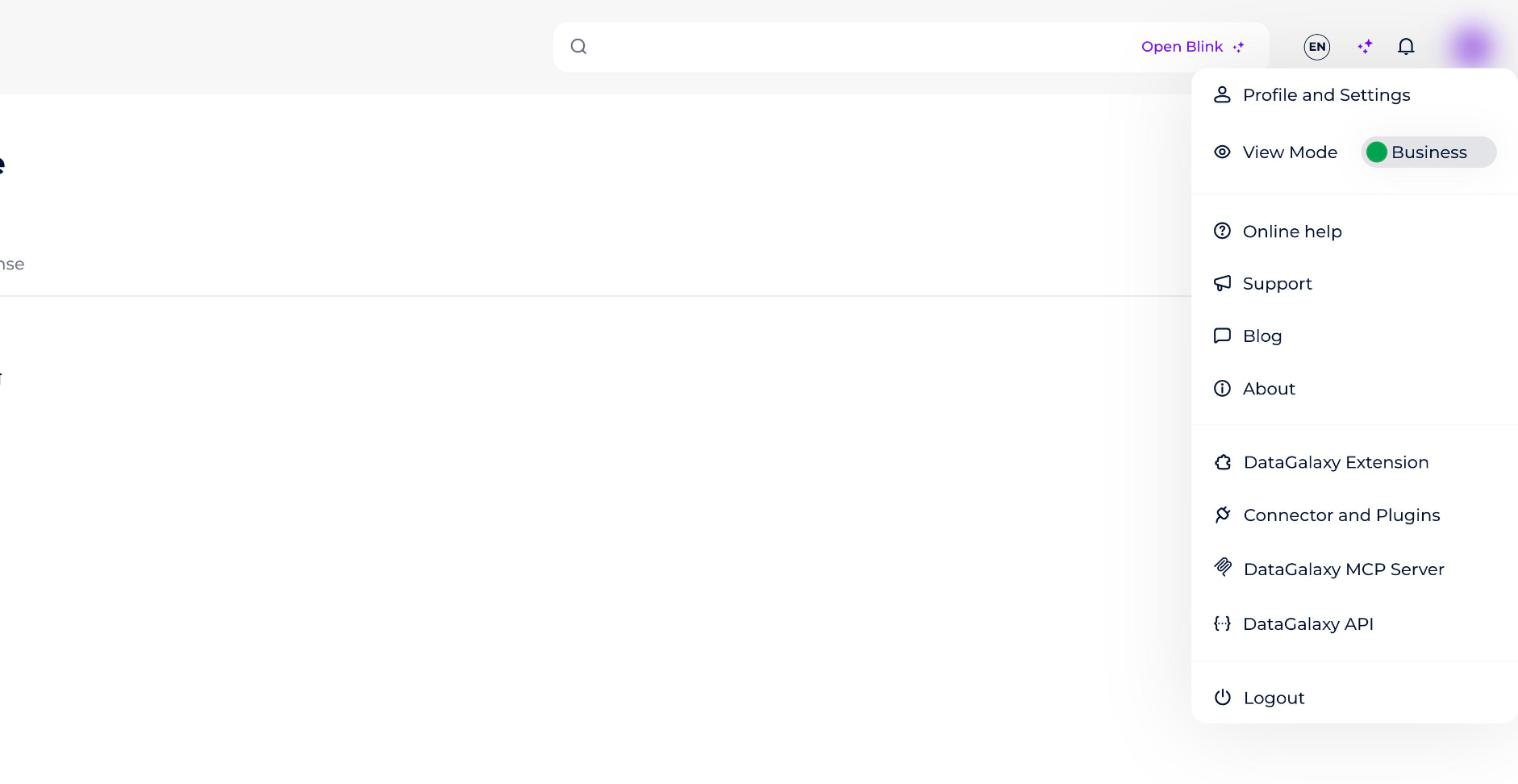
- Open the profile menu (your avatar, top right) and select Profile and Settings, then open the Security tab.
- Under Personal access token, check whether a token is already Active, and generate one if needed. The info icon shows when the token was last used, generated and deleted; the other icons copy, regenerate or delete it.
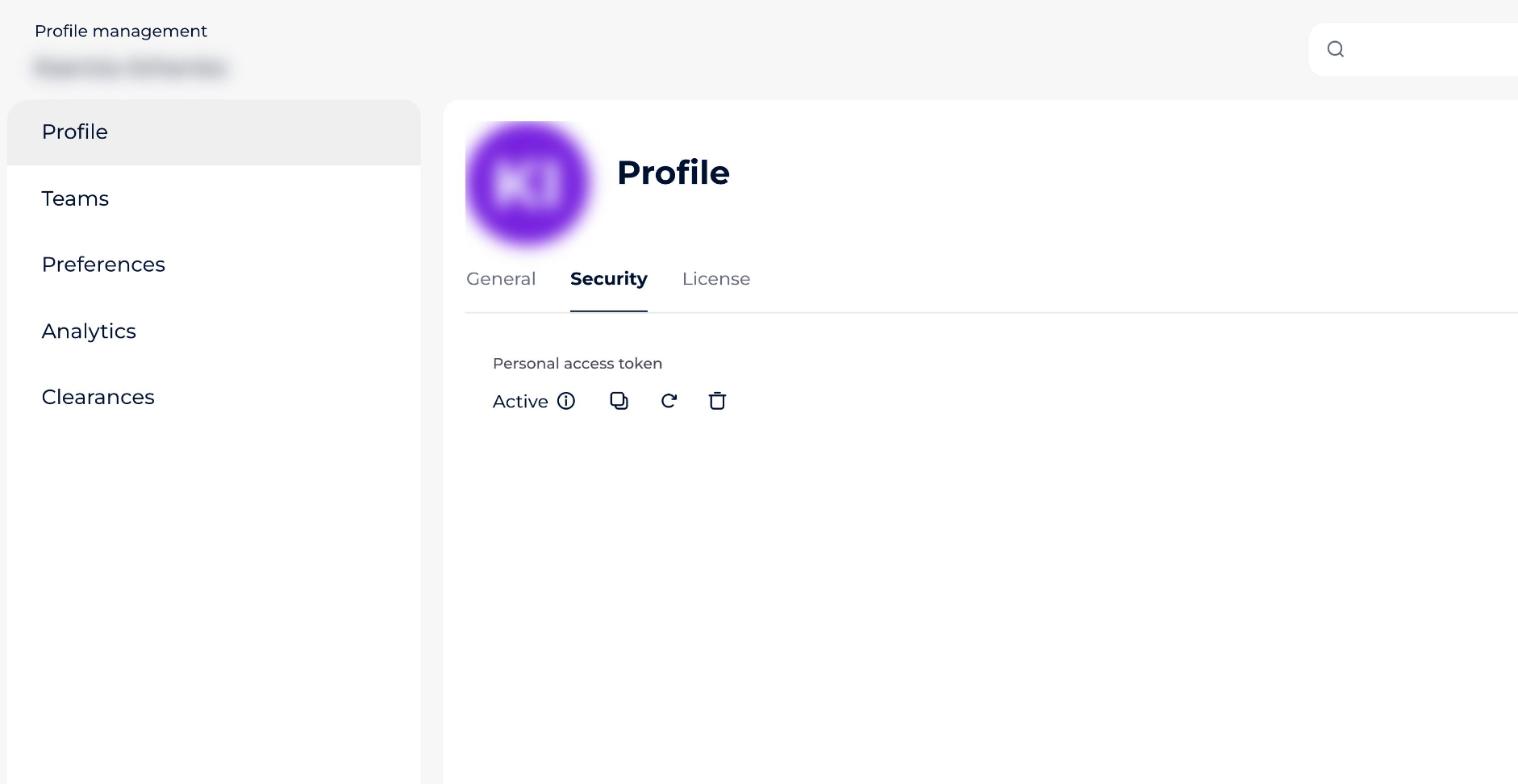 Regenerating a token invalidates the previously created token.
- Click the copy icon to copy your token's value, and use it to authenticate when you communicate with the API.
How to create an integration token
You need an administrator license to create an integration token.
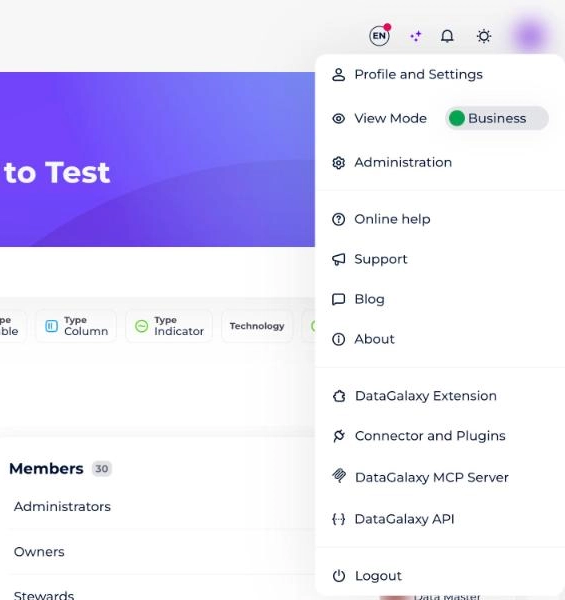
- Open the profile menu (your avatar, top right) and select Administration.
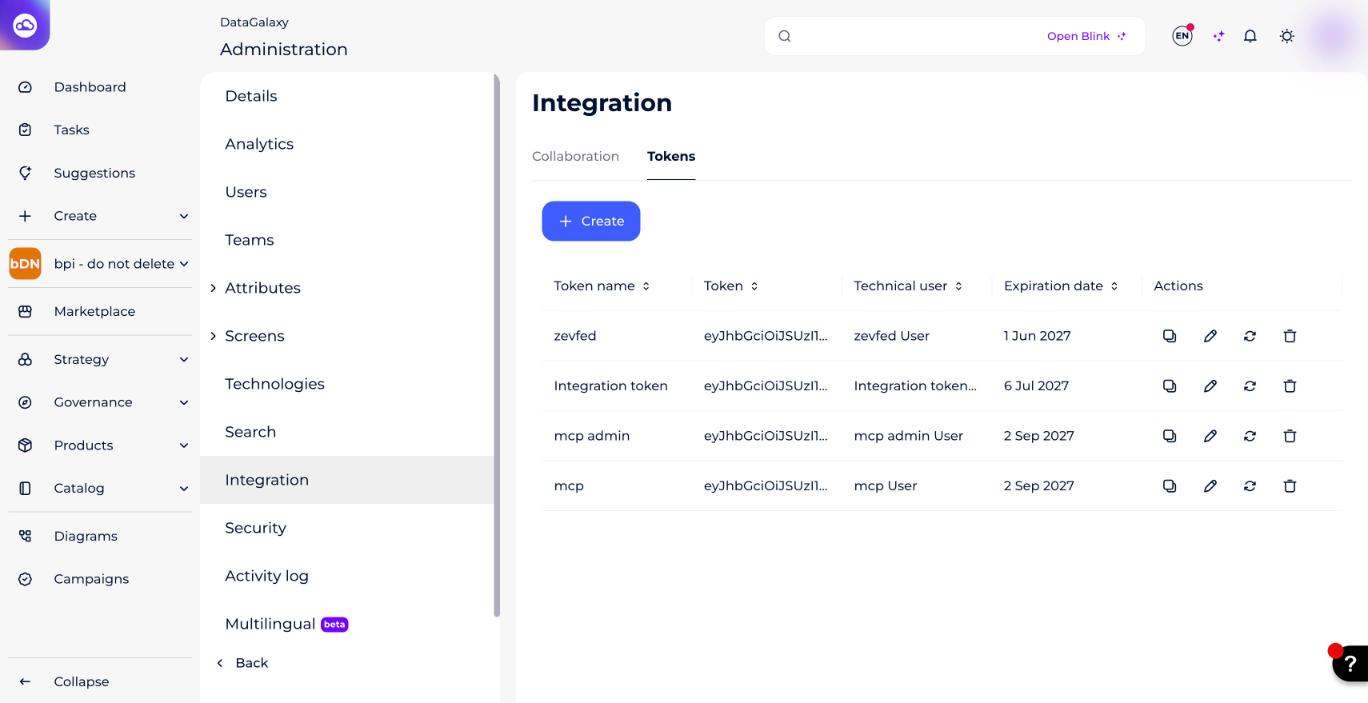
- Open the Integration tab, then click Create.
- Enter a token name, then click Create.
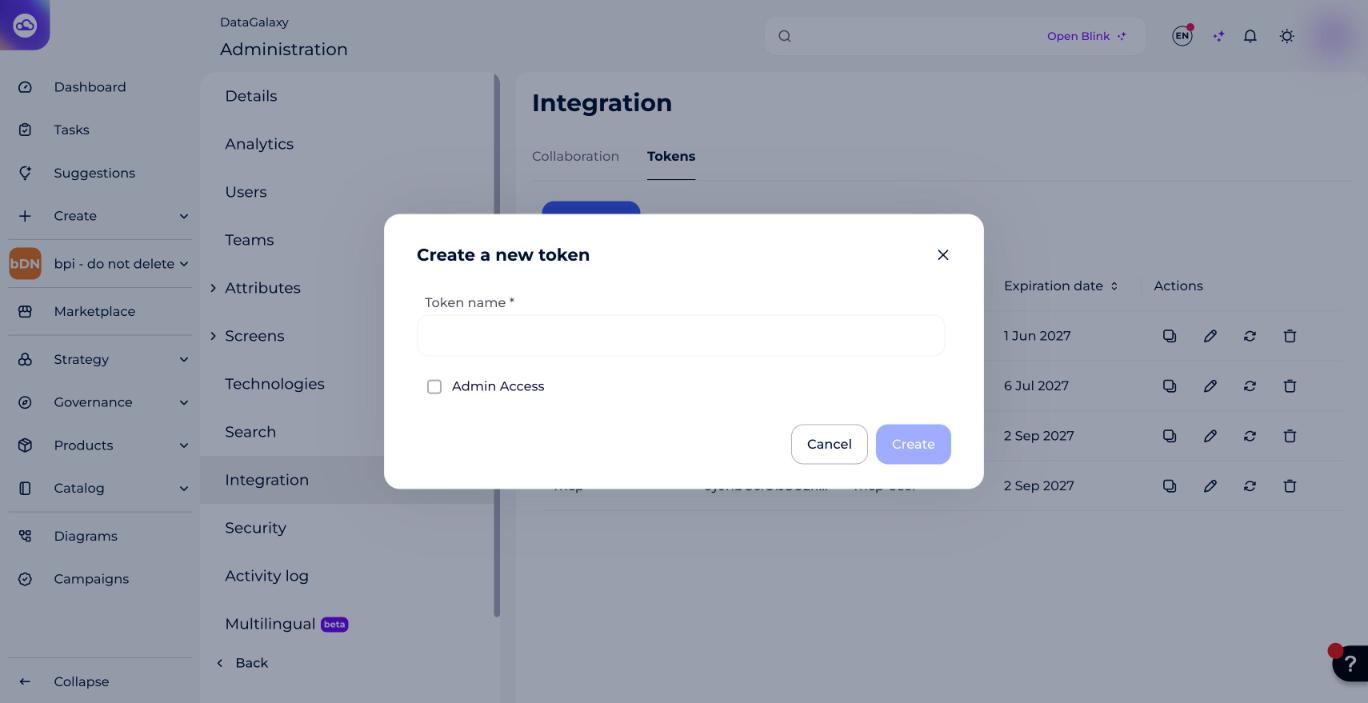 If you want to create users or update licenses via the API, select the Admin Access checkbox.
- Check the list shown in the screenshot in step 2. The token appears there, and its row actions let you copy, edit, regenerate or delete it.
- Review the technical users created by the integration tokens. They have a Steward license, appear in the Users tab of the administration console, and have a padlock indicating that they cannot be edited.
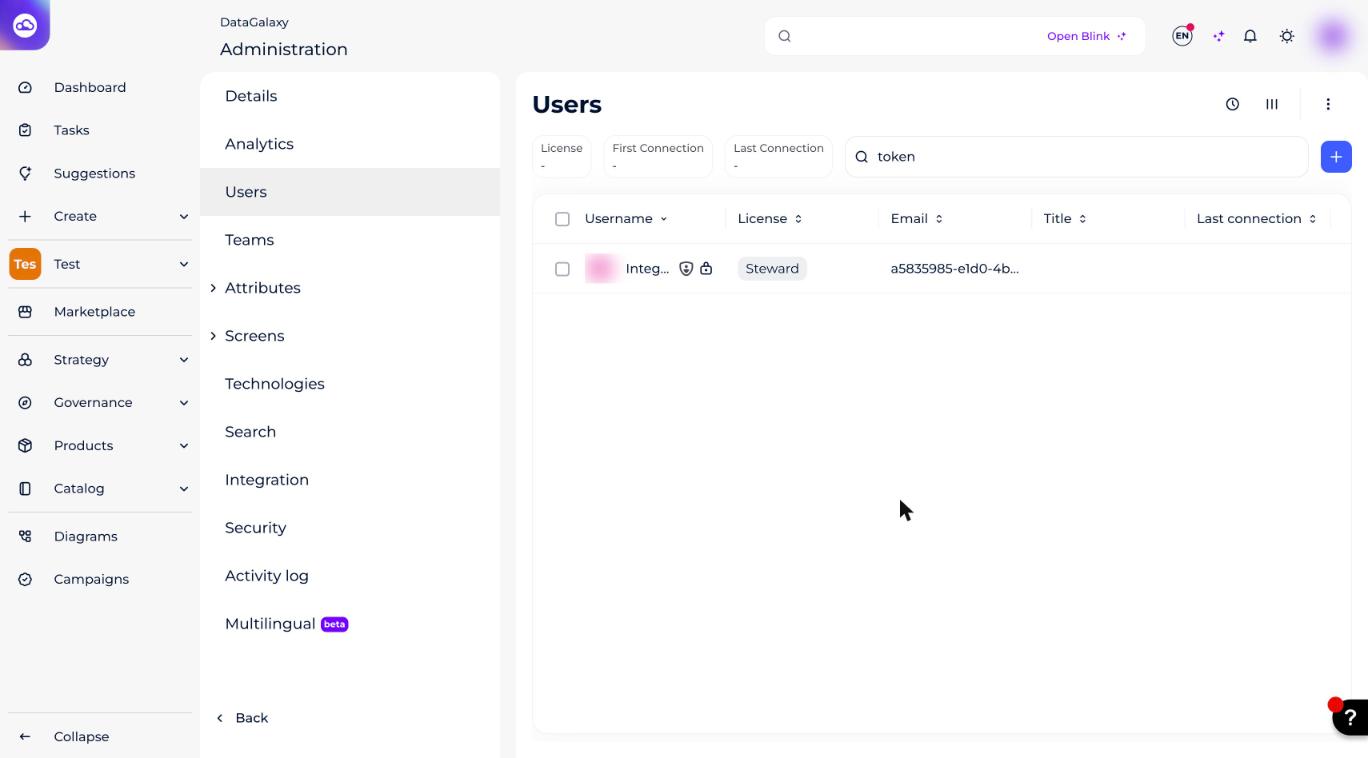
- Add these technical users to Teams and grant them access rights to Workspaces, as described in Manage Users at the Client-Space Level.