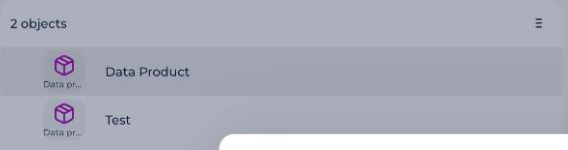
The Products module contains 2 types of object: data products and AI products.
What are data products and AI products?
- Data products: this is at least one customer-oriented and governed data object solving a use case.
- AI products: this is at least one customer-oriented and governed Artificial Intelligence object solving a use case.
How are products linked to other objects?
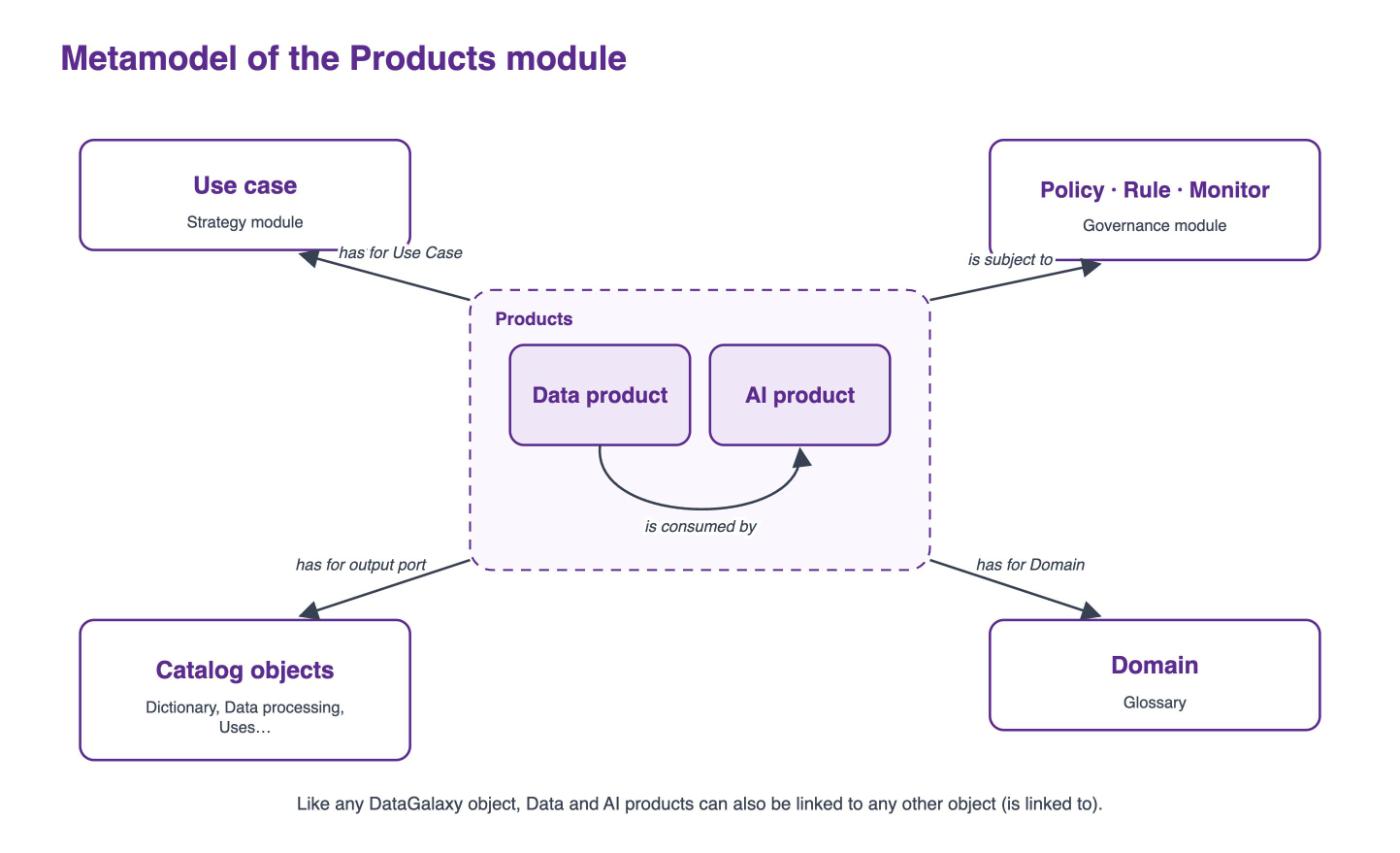
- has for Use Case: Data and AI Products can have a Use Case as their Use Case.
- has for output port: Data and AI Products may have one or more objects in the catalogue as their output port.
- is consumed by: Data and AI Products may be consumed by other Data and AI Products.
- is subject to: Data and AI Products may be subject to Policies, Rules or Monitors.
- has for Domain: Like any DataGalaxy object, Data and AI Products can have a Domain.
- is linked to: Like any DataGalaxy object, Data and AI Products can be linked to another object.
What does the Products metamodel look like?
Which attributes do Data Products and AI Products have?
Published to Marketplace
This attribute is a boolean, false by default. Only published Data and AI Products are visible in the Marketplace, i.e. the publisher attribute Published in the Marketplace must be set to True:

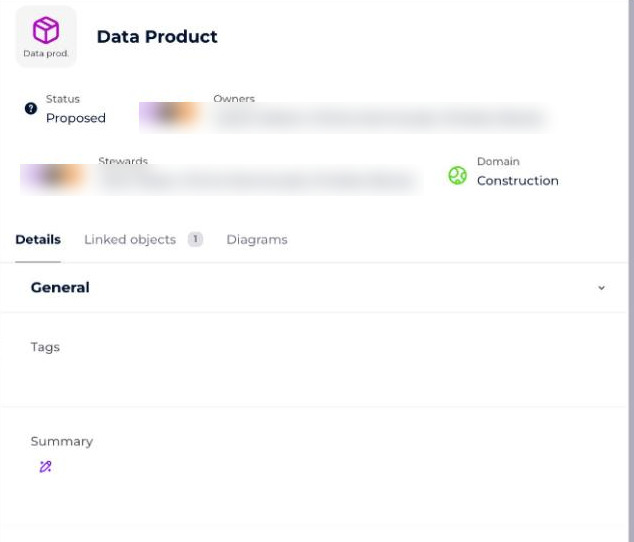
Summary, Owner and Domain
They are standard attributes in DataGalaxy. They are included in Data Products & AI Products default screens. In addition these attributes will be used for the Marketplace card (not configurable).
What is in the Output ports section?
Objects of the catalog which have a link is output port of (reverse of has for output port) are listed in the Output ports section. Objects appear as cards.
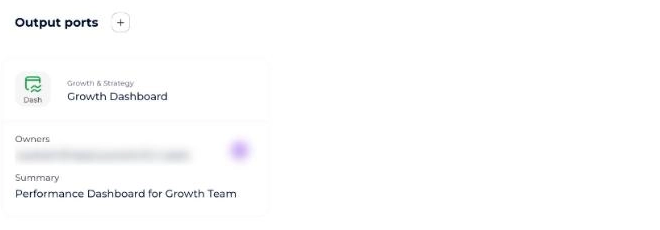
Output port cards contain (not configurable):
- label
- owner
- summary
- URL (default attribute named
URL)
How to open or request access to an output port
If the URL attribute is filled, the card shows an Open CTA redirecting to the target URL. If you don't have access to that URL:
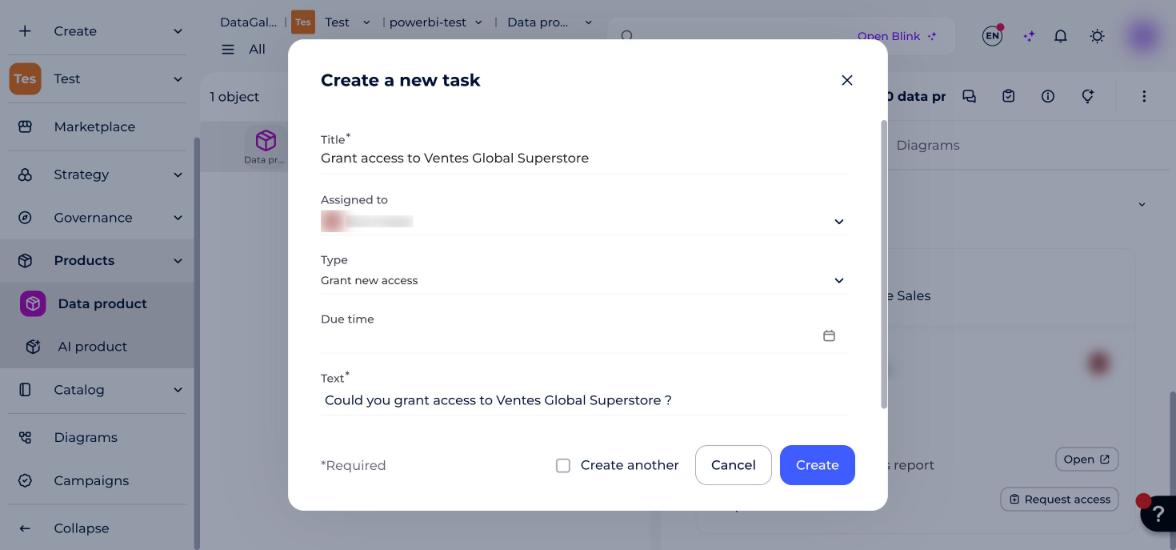
- Click the Request access CTA. A Task creation modal opens, prefilled with:
- Title: "Grant access to the label of the object"
- Assigned to: the owner of the object
- Type: Grant new access
- Text: "Could you grant access to label of the object"
- Adjust the prefilled fields if needed — they are customizable by the requester.
- Click Create. The Request access task is created.
Request access tasks will be visible via the utility panel when you are on the card of an object, and via the tasks section, accessible from the side navigation bar, which gathers all the tasks of which you are the creator or the assigned manager, in a table.
How to add an output port from the Output ports section
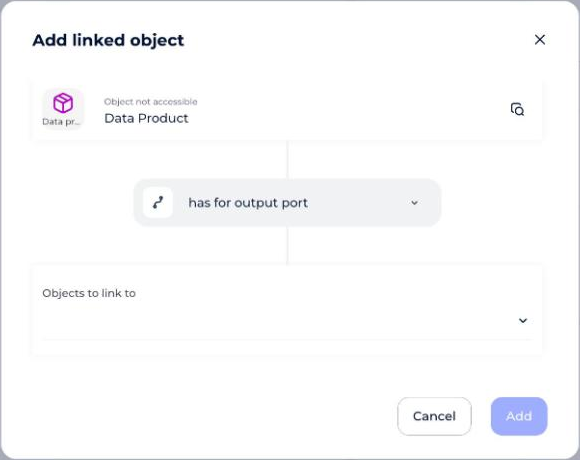
- Click the + next to the section title. The Add linked object modal opens.
More details in "Connect objects" (not yet migrated to this Notion knowledge base).