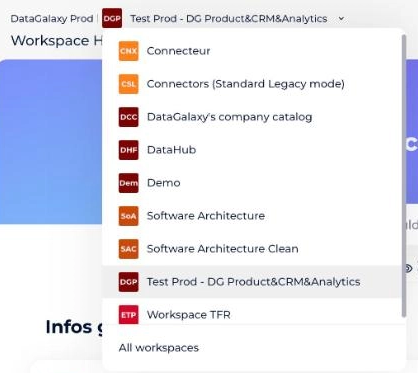
For multi-workspace clients, workspaces are created, edited and deleted from the workspace management page, which is reachable from the All workspaces option at the bottom of the workspace menu in the breadcrumb.
How to create a workspace
Creating a workspace is reserved for multi-workspace clients and client-space administrators.
- Go to the workspace management page, available from the All workspaces option at the bottom of the workspace menu in the breadcrumb.
- Click the New workspace button in the top right of the screen.
- In the new window, fill in:
- The name of the workspace.
- The code of the workspace: generated from the name, you can change it.
- The description of the workspace (optional).
- The default owner: this user must have a DataSteward license and will be used on every newly created object.
- The default steward: this user must have a DataSteward license and will be used on every newly created object.
- Click Create. You'll land on your new workspace's dashboard.
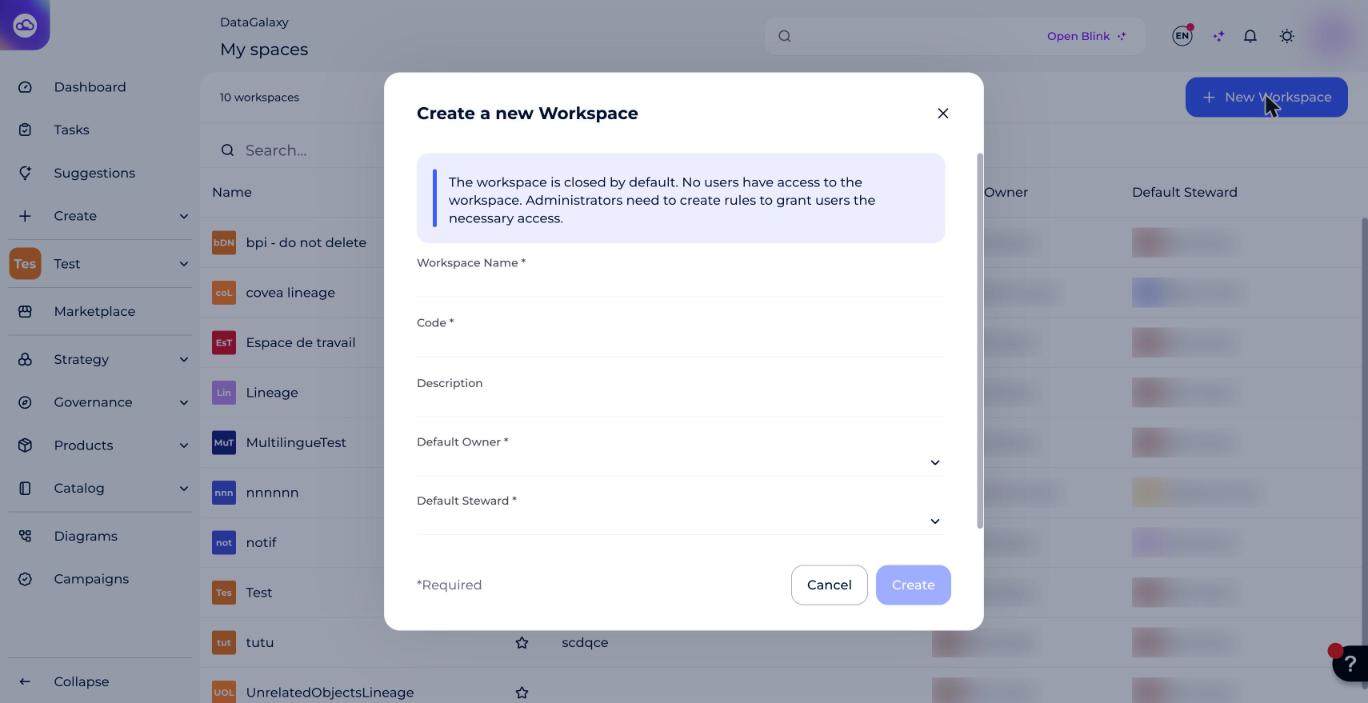
By default, a newly created workspace is closed: only its creator, who is also its administrator, has access. To let other users access it, the administrator must define specific access rules.
For more on managing user access rights, see Manage Users' Access Rights.
How to update a workspace
You need to be a workspace administrator to edit its information.
- Go to the workspace management page, available from the All workspaces option at the bottom of the workspace menu in the breadcrumb.
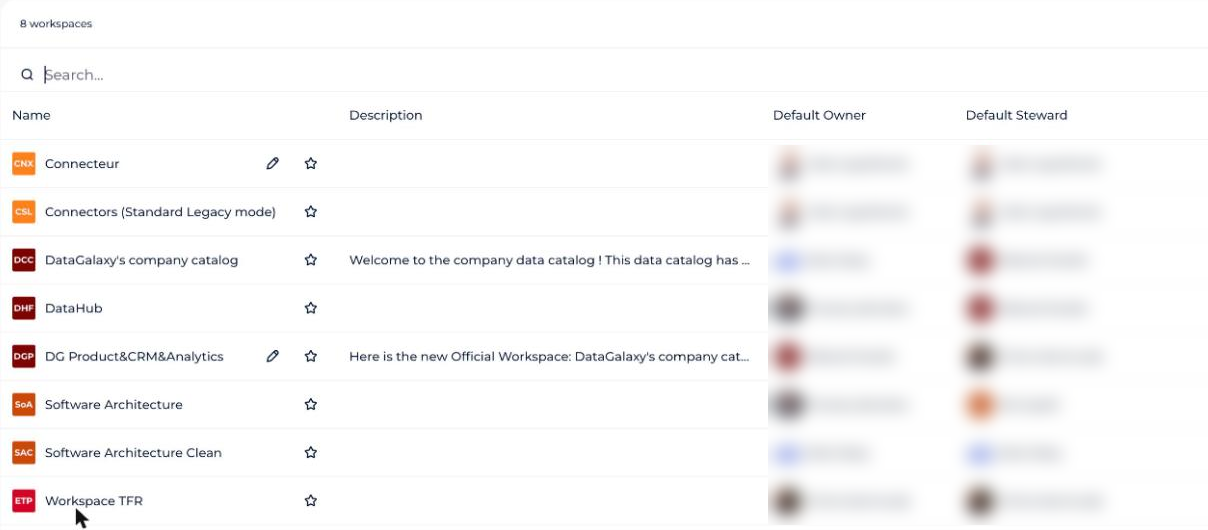
- Click the pencil icon that appears when hovering over a workspace, which opens the edit modal.
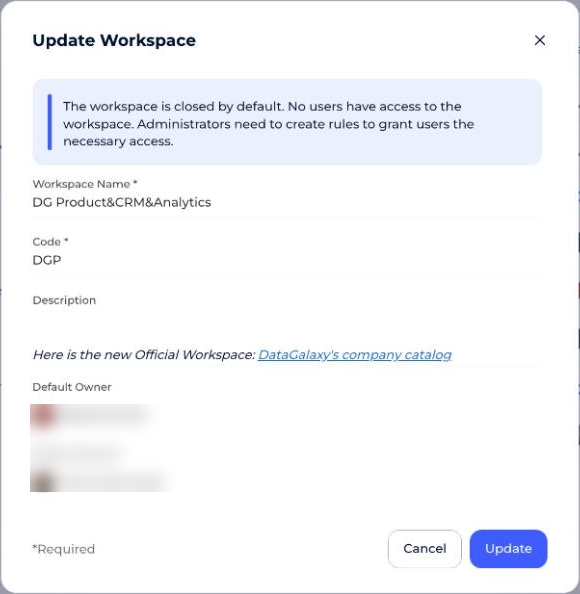
- Edit the name, description, and access type of the workspace.
To edit the default owner and steward, see Manage Official Roles.
How to delete a workspace
If you're a workspace administrator, you can delete that workspace. While on the workspace you want to delete:
- Go to the Settings section at the bottom of the side menu.
- Go to the Details tab.
- Click the Delete workspace button.

- In the deletion confirmation modal, confirm the workspace's exact name.
- Click Delete.
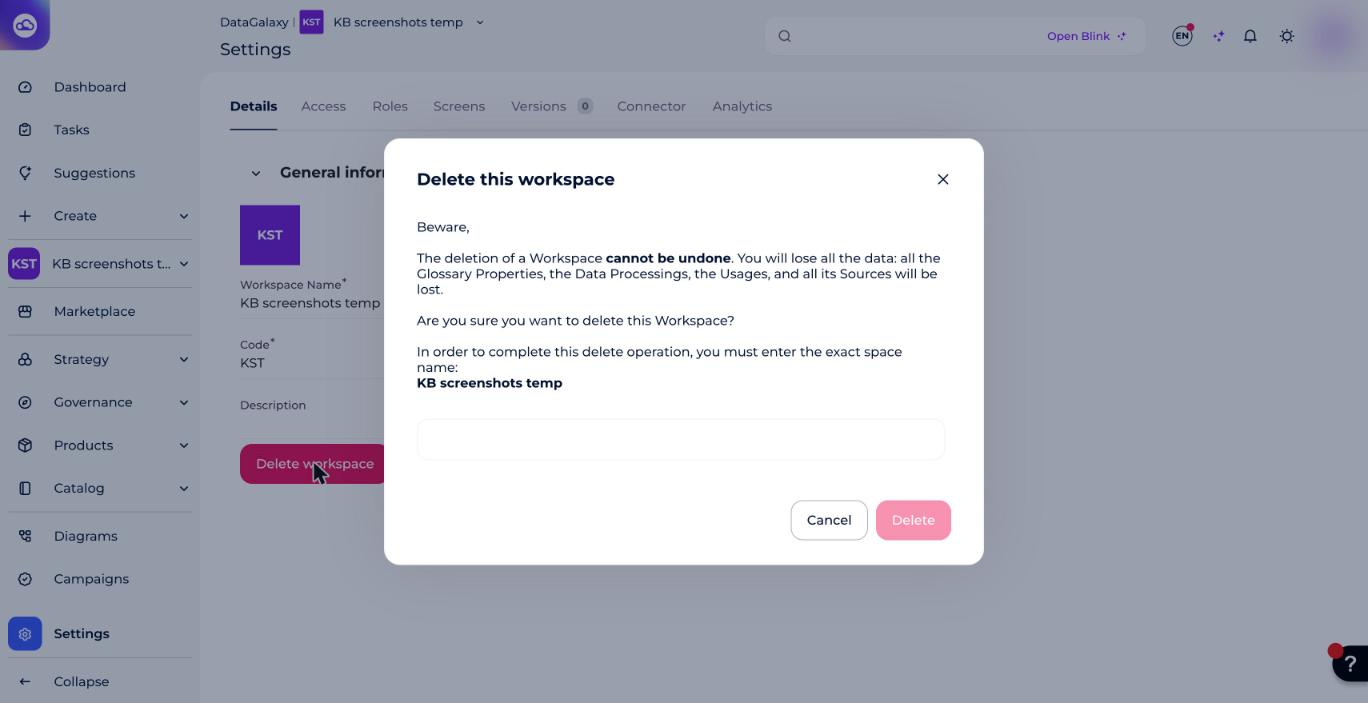
All versions of the project will be deleted.