Connect Microsoft Teams to DataGalaxy to receive personal DataGalaxy notifications in Teams when users mention you or tracked objects change.
Connect DataGalaxy and Teams from the administration area
A client-space administrator must connect the Teams integration before users can receive notifications.
- Open the Integration section of the administration area.
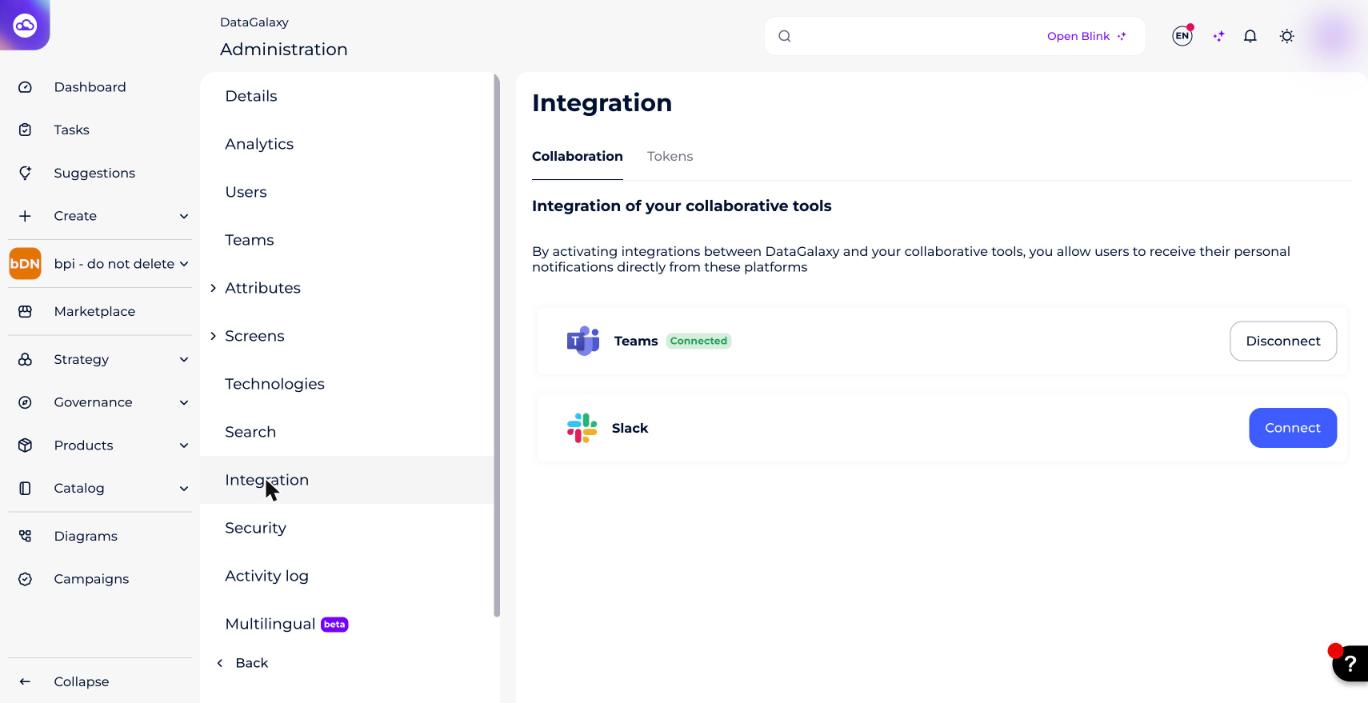
- In the Collaboration block, click Connect for Microsoft Teams. Once connected, the tile shows a Connected status and a Disconnect button.
- Review the pre-filled
tenantId, which is based on your domain name, and change it if necessary.
- Click Connect to confirm the integration.The administrator can disable the Teams integration at any time by clicking Disable. This disables Teams notifications for every user who had already enabled the integration.
Enable personal notifications in Teams
After the administrator connects the integration, each user receives an in-app notification. First, install the DataGalaxy app in Teams.
Screenshot: adding the DataGalaxy app in Teams. (Re-add this image here — the original Freshdesk link expires after a few days.)
After the app is installed correctly, a DataGalaxy welcome message appears. You cannot enable notifications until the app is installed.
Screenshot: the DataGalaxy welcome message in Teams. (Re-add this image here — the original Freshdesk link expires after a few days.)
Enable notifications from the integration notification
- Open the notifications panel.
- Find the integration-activation notification.
- Click Enable my Teams notifications.Screenshot: the "Enable my Teams notifications" button in the notification. (Re-add this image here — the original Freshdesk link expires after a few days.)
Enable notifications from your profile
- Click your profile icon in the top right of the screen.
- Open Profile and Settings.
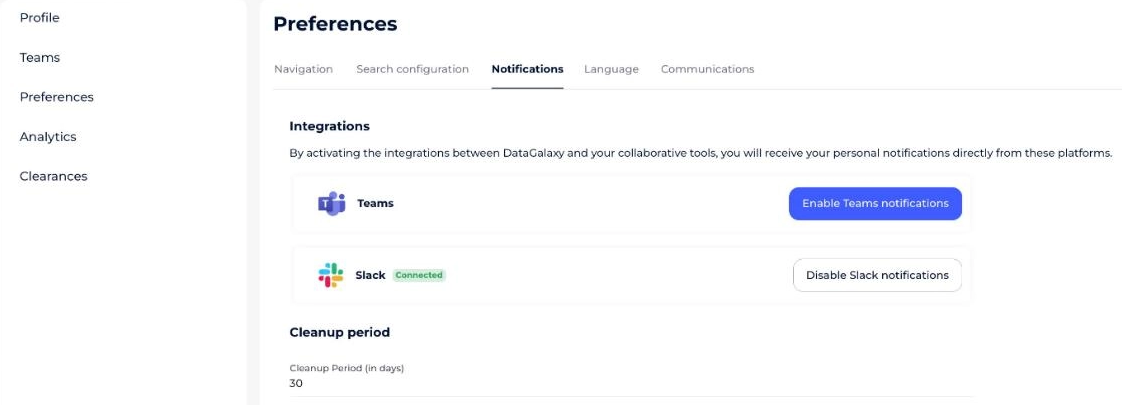
- Open Preferences.
- Open the Notifications tab.
- Click Enable my Teams notifications.
If the administrator has not connected the integration, send a request to the client-space administrators asking them to enable it.
Disable personal notifications in Teams
- Click your profile icon in the top right of the screen.
- Open Profile and Settings.
- Open Preferences.
- Open the Notifications tab.
- Click Disable my Teams notifications.Screenshot: the "Disable my Teams notifications" button. (Re-add this image here — the original Freshdesk link expires after a few days.)