A team gathers a group of users, with no restriction on license level or profile, whether they are a Reader, a Steward, or a business or technical user.
Knowing the teams in your organization and their characteristics — members, roles, scope of responsibilities — makes collaboration faster and more efficient. Identifying perimeters of responsibility, knowledgeable people and other experts is essential in a data governance project, so teams let you recognize and reproduce your organization's operations in the platform.
How to manage teams from the administration
Teams are managed in the client space administration. All users with administrator access can create teams, modify their information and edit their members.
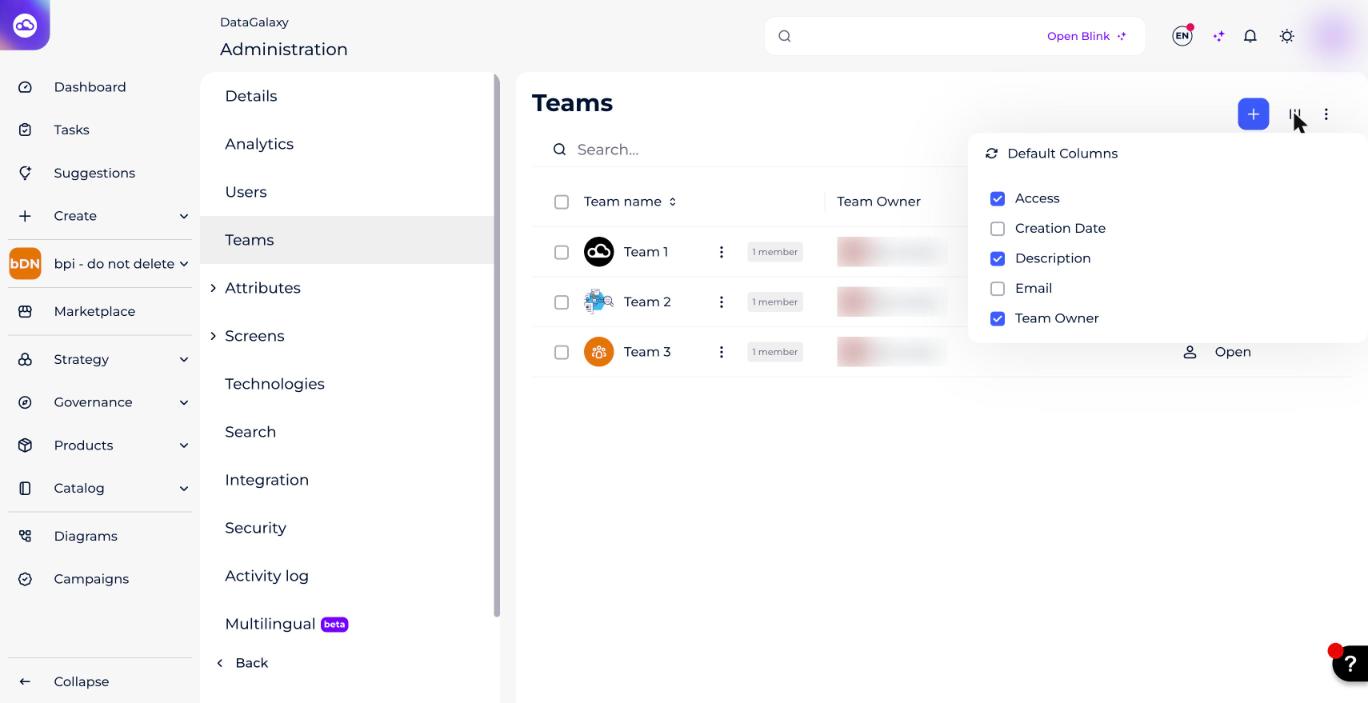
When creating a team, 3 types of access are available:
- Private access: only the members added to this team can consult its card.
- Limited access: all the users of the client space can consult the team's card and ask its owner to join it.
- Open access: all the users of the client space can consult the team's card and join it without asking the team's owner.
The team owner acts as the referent and responsible member of the team. They can:
- Modify the information of the team
- Add and delete its members
- Process access requests
By default, the owner of the team is its creator. You can change the owner or add others. You can even have teams without owners … but we don't recommend it.
To learn more about managing teams from the client space administration, read "Manage teams" in the Administer section.
How to manage your team from your profile
Users who own a team but do not have administrator licenses can manage it from their profile. They can:
- Modify the team's information
- Add and/or remove members
- Accept or refuse access requests to the team
To learn more about managing teams from the profile, read "Manage your teams" in the Personalize section.
How to view your teams
Users can open the teams screen from their profile. It has 2 sub-sections:
- My teams: lists the teams you are a member of.
- All teams: lists all the (non-private) teams that exist in the client space.
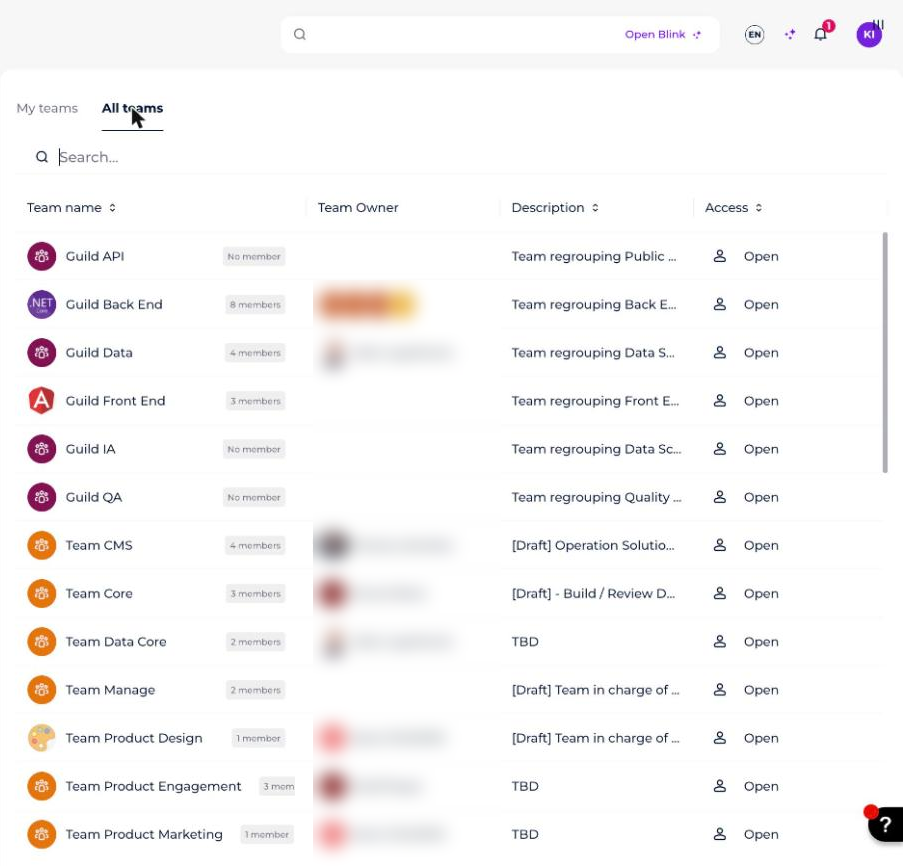
Depending on the type of access of the team:
- If the team is open, any user can join it.
- If the team is limited, any user can request to join it. The request is sent to the team owner, who decides whether to accept or reject it.
- If the team is private, it's visible only to its members, so no other user can join it unless added by the team owner.
What are teams used for?
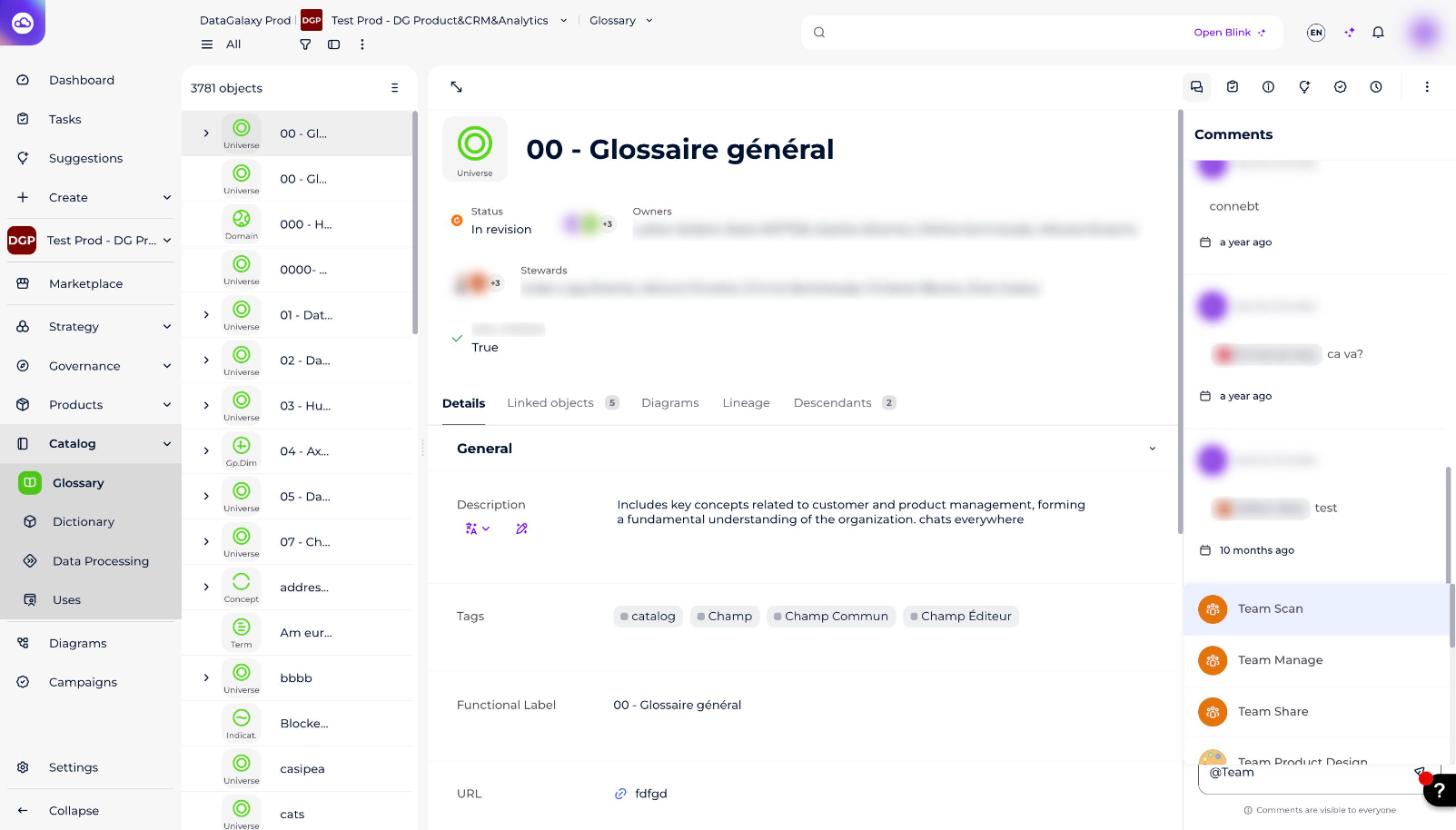
Teams improve communication between members of the same team, but also toward members of other teams. Teams can be used in comments and tasks.
The whole team can be informed easily via a notification that appears in the notification center.
The entire team shares the responsibility to process the task before the deadline. If a user doesn't know exactly who to address, they can mention the whole team in the comment.