Objects can be linked across modules in several ways:
- Via the tabs on an object's sheet.
- Via importing properties from a source.
- Via suggestions.
- Via shortcut attributes.
Relationships between catalog objects explains the relations between objects in detail.
The source article also referenced DataGalaxy's cross-module meta-model, and separate articles on importing properties from a source, suggestions, and shortcut attributes. Those aren't part of this migration batch, so those cross-links aren't included here yet.
How to create a relation between objects
This feature lets users trace and document simple or complex relationships between objects, to structure understanding and share knowledge.
- Click the object you want to create a relation for.
- Click the Linked objects tab.
- Click the + button in the top right.
- In the creation modal that opens, select the relation type (synonym, specialization, generalization...).
- Search for the object to link.
- Click Add to confirm the relation.
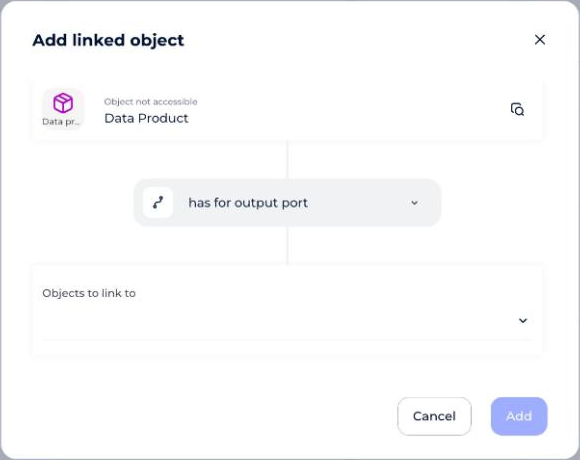
How to link a Glossary object to a Dictionary object
- Click the object you want to create a relation for.
- Click the Implementation tab.
- Click the + button in the top right.
- In the creation modal that opens, select the relation type (is implemented by, has system of record).
- Search for the property to link.
- Click Add to confirm the relation.
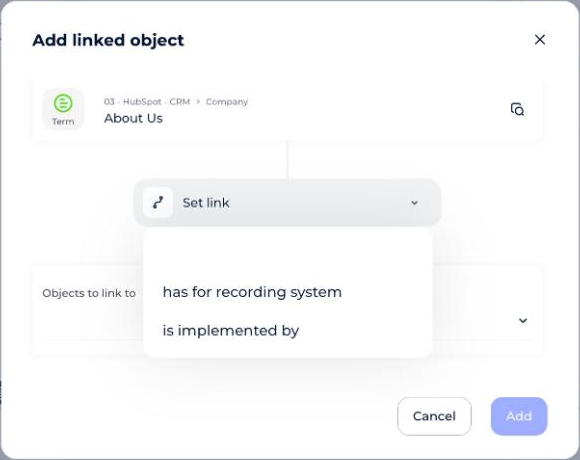
How to link Dictionary objects to each other via processing mappings
- Click the processing object you want to create a Dictionary-to-Dictionary relation for.
- Click the Mapping tab.
- Use the search bar to narrow down the databases, tables, and fields shown, and find the object you need.
- Click the object to add it to the IN or OUT column.
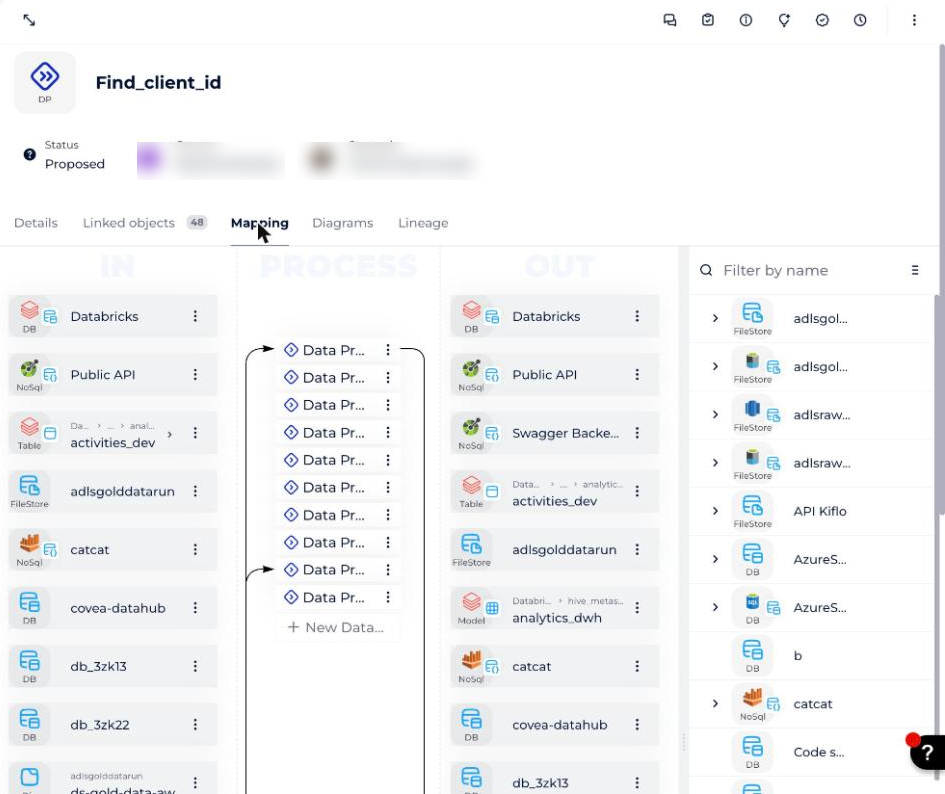
How to link objects from a Linked objects section
A Linked objects section is available on some objects, notably Policies, Rules, Monitors, and Products.
- Click the object you want to create a relation for.
- Click the Details tab, and scroll to the Linked objects section, for example Output ports on a data product (as below).
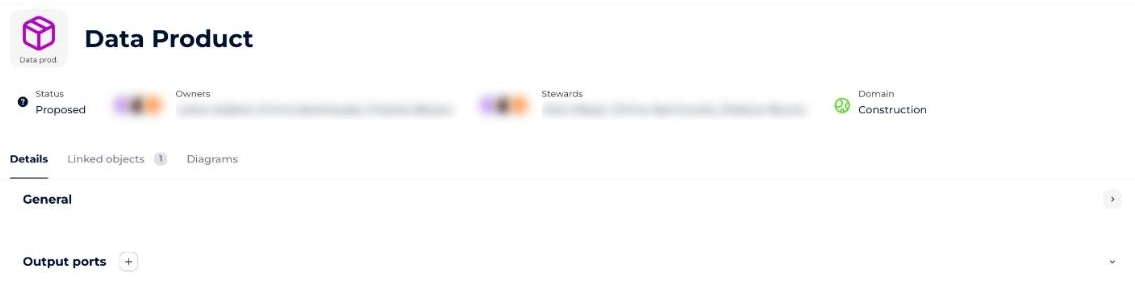
- Click the +.
- In the Add a linked object modal, select an object and click Add.
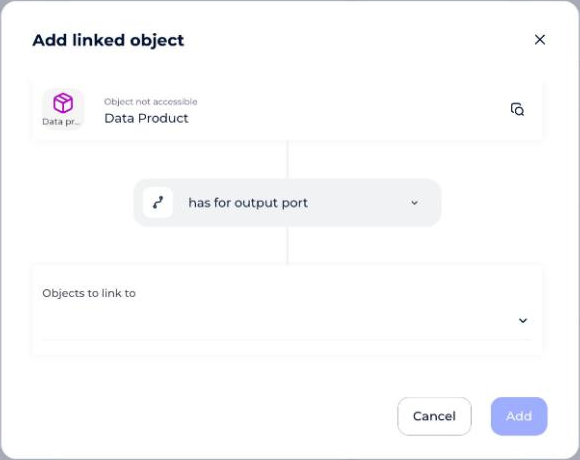
The link type is pre-selected based on which Linked objects section you're in, and can't be changed. Which object types you can select from depends on the pre-selected link type.