When implementing a 360° catalog, it's common for Glossary objects (concepts, business terms) to be physically implemented in several places in the Dictionary.
A golden link lets you specify which of an object's implementation links is the trusted one — that is, for a concept implemented across several tables in several databases, the golden link identifies which data source is the preferred place to look for that information.
A Glossary object can have several golden links among its implementation links. Dictionary objects can also have several golden links pointing to different Glossary objects.
Who can create golden links?
Any user with write rights on the objects to be linked can create golden links. No additional permissions are required.
Where do golden links appear?
In the Implementation tab
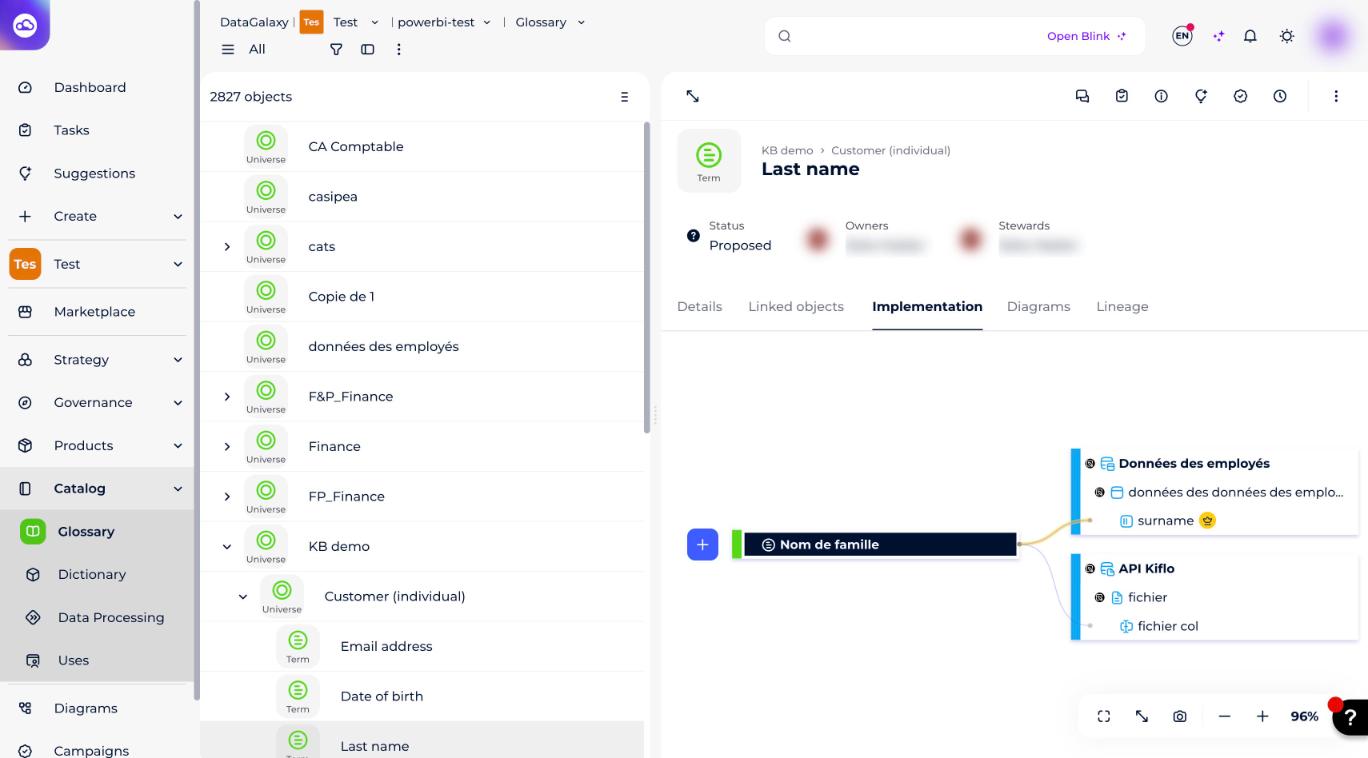
The implementation link identified as golden is shown with a yellow line, and the Dictionary object associated with that golden implementation link is marked with a yellow golden icon next to its label.
In lineage
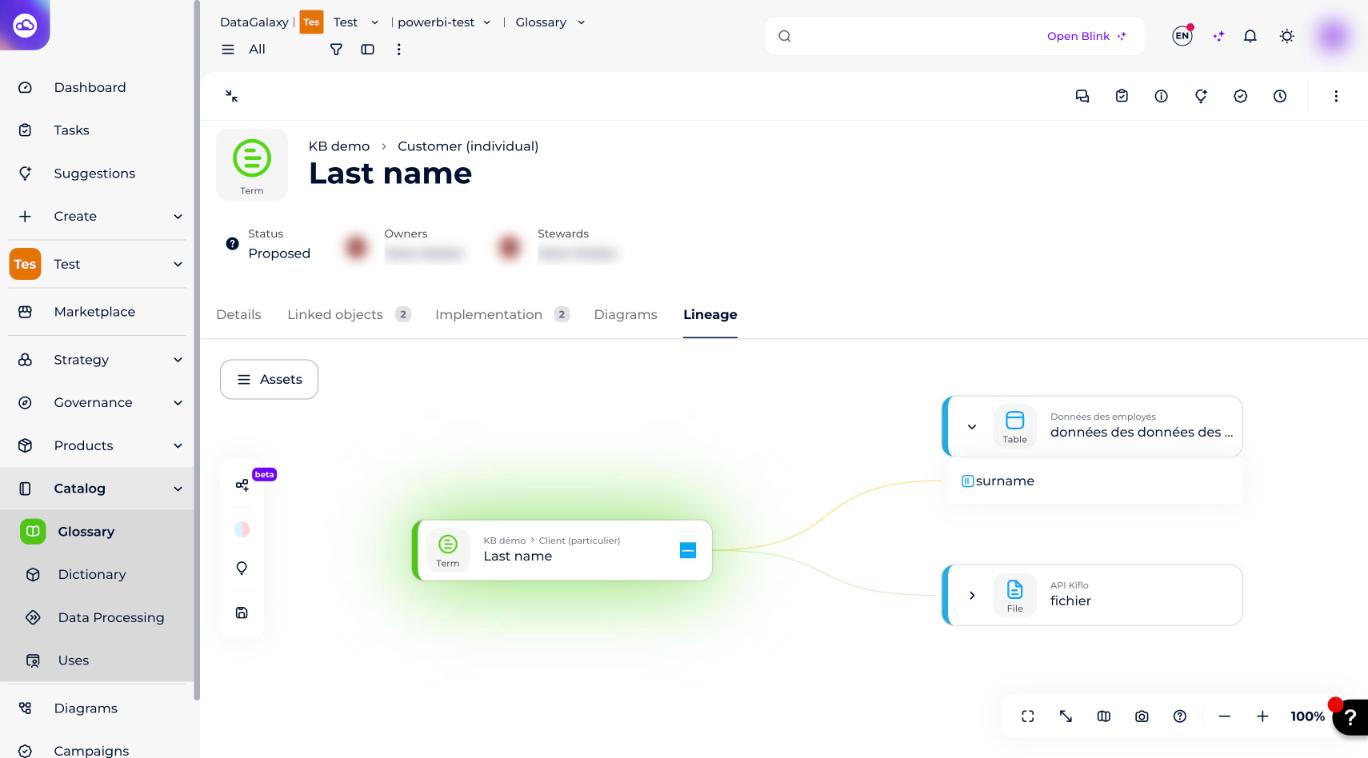
As in the Implementation tab, the golden implementation link is shown with a yellow line, and the associated Dictionary object is marked with a yellow dot next to its label.
In the service panel and preview
In the Linked objects section of the service panel and the object sheet preview, golden links are identified by an icon with a yellow dot.
How to create a golden link
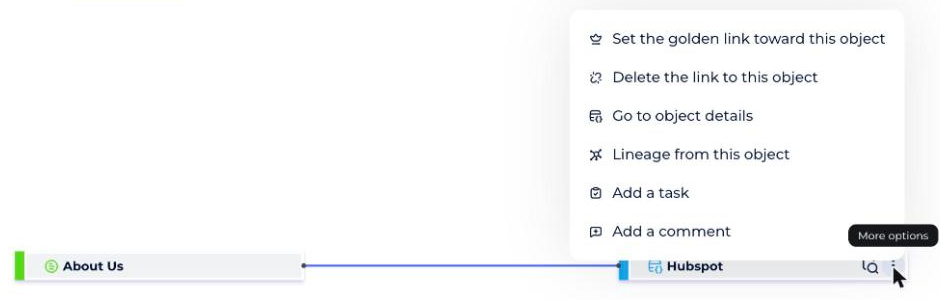
A golden link can only be defined from an implementation link that already exists. Any implementation link, regardless of its reference object, is eligible. This is done from the Implementation screen of the Glossary module, via the burger menu of the Dictionary object linked to the Glossary object.
- Open the object sheet of the Glossary object you want to create the golden link on.
- Click the Implementation tab.
- Open the burger menu of the Dictionary object you want to set as golden.
- Choose Set the golden link toward this object.
How to remove a golden link
"Removing" a golden link means removing the "golden" characteristic from a link — it does not delete the underlying implementation link. There are two ways to do it.
From the Implementation tab
- Open the object sheet of the Glossary object you want to remove the golden link from.
- Click the Implementation tab.
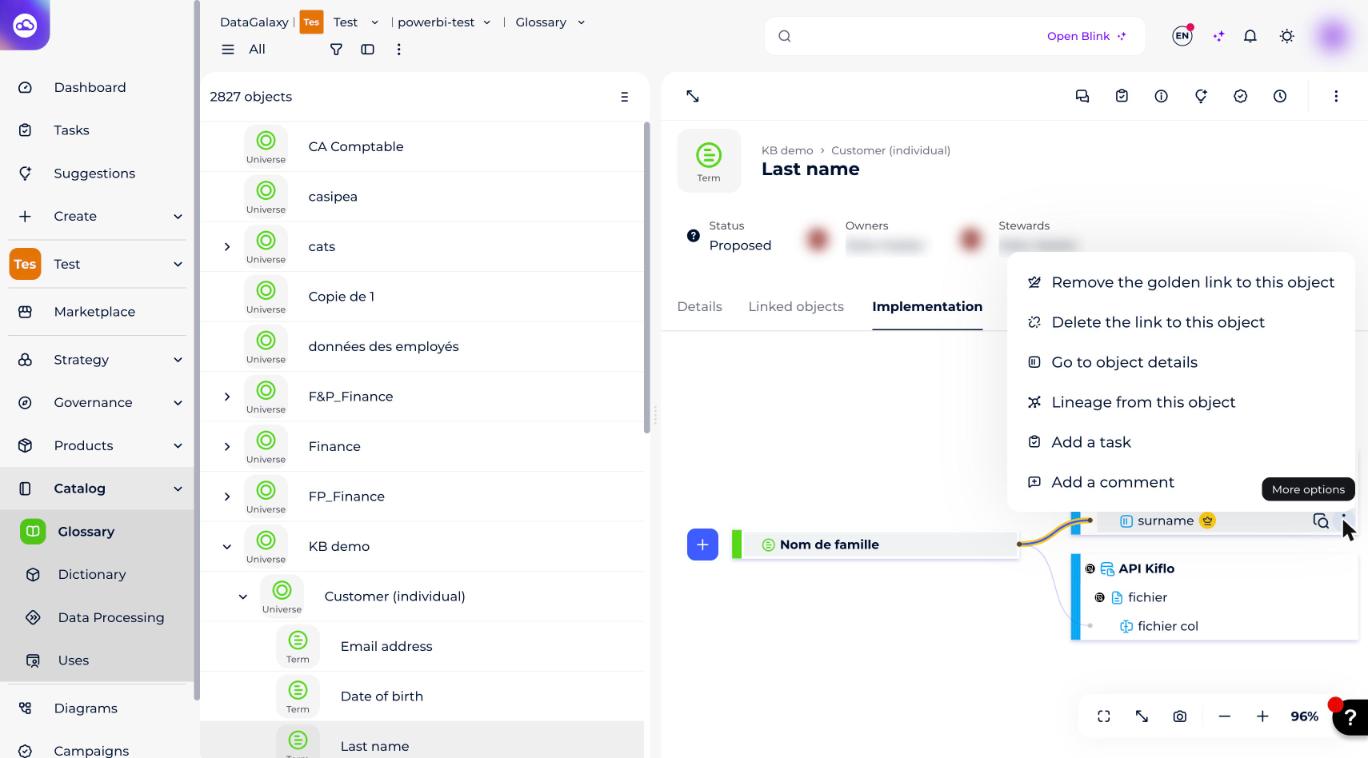
- Open the burger menu of the Dictionary object you want to remove the golden link from.
- Choose Remove the golden link to this object.
From the service panel or preview
- Open the service panel or preview of either of the two objects you want to remove the golden link from.
- Open the Linked objects section.
- Click the burger menu of the linked object you want to remove the golden link from.
- Choose Remove golden link.