A technology tells you which tool stores or uses an object: a dashboard in Power BI, a table in Snowflake. DataGalaxy shows it as an icon on the object card of Dictionary, Data Processing and Usages objects, and passes it down to the object's children.
This article explains where technologies come from, how they are set and inherited, and how to search by technology.
Why a dedicated technology feature?
Users often refer to an object by the tool it lives in. A plain attribute could hold that information, but it is not visual and is not inherited. The technology feature lets you:
- See which technology an object is based on, and by inheritance its descendants
- Display every object that depends on a technology, in one or several modules
Which technologies are available?
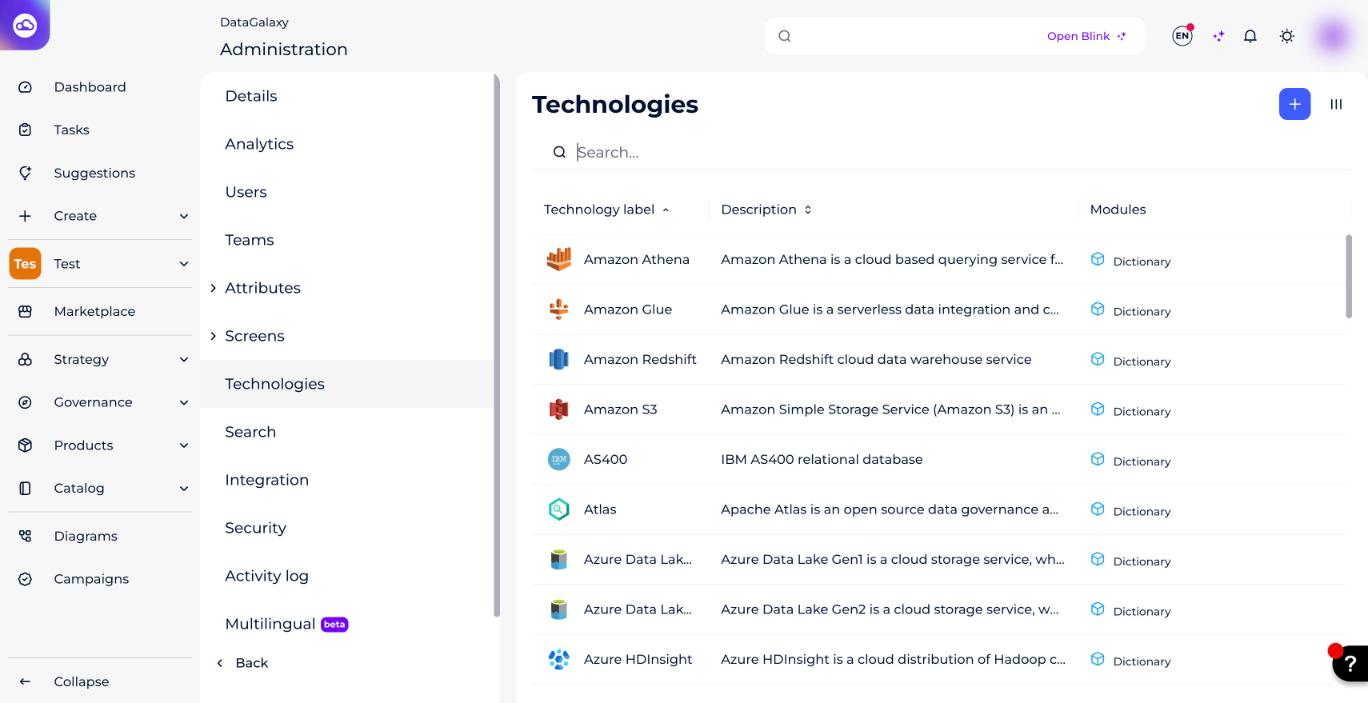
DataGalaxy provides a default technology card for each desktop and online connector, managed in the administration. You can link your objects to these technologies, in the modules each card allows. If yours is missing, you can create it.
To manage technologies, see "Manage technologies" in the Administer section.
How does the Technology attribute work on an object card?
Add the Technology attribute to the object card to set the technology of an object created or imported in the Dictionary, Data Processing or Usages. Each technology shows an icon and a description to help you pick it.
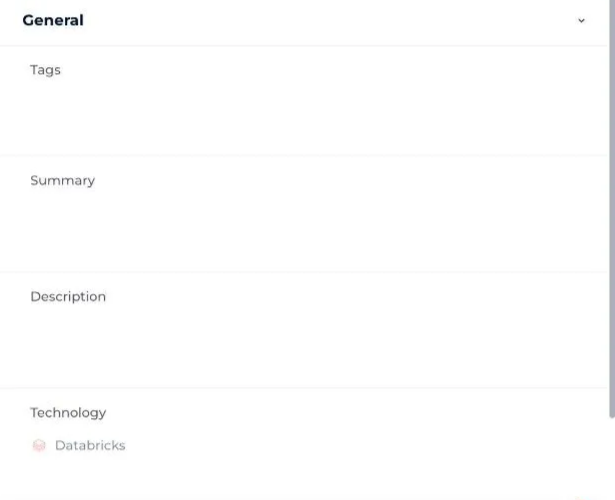
You can only edit the technology on root objects: sources in the Dictionary, data flows in Data Processing and applications in Usages. On every other object the attribute is read-only, and all descendants inherit the technology of their root.
For example, if you set MicroStrategy on the Internal Reporting application in Usages, its Growth dashboard inherits MicroStrategy automatically.
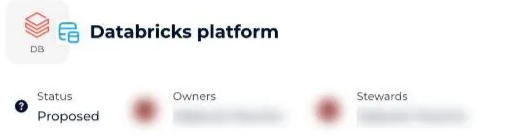
Once set, the technology icon shows on the object card. You can choose how technologies are displayed across your objects in your preferences (see "Manage your technology display preferences" in the Personalize section).
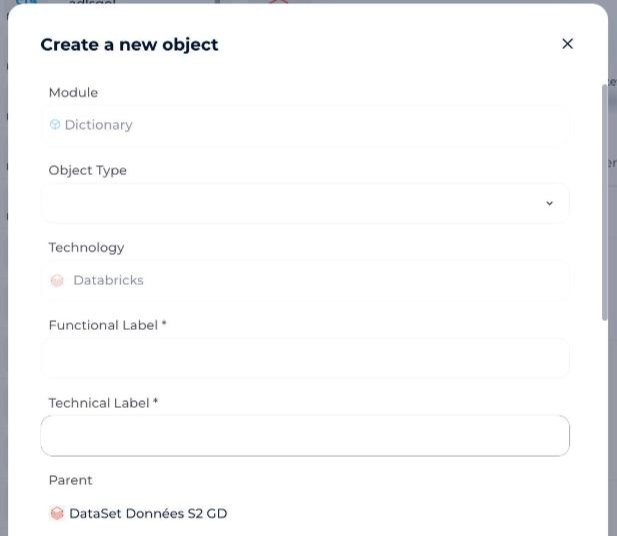
How to set the technology when creating an object
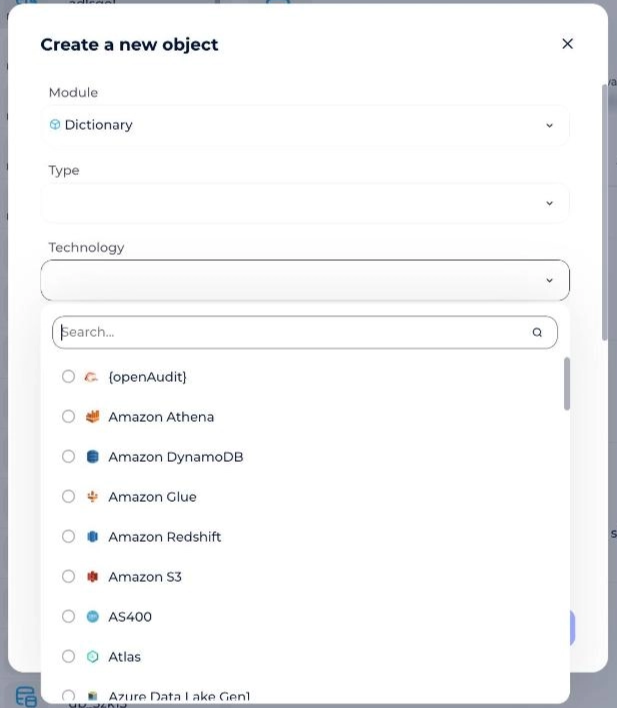
When you create a source in the Dictionary, a data flow in Data Processing or an application in Usages, the creation window includes a Technology field. Pick the technology of the new object there; the list has a search box to find it quickly. To learn the ways to create an object, see "Create an object".
When you create a child of an object whose technology is set, the child's creation window shows the parent's technology as read-only. The child is created with its parent's technology and you can't change it.
How to set the technology at import
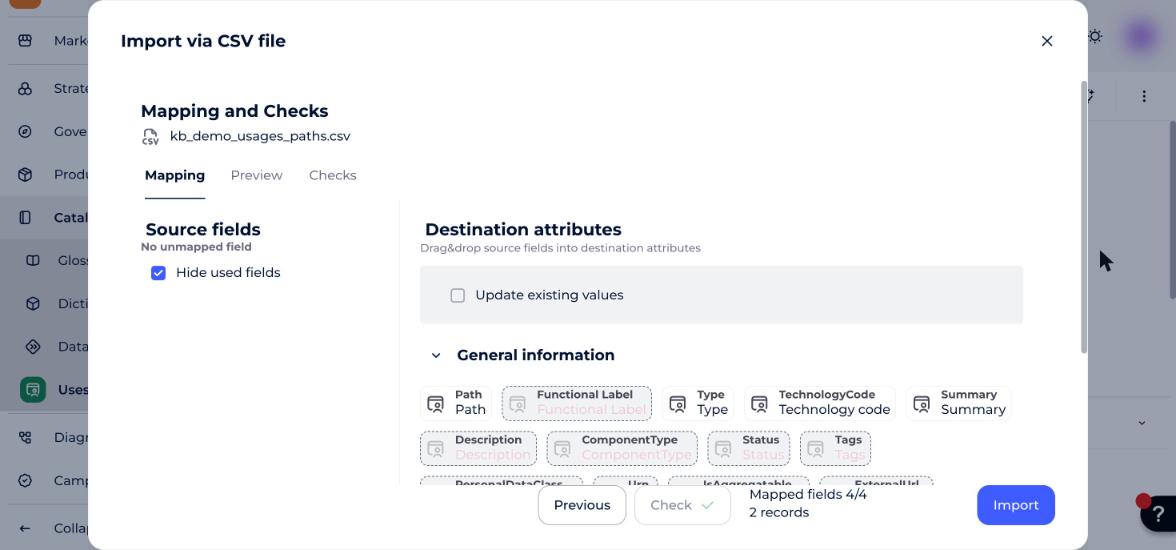
In a CSV import, map your Technology code column to the TechnologyCode attribute; its values must be existing technology codes. Only root objects (sources, data flows, applications) accept a technology. If the code doesn't exist, the import is blocked: unmap the field to continue.
With the desktop and online connectors, the technology is filled in automatically from the technologies available in DataGalaxy.
How to search by technology
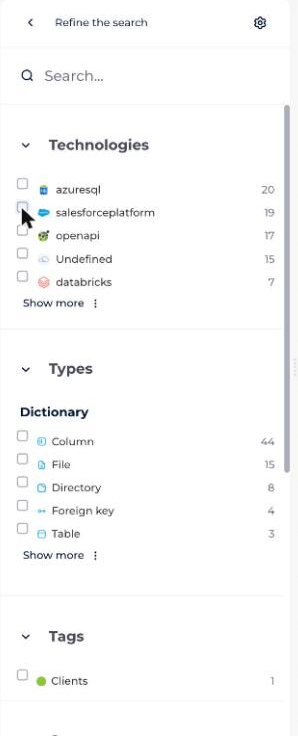
The facets panel has a Technologies section that lists every object linked to a technology. Click a facet, such as Snowflake, and the matching filter is added to the multi-criteria filter bar; a checkbox on the facet shows that it is applied.
To refine search results further, see Narrow a search.