Physical diagrams draw a data model: tables and their columns appear as boxes, and foreign keys and links as arrows between them. Unlike the Dictionary, a diagram can show only part of the model.
Diagrams are available for relational databases only.
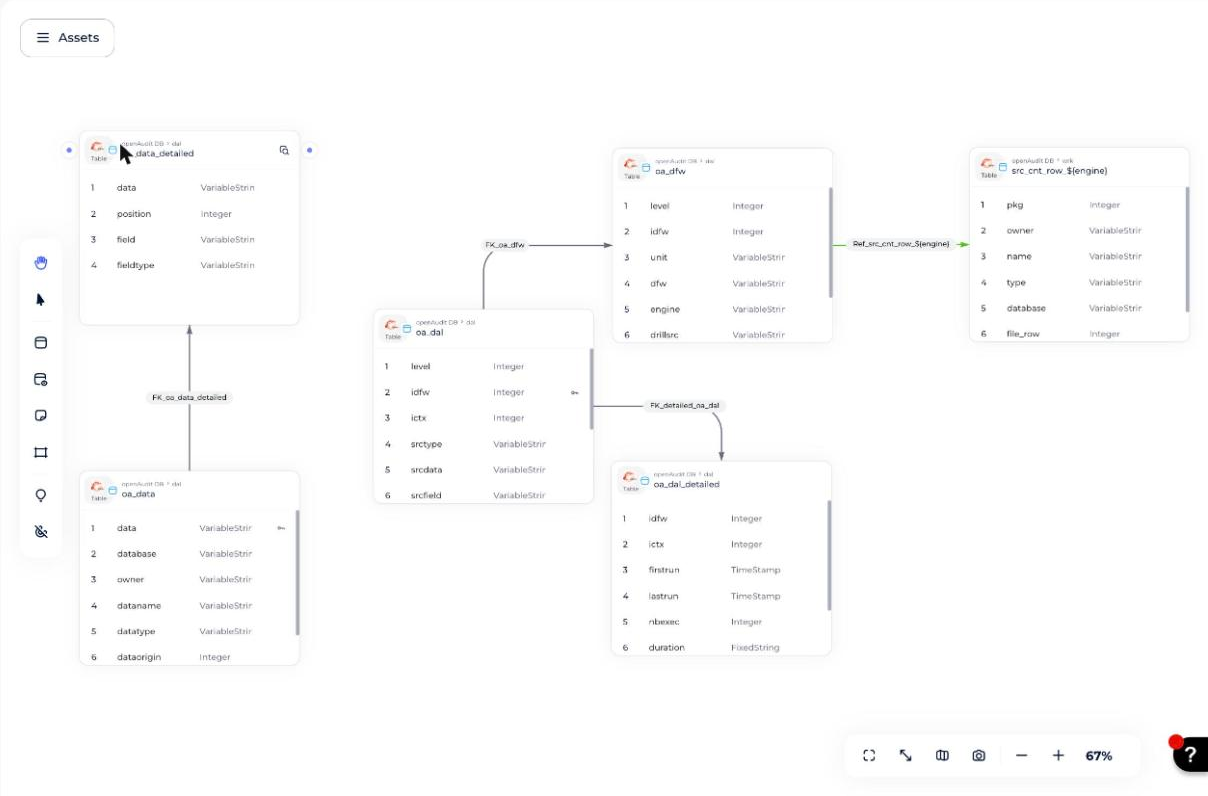
What can a diagram contain?
You can drag and drop these elements into the main area of a diagram:
- Tables: technical objects of a relational database that group columns; a table is the technical equivalent of an entity
- Primary keys: a constraint on one or more columns that guarantees each row is unique
- Foreign keys: a reference from a table with a primary key (the parent) to another table (the child) or to itself; a foreign key always comes with a functional link
- Links: technical or functional relationships between tables (see How to manage links)
- Notes: additional information placed on the diagram
How to create a diagram
- Open your database and go to the Diagram tab.
- Click +. An empty diagram opens.
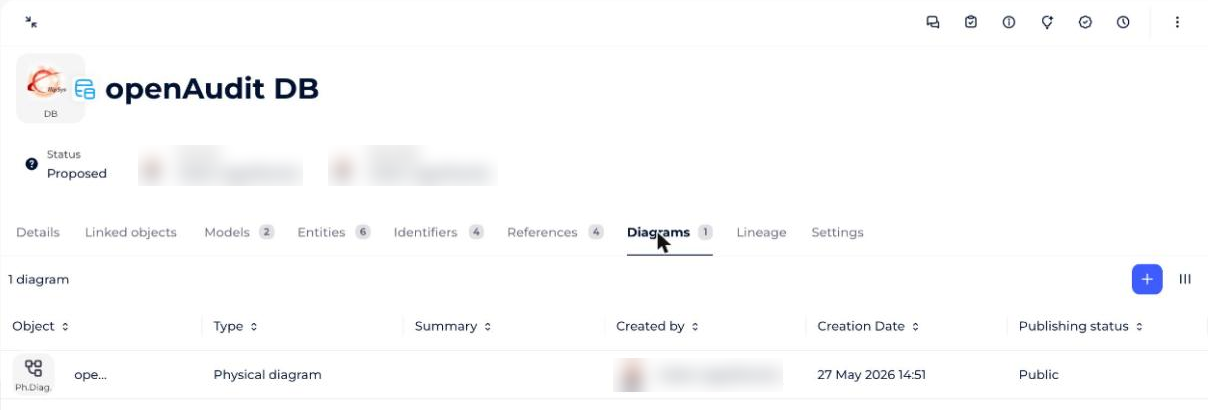
How to add a table to a diagram
If your database already holds imported or created objects, use them to fill the diagram:
- In the catalog asset list on the left, click the entity or reference you want.
- Drag it to the stage area in the center of the screen.
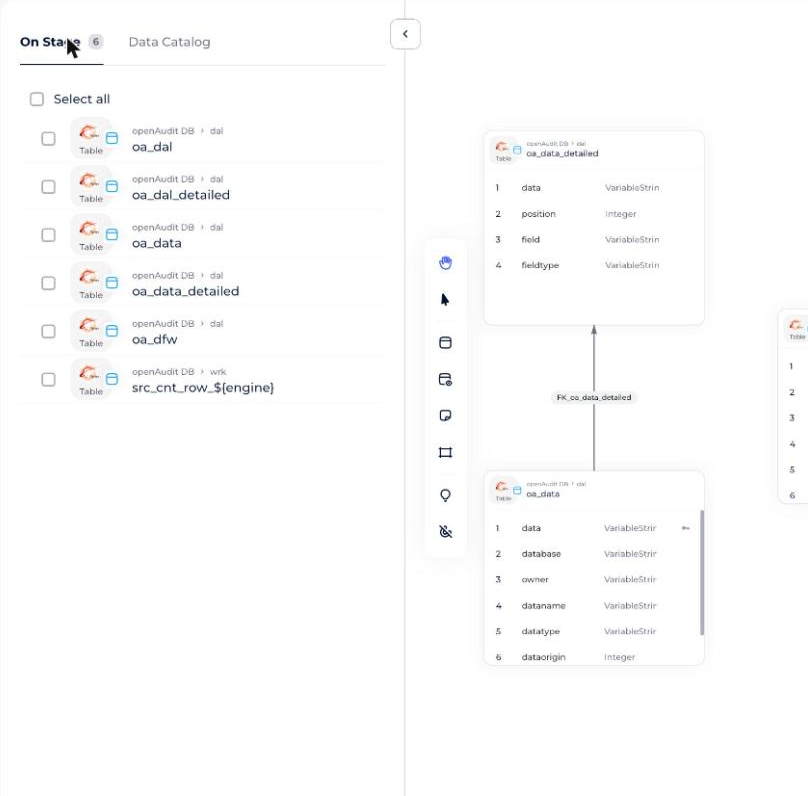
To create new tables instead, use the graphical toolbar on the left of the stage area.

How to create a column from a diagram
- Drag a table to the stage area, or click the table icon to create a new one.
- Click the table, then Manage columns in its three-dot menu.
- Click +. The new column appears in the list.
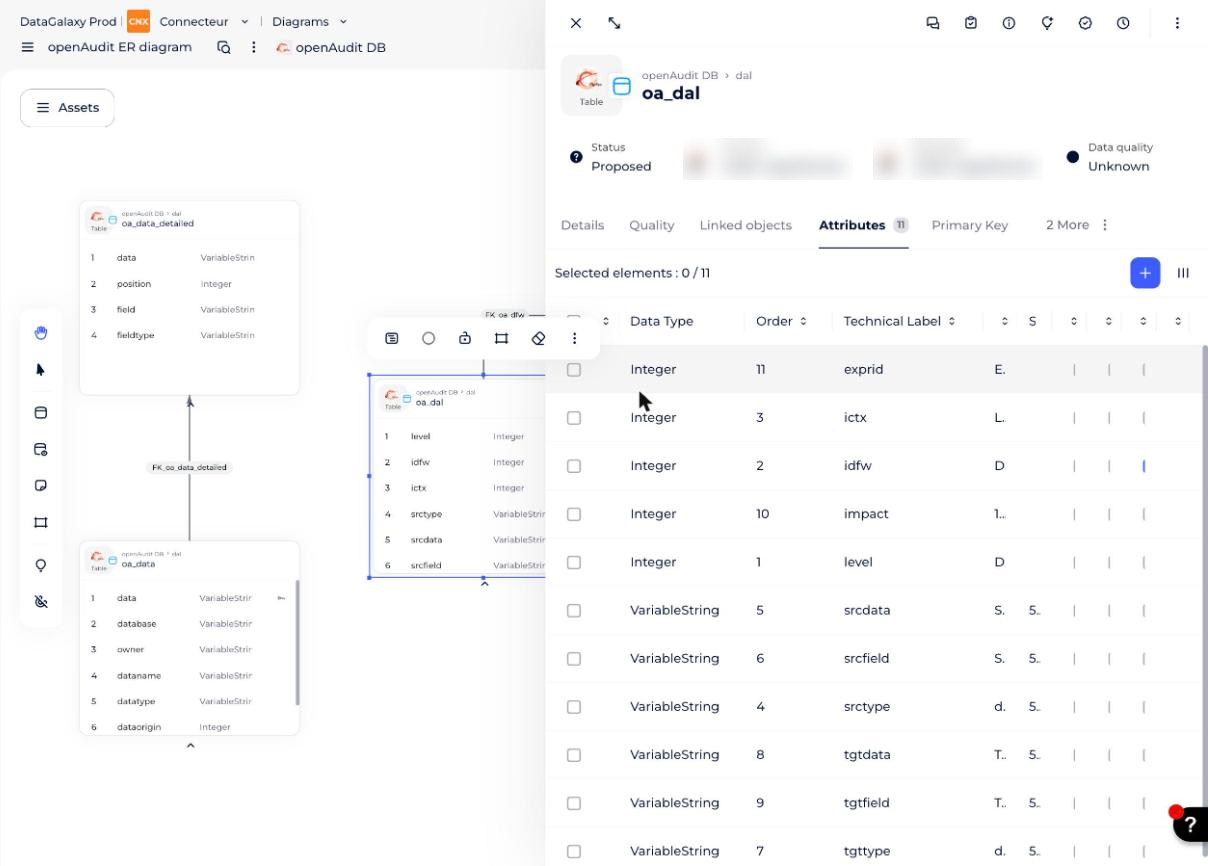
How to manage primary keys
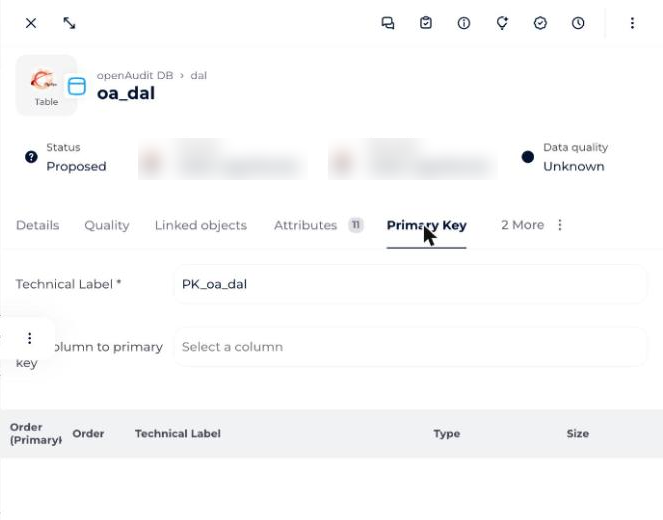
- Open the table's side panel and go to Primary key.
- In Technical label, enter the label of the primary key.
- In Add column to the primary key, search for the columns that make up the key. Each selected column appears in the list of the primary key's columns.
How to manage links
A physical diagram shows three types of links:
- Mandatory technical: grey, full line
- Non-mandatory technical: grey, dashed line
- Functional: green, full line; shows that two tables or views are related without an integrity constraint
To create a link:
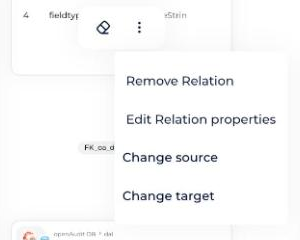
- Click the handle of the source table and drag it to the target table. In functional mode the link is functional; in technical mode it is non-mandatory technical. You can convert it afterwards.
- In the dialog that opens, check the link's name on the diagram, its description, whether it is mandatory, and the related column in the target table.
Which tools are available on a table?
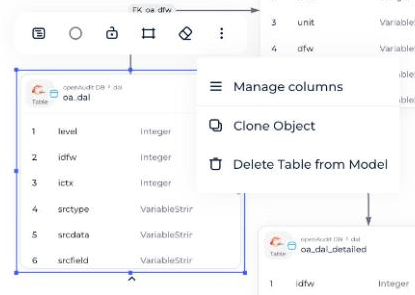
Click a table to open its action menu, where you can:
- Change the display size of its box
- Pick a color for the table
- Lock the box's position for everyone who can open the diagram
- Draw a frame around the table
- Remove the table from the diagram (it stays in DataGalaxy)
Its three-dot menu lets you open the table's columns or primary key, clone the table, or delete it.
How to share a diagram
A diagram is either:
- Private: visible only to its creator (the default for new diagrams)
- Public: visible to the workspace's users; only source administrators can publish a diagram
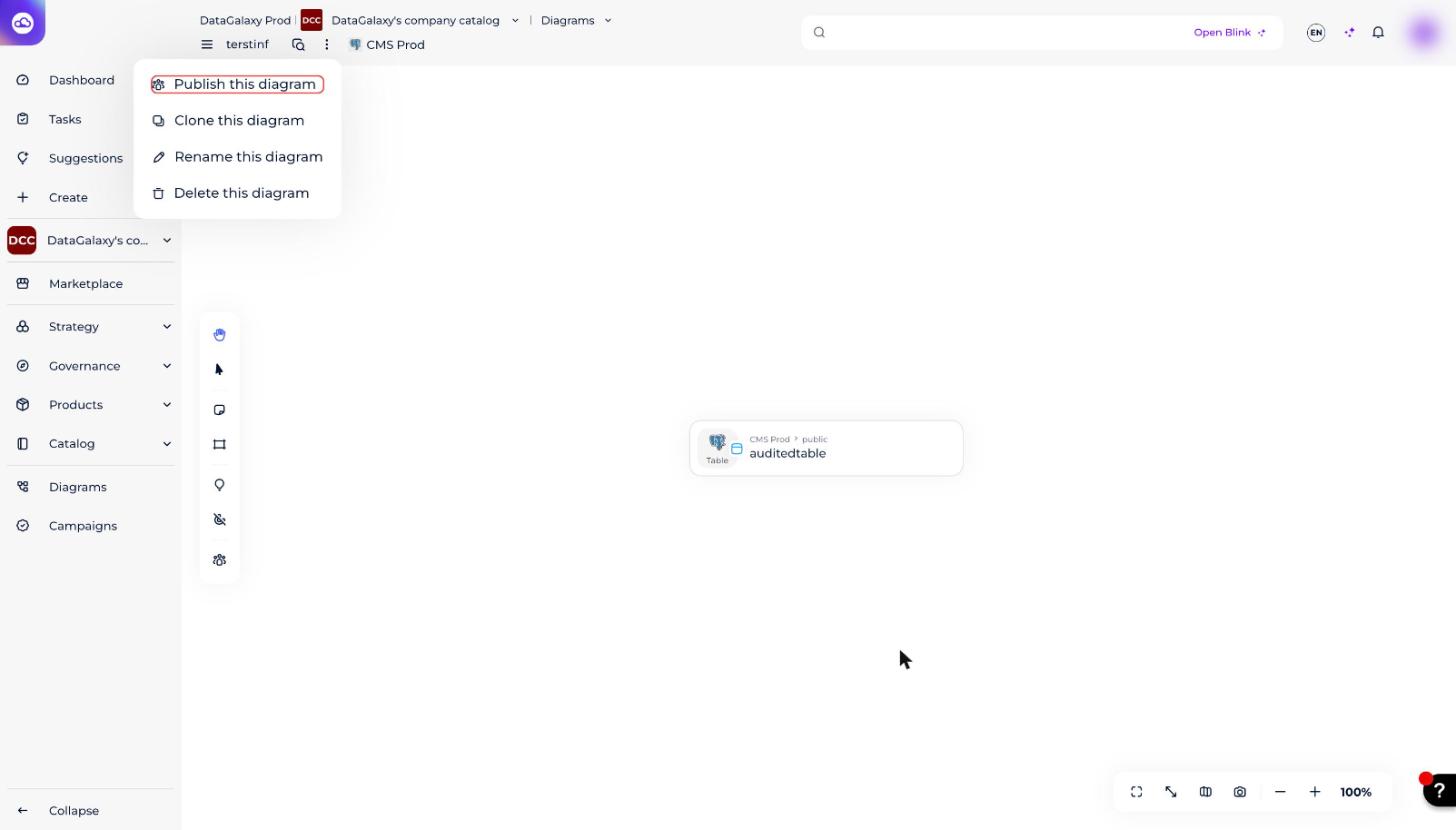
To publish a private diagram, open it, click the ⋮ menu next to its name and choose Publish this diagram.
How to adjust the diagram display
Use the display buttons to fit and arrange the diagram on screen.
