You can fill the Dictionary in three ways: automatically with the online or desktop connector (see "DataGalaxy connector"), by importing a CSV file with the import wizard (see Import Objects in the Dictionary from a CSV File), or by creating objects by hand. This article covers manual creation.
To learn more about each object available in the Dictionary, see "The dictionary objects in detail".
How to create a database
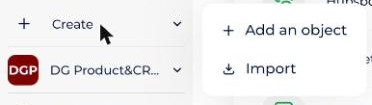
- On your workspace home page, click Create in the sidebar, then Add an object.
- In the window that opens, select the Dictionary module, then choose the type of source to create in the Type list: Database, NoSql source, FileStore or TagBase source.
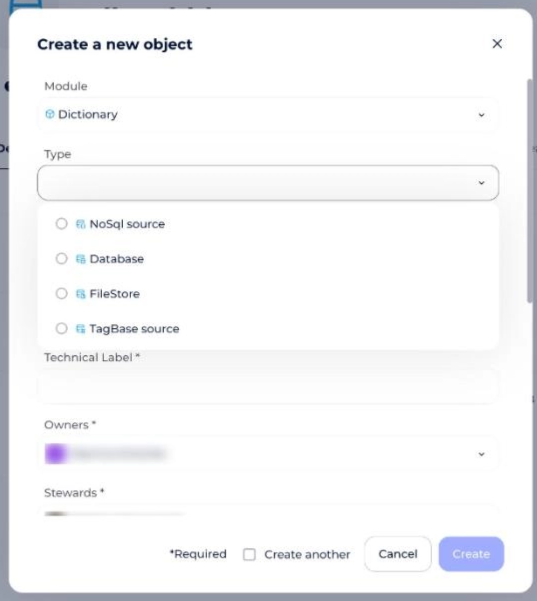
- Click Create. The database's object card opens in the Dictionary module, where you can create the objects it contains.
How to create objects in a database
Once your database exists, you can create its direct children:
- Containers: objects that describe in an abstract way how data is organized in the database, grouping tables and views in a hierarchy
- Structures: tables (data stored as a table) or views (the result of a database query)
You can create them from two places. Repeat the same steps one level down to create the children of tables, such as columns.
From the object card tabs
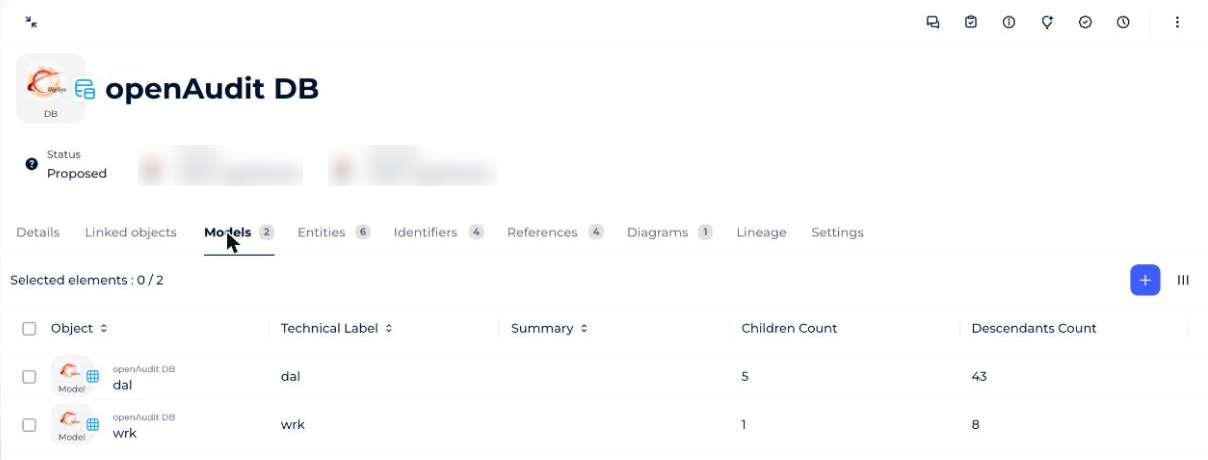
On your database's object card, open the Containers or Structures tab and add your objects there.
From the navigation menu
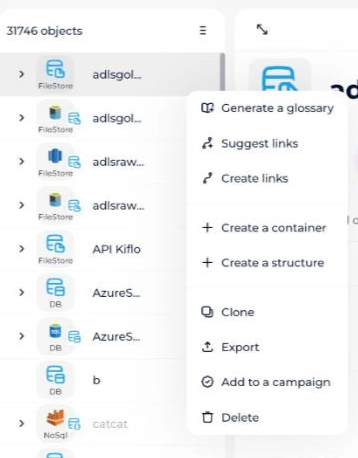
In the navigation tree, click the three-dot menu to the right of your database's name, then choose Create a container or Create a structure.
How to use the diagram tab
The Diagrams tab of the object card lets you draw physical data models of your data.
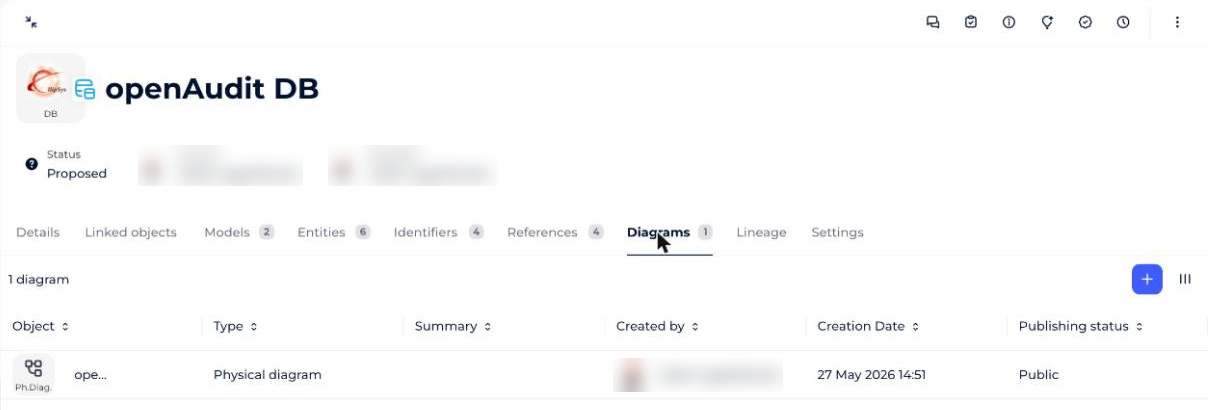
To learn how to build a diagram, see Use Physical Diagrams.