Connect the DataGalaxy Model Context Protocol (MCP) server to Mistral Vibe (formerly Le Chat) so the assistant can search your data catalog, fetch metadata, and use DataGalaxy tools directly in your conversations.
DataGalaxy MCP gives Mistral Vibe access to your catalog through a set of tools: semantic and natural-language search, object details, links, users, tags, comments, and updates to objects. Everything runs with your own DataGalaxy permissions — the connector can never do more than you can already do in DataGalaxy. Mistral Vibe acts as an MCP client: it discovers the tools your server provides and calls them (with your approval) inside a chat.
You can connect in two ways: OAuth 2.1 (recommended) or a Personal Access Token. The preparation steps are the same for both; you then pick your method from the gallery below.
What you need before you start
- A Mistral Vibe account with administrator rights (account owner on Free/Pro/Student, or a workspace admin on Team/Enterprise).
- A DataGalaxy instance with the MCP Server enabled for your organisation.
- A DataGalaxy user account. With OAuth, the connector acts with your own permissions; with a PAT, it acts with the permissions of the user who generated the token.
- Your DataGalaxy MCP Server URL (see Copy your DataGalaxy MCP Server URL).
Prepare the connection
Enable the DataGalaxy MCP Server
If the MCP Server is not yet active for your company, contact your DataGalaxy account manager to have it enabled. You can confirm it is active from the DataGalaxy MCP Server option in the platform's profile menu.
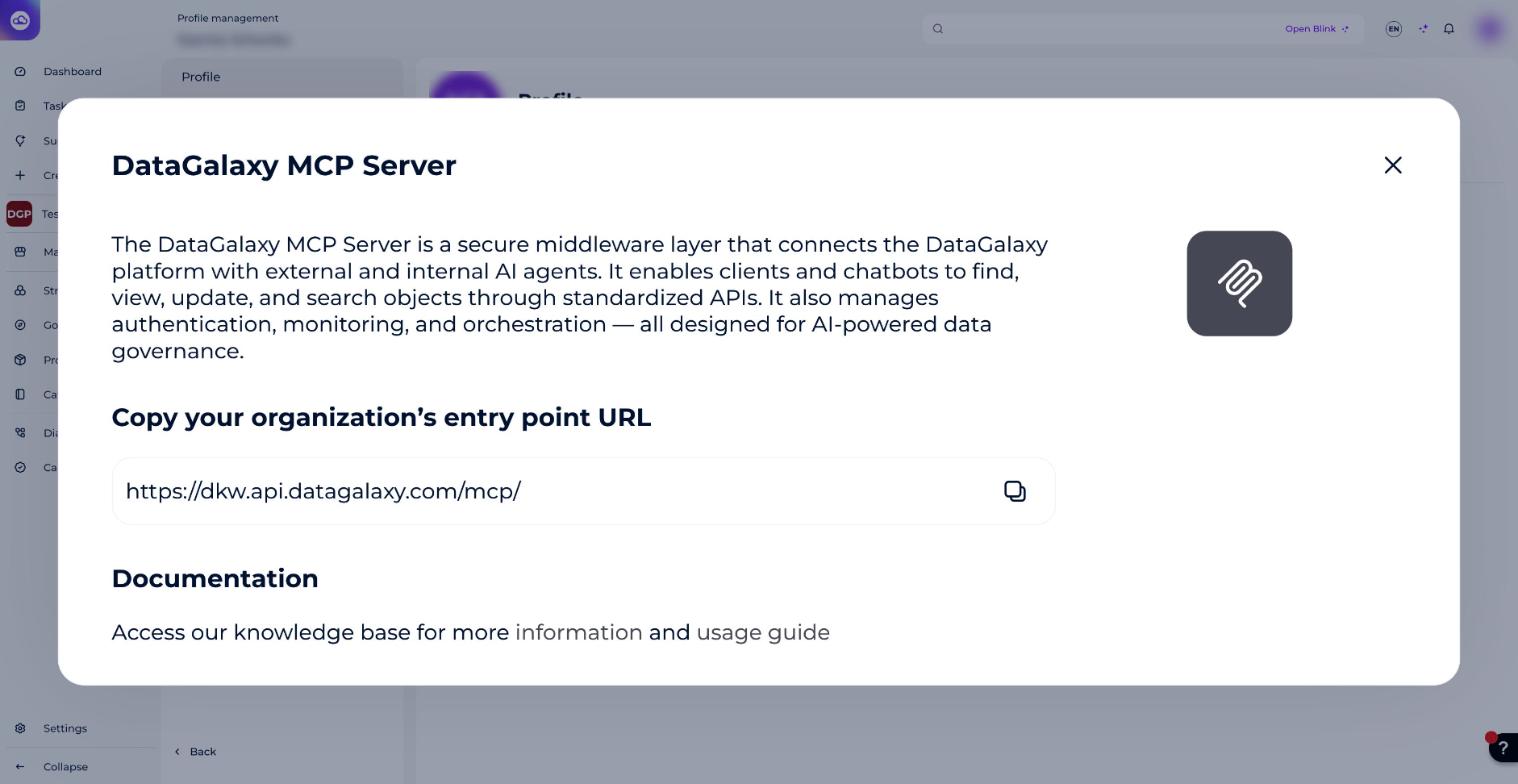
Copy your DataGalaxy MCP Server URL
Your server URL follows this format:
https://<instance name>.api.datagalaxy.com/mcp/Open the profile menu (your avatar, top right) and select DataGalaxy MCP Server, then copy the exact entry point URL shown in the window. Keep the trailing /mcp/ path — the connector will not initialise without the correct path.
Open Connectors in Mistral Vibe
In Mistral Vibe, connectors live in Work mode — the bridge between Work and your external tools and data.
- Go to chat.mistral.ai and sign in with your administrator account.
- Switch to the Work tab (the Work / Code switcher at the top of the sidebar).
- Open Context → Connectors. Depending on your version, you can also reach it from the Connect button in the "Work mode is better with your apps connected" banner, or from Connect your apps for better answers under Suggested for you.
- Click + Add Connector, then choose Custom MCP Connector. The Add custom connector panel opens.Screenshot: Connectors page with the Add Connector button in Mistral Vibe. (Re-add this image here.)
Choose your authentication method
Open the card for the method you want to use. Each card contains the full steps for that method.
Enable the connector and review its tools
Once connected (with either method), DataGalaxy MCP appears in your Connectors list along with the tools it provides (search, semantic search, get object, get links, get users, get tags, and more). To use it in a conversation:
- Start a chat in Work mode.
- Click the + icon (or type
/) in the message box and select Tools.
- Enable the DataGalaxy MCP connector for the conversation, and turn off any tools you don't need for the current task.Screenshot: enabling the DataGalaxy connector for a conversation. (Re-add this image here.)
Start asking questions
You can now query your governed catalog in natural language. Mistral Vibe will ask for your approval the first time it calls a DataGalaxy tool. Example prompts:
- "Search DataGalaxy for objects related to customer revenue and summarise their definitions."
- "Show me the owner, tags, and linked objects for the Customer table."
- "List the business terms in the glossary that mention churn."
Manage per-function permissions
You control whether Mistral Vibe asks for approval each time it calls a DataGalaxy function, or pre-authorises it:
- Go to Connectors and open the DataGalaxy MCP connector.
- In the Tools section, each tool is set to Ask by default, so Mistral Vibe requests your approval before every call. Use the permission switch next to a tool (or the group-level selector) to set the ones you use most to always allowed.
Troubleshooting
If you see "MCP connection requires additional information or is invalid," check the following:
- Endpoint URL — make sure the path is correct and ends in
/mcp/. Remove any accidental extra characters or a doubled trailing slash.
- Server reachability — the server must be reachable over HTTPS with a valid TLS certificate.
- OAuth authorization — if the DataGalaxy sign-in or Authorize access screen does not appear, or the connection shows as not valid, remove the connector and add it again, then approve access with Allow access. Make sure your browser does not block pop-ups or redirects from Mistral Vibe.
- Authentication (PAT) — if you use a token, verify it is current and hasn't been revoked. Regenerate it in DataGalaxy under Profile → Security if needed.
- MCP enabled — confirm the MCP Server is active for your organisation (see Enable the DataGalaxy MCP Server).