The DataGalaxy extension installs from the Chrome Web Store like any other browser extension. Once it is added, you sign in with your DataGalaxy email address and password, and your catalog is available from the browser toolbar.
Where can you find the extension?
The extension's installation link is available from the platform (profile menu in the top right > DataGalaxy Extension), or you can get it directly from the Chrome Web Store.
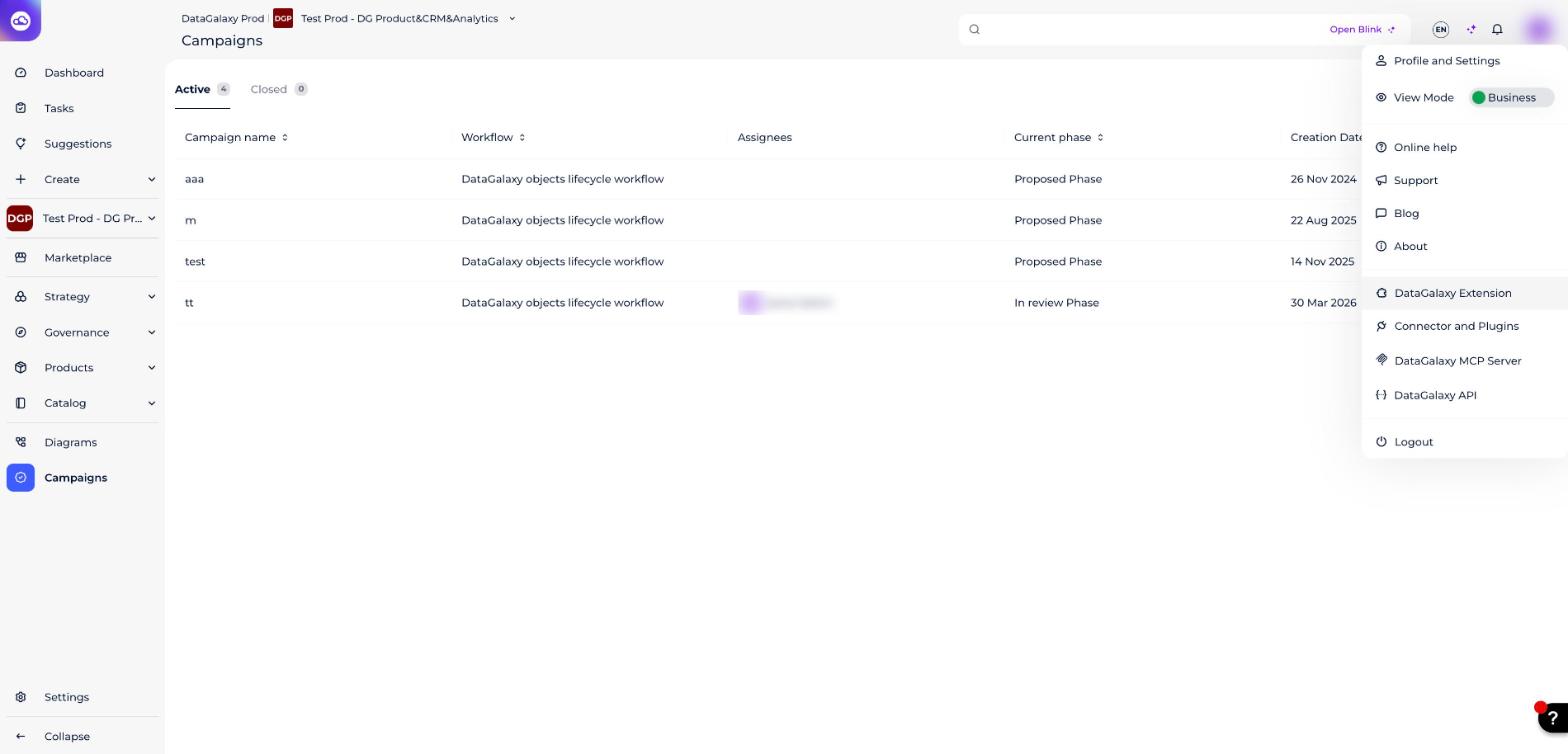
How to install the extension
- Open the Chrome Web Store in your browser (Chrome, Edge, etc.).Screenshot: the DataGalaxy extension in the Chrome Web Store. (Re-add this image here — the original Freshdesk link expires after a few days.)
- Search for and select the DataGalaxy extension.
- Click Add to Chrome (or the equivalent for your browser) and confirm the installation. The extension is added to your browser.Screenshot: confirming the extension installation. (Re-add this image here — the original Freshdesk link expires after a few days.)
- Launch the extension from your browser and sign in with your email address and password.
Pin the extension so it stays easily accessible at the top right of your browser.
How to uninstall the extension
- Open your browser's extensions menu.
- Find the DataGalaxy extension and open its options menu.
- Click Remove from browser. The extension is uninstalled.Screenshot: removing the extension from the browser. (Re-add this image here — the original Freshdesk link expires after a few days.)