The DataGalaxy MCP Server lets an AI client work with your catalog. To connect one, you need the server enabled for your company, your Personal Access Token and your organization's server URL.
Each MCP client stores those settings in its own way, so check its requirements before you start.
How to connect your MCP client
- Contact your account manager to enable the MCP Server for your company.
- Check what your MCP client needs in order to connect to a new MCP server.We continuously update our how-to articles to cover more MCP clients. Don't hesitate to contact Support with your specific case.
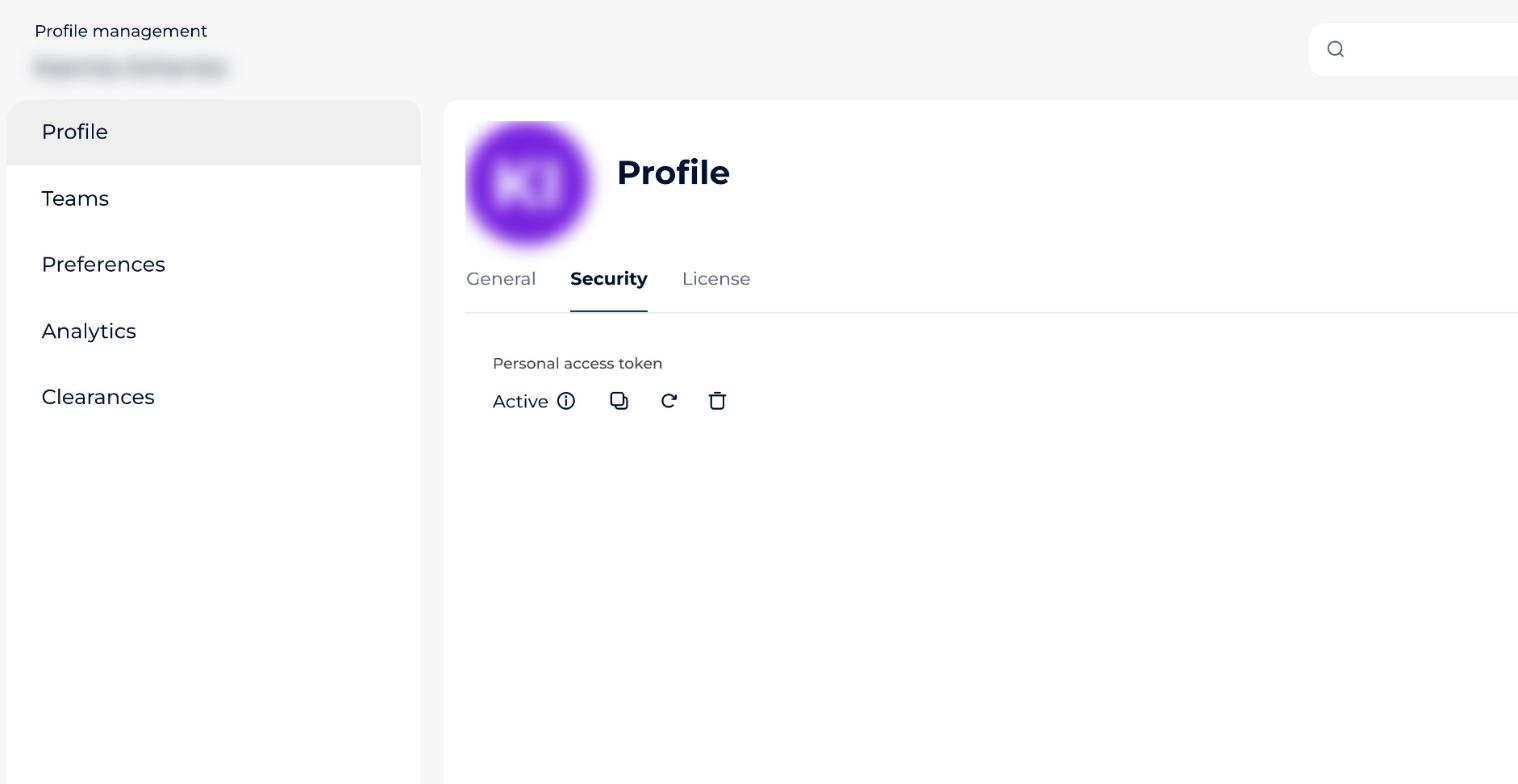
- Copy your Personal Access Token (PAT), which you need in order to use the DataGalaxy MCP Server. Open the profile menu (your avatar, top right), select Profile and Settings, then the Security tab. Next to Personal access token, the icons let you copy your PAT, regenerate it or delete it; the info icon shows when it was last used and generated.
- Copy your server URL,
https://<instance name>.api.datagalaxy.com/mcp/. In the profile menu, select DataGalaxy MCP Server and copy your organization's entry point URL from the window that opens.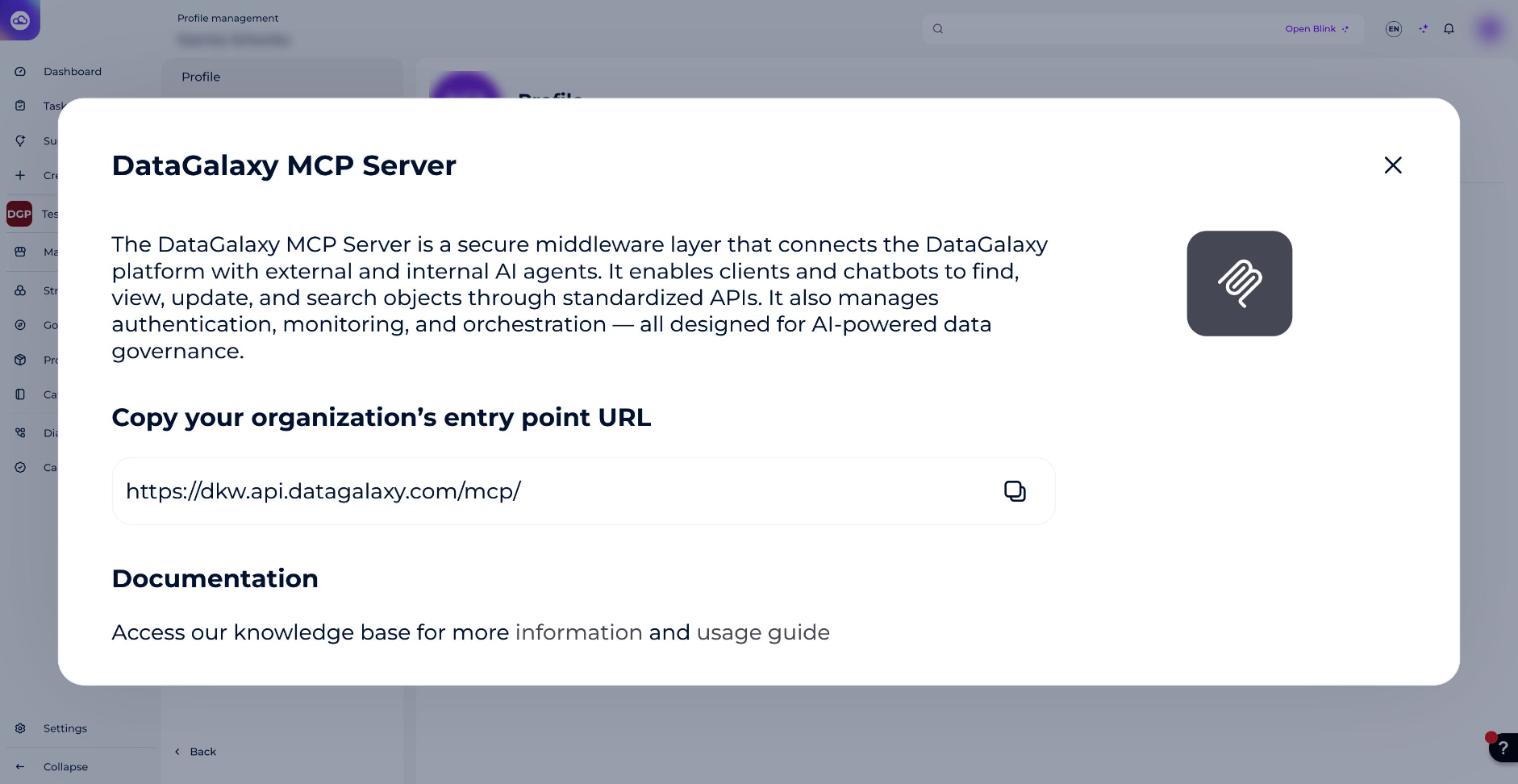
- Add this information to your MCP client's settings, following that client's requirements.
- Ensure the DataGalaxy MCP Server is active.
- Check the available tools.
- Formulate and ask your questions.
Check our how-to articles about setting up the MCP Server for different clients: