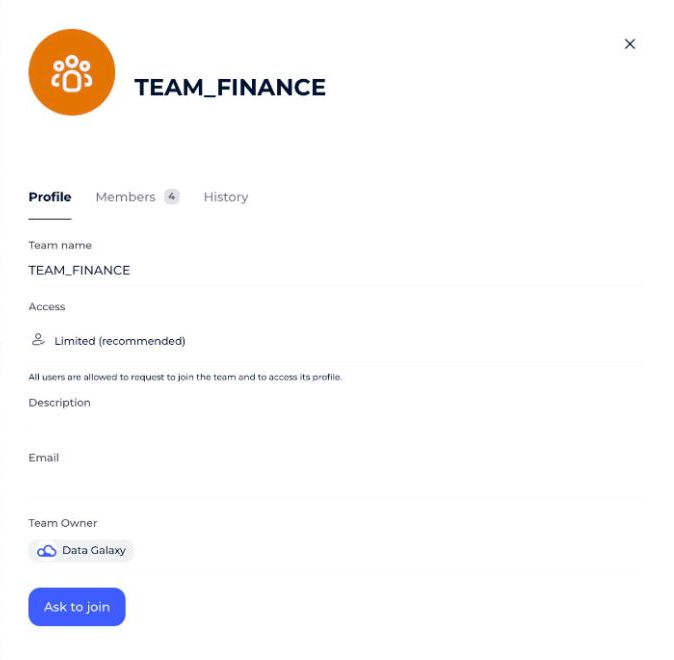
Teams group the users of your client space. From the Teams tab of your profile you can see the teams you belong to, browse the teams that exist in the space, and join those that are open to you.
Administrators create every team in the client space and define its members and its owner or owners. If you are a team owner, you can also edit your team, manage its members and answer access requests.
How to open your teams
- Click your icon at the top right of the screen.
- Click Profile and Settings in the drop-down menu.
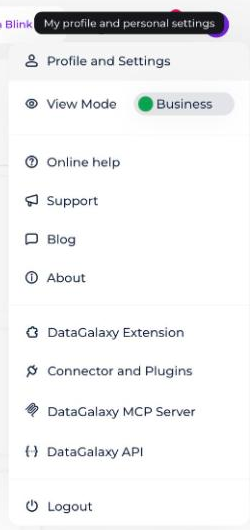
- Select the Teams tab.
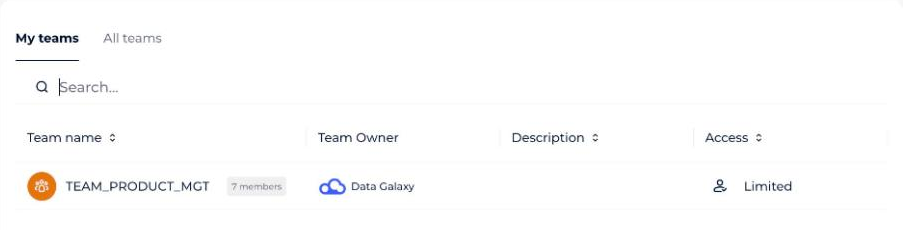
The screen has two sub-sections:
- My Teams: the list of the teams you are a member of.
- All teams: the complete list of teams created and existing in the client space.
What you can do in My Teams
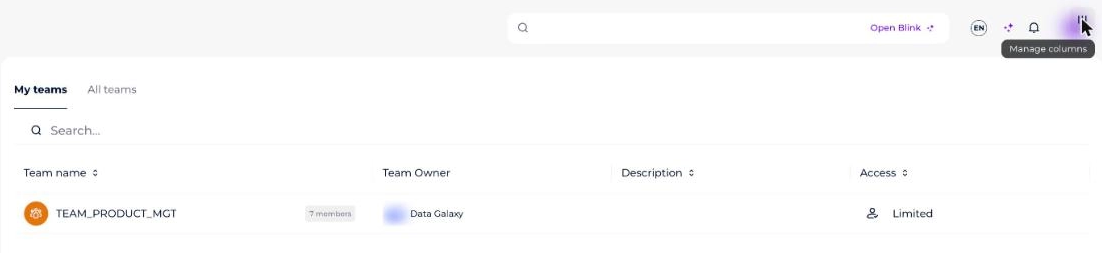
In the My Teams tab you can view all the information about the teams you are part of.
To view more information about your teams, click the three bars (Manage columns) at the top right of the screen to manage the columns of the teams table.
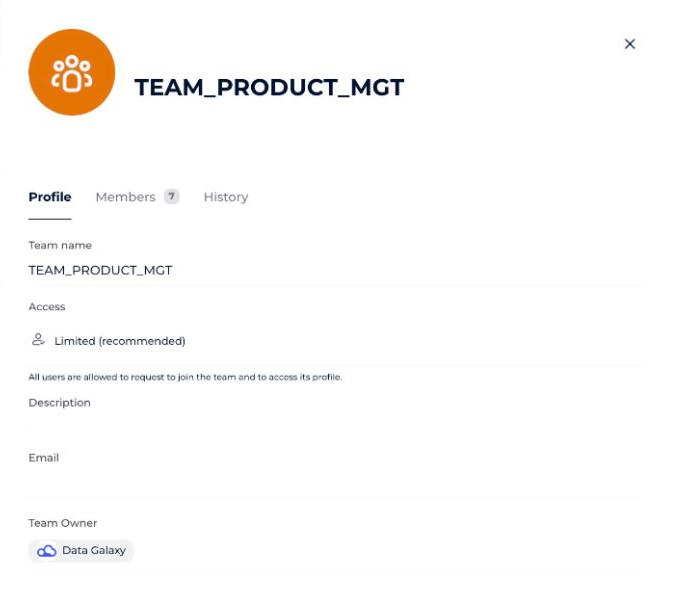
To consult a team's card, click the team in the list. A preview opens on the right of the screen with:
- The name
- The description
- The access type
- The email
- The team owner
- The members
How to update a team
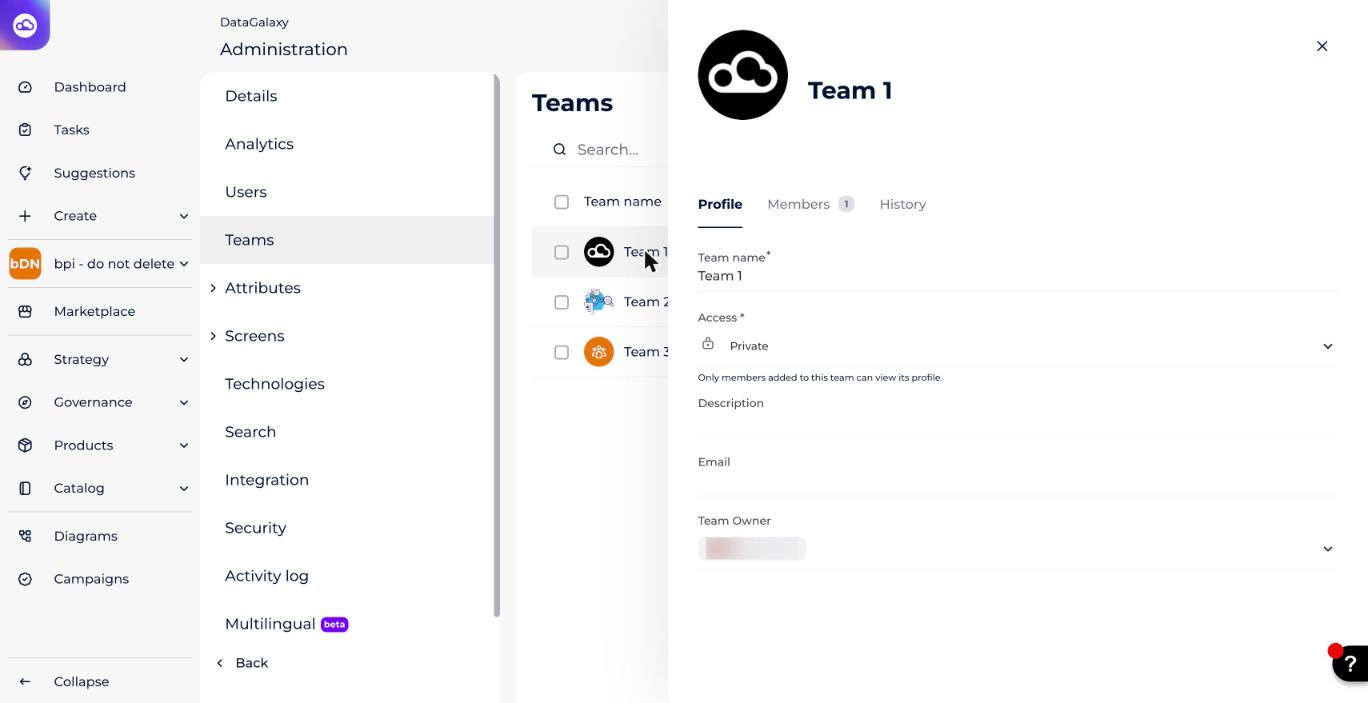
- Click the team you want to edit in the team list.
- Update the fields in the team's card that opens on the right of the screen.
How to add members to a team
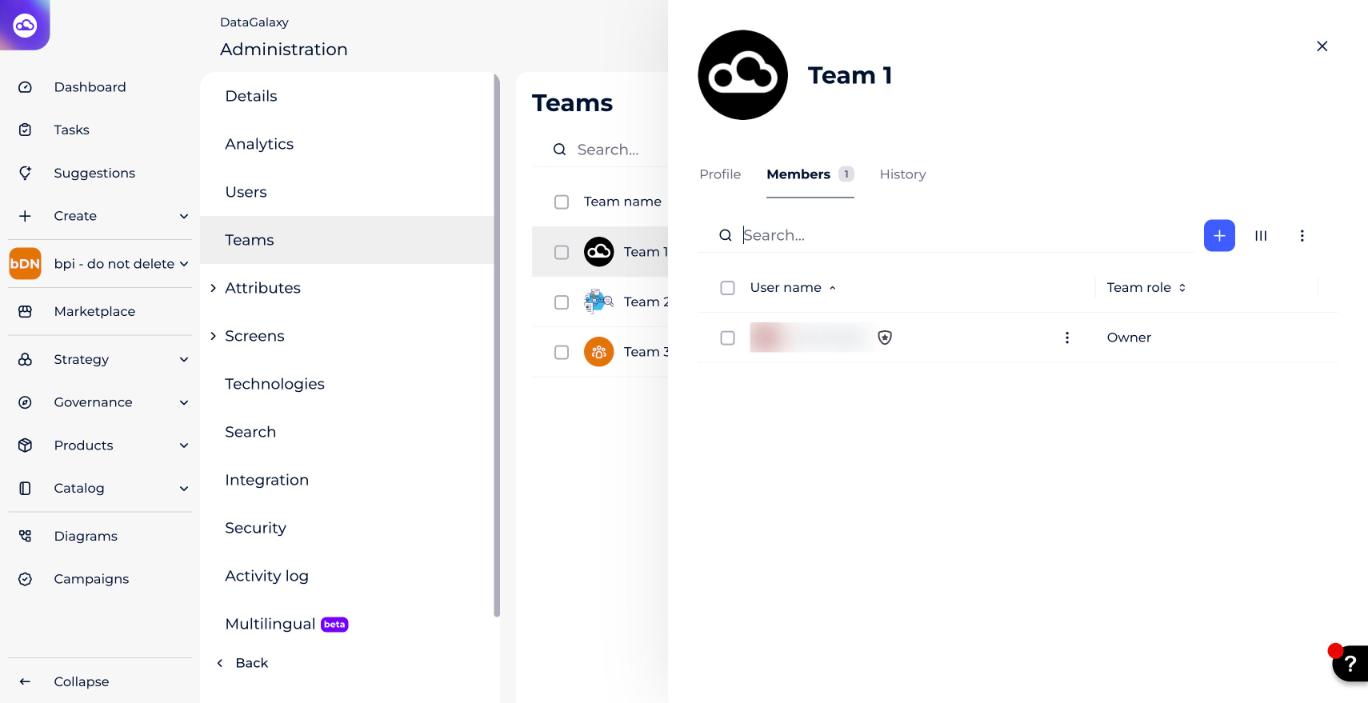
- Click a team in the list of teams.
- Click the Members tab in the team card that appears on the right of the screen.
- Click the blue + button next to the search bar.
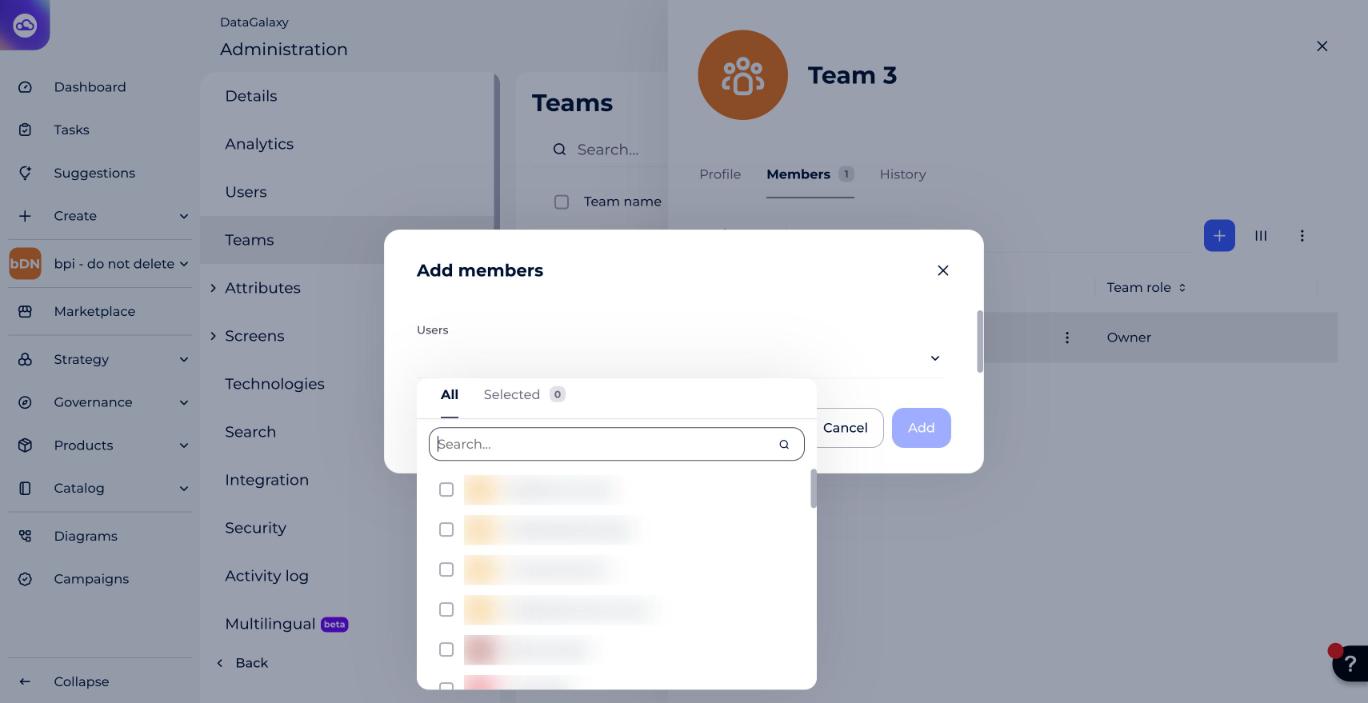
- Select the users you want to add to this team in the modal that opens.
- Click Add. The members list is updated.
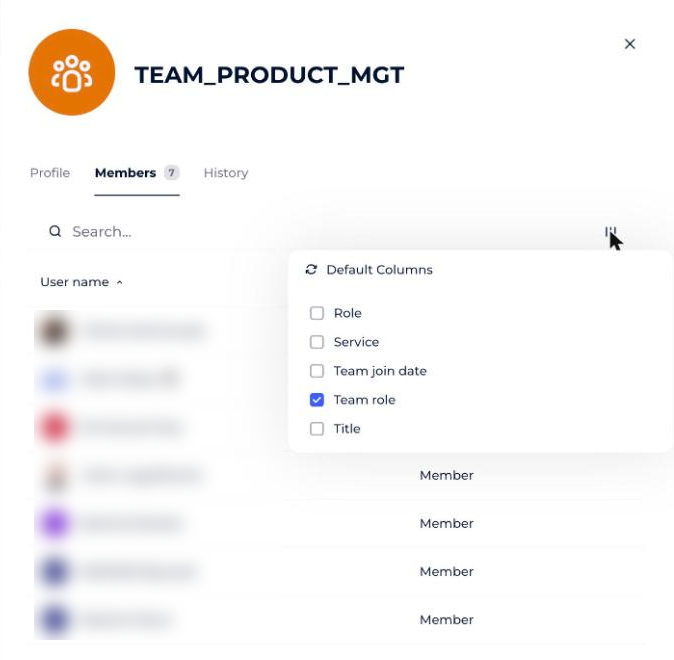
To view more information about the members, click the three bars at the top right of the screen to manage the columns of the members table.
How to define a team owner
Two options are possible.
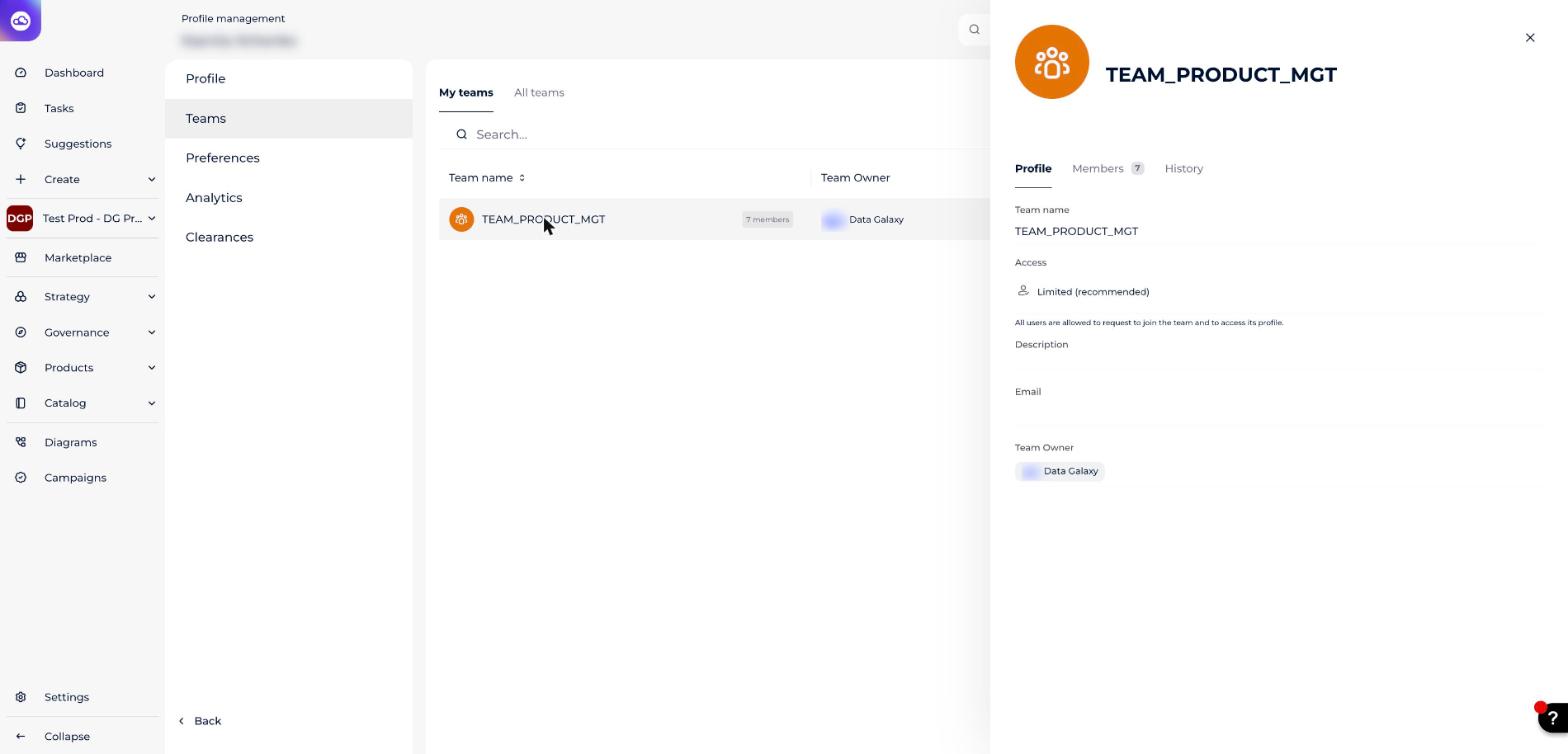
From the team's Profile:
- Click a team in the list of teams.
- Update the team owner from the Profile in the team card that opens on the right of the screen.
From the Members tab:
- Click a team in the list of teams.
- Click the Members tab in the team card that opens on the right of the screen.
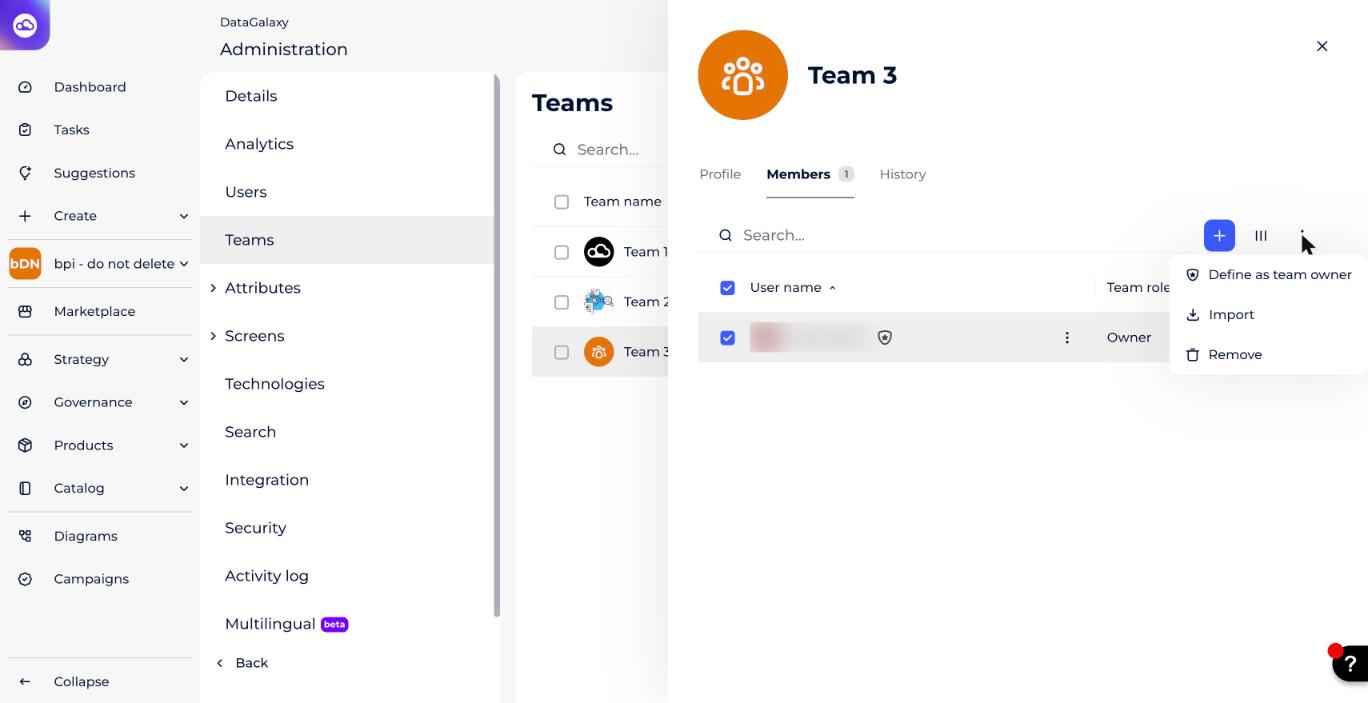
- Check the box next to the member you want to assign as team owner.
- Click the three dots at the top right of the team.
- Click Define as team owner.
How to delete members from a team
- Click a team in the list of teams.
- Click the Members tab in the team card that opens on the right of the screen.
- Check the box next to the member you want to remove from the team.
- Click the three dots at the top right of the team.
- Click Remove (see the menu in the screenshot above).
How to manage access requests
A blue dot next to a team's name in the team list signals a new request to join it.
- Click a team with a blue dot in the team list.
- Click the Members tab in the team card that opens on the right of the screen.
- Click Accept or Decline on the access request.Screenshot: the Members tab showing a pending access request with Accept/Decline actions. (Re-add this image here — the original Freshdesk link expires after a few days.)
What you can do in All teams
Under the All teams tab you can view all the information about teams created with a non-private status.
To view more information about these teams, click the three bars at the top right of the screen to manage the columns of the teams table.
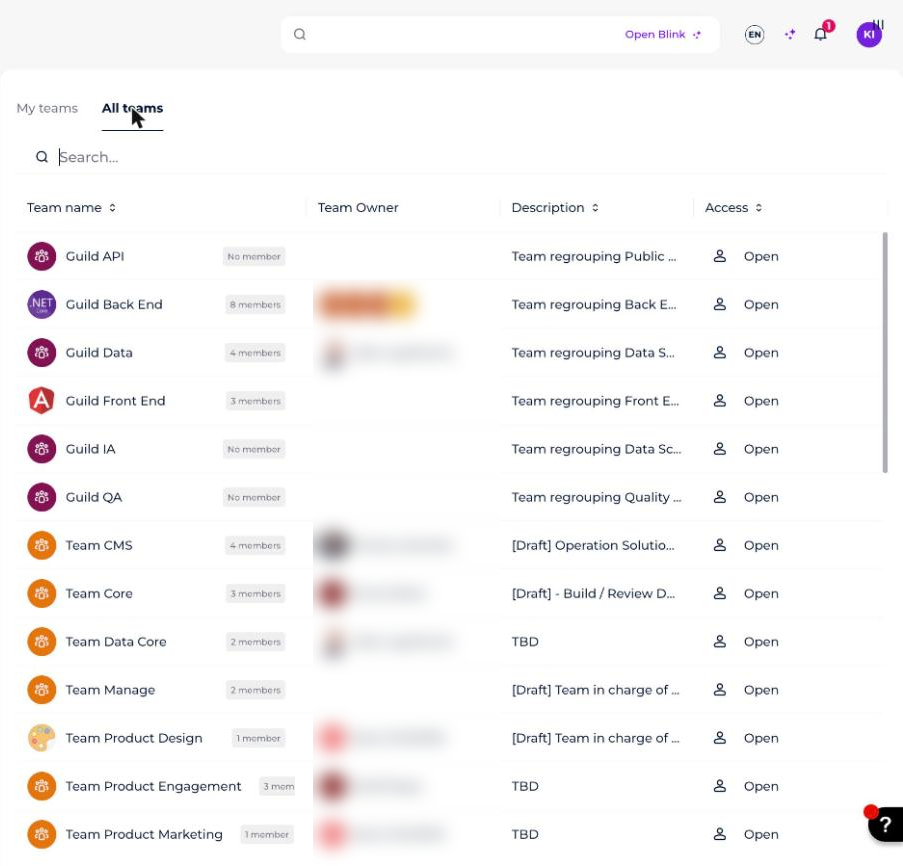
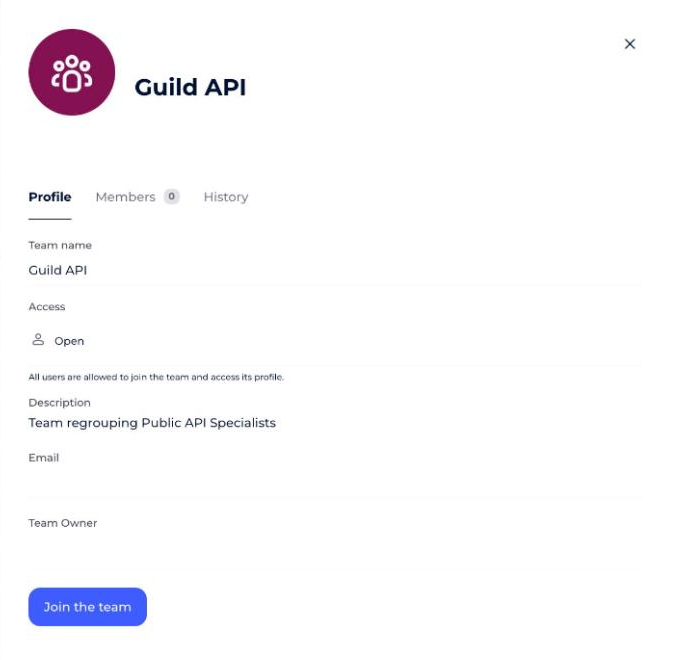
To consult a team's card, click the team in the list. A preview opens on the right of the screen with:
- The name
- The description
- The access type
- The email
- The team owner
- The members
How to join an open team
Click Join the team in the team's card. You become a member of that team straight away.
How to join a limited-access team
Click Request to join the team in the team's card. An access request is sent to the team owner, and you become a member once the request is accepted.