Your profile picture appears next to your name everywhere you work in DataGalaxy. You can add one, adjust how it is framed, or remove it to go back to an avatar showing your initials.
All three actions happen on the Profile tab of Profile and settings.
How to add a profile picture
There are two ways to add a new image.
By drag and drop
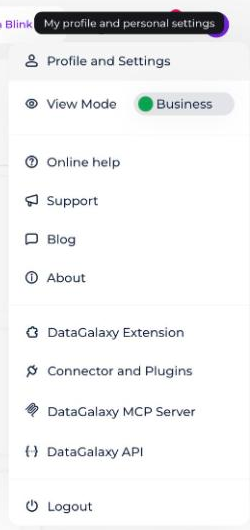
- Click your icon at the top right of the screen.
- Click Profile and settings in the drop-down menu.
- Select the Profile tab.
- Drop your new picture directly onto the space dedicated to your avatar.

From the three-dot menu
- Click your icon at the top right of the screen.
- Click Profile and settings in the drop-down menu.
- Select the Profile tab.
- Hover over the image. Three dots appear.
- Click the three dots and select Upload new image.
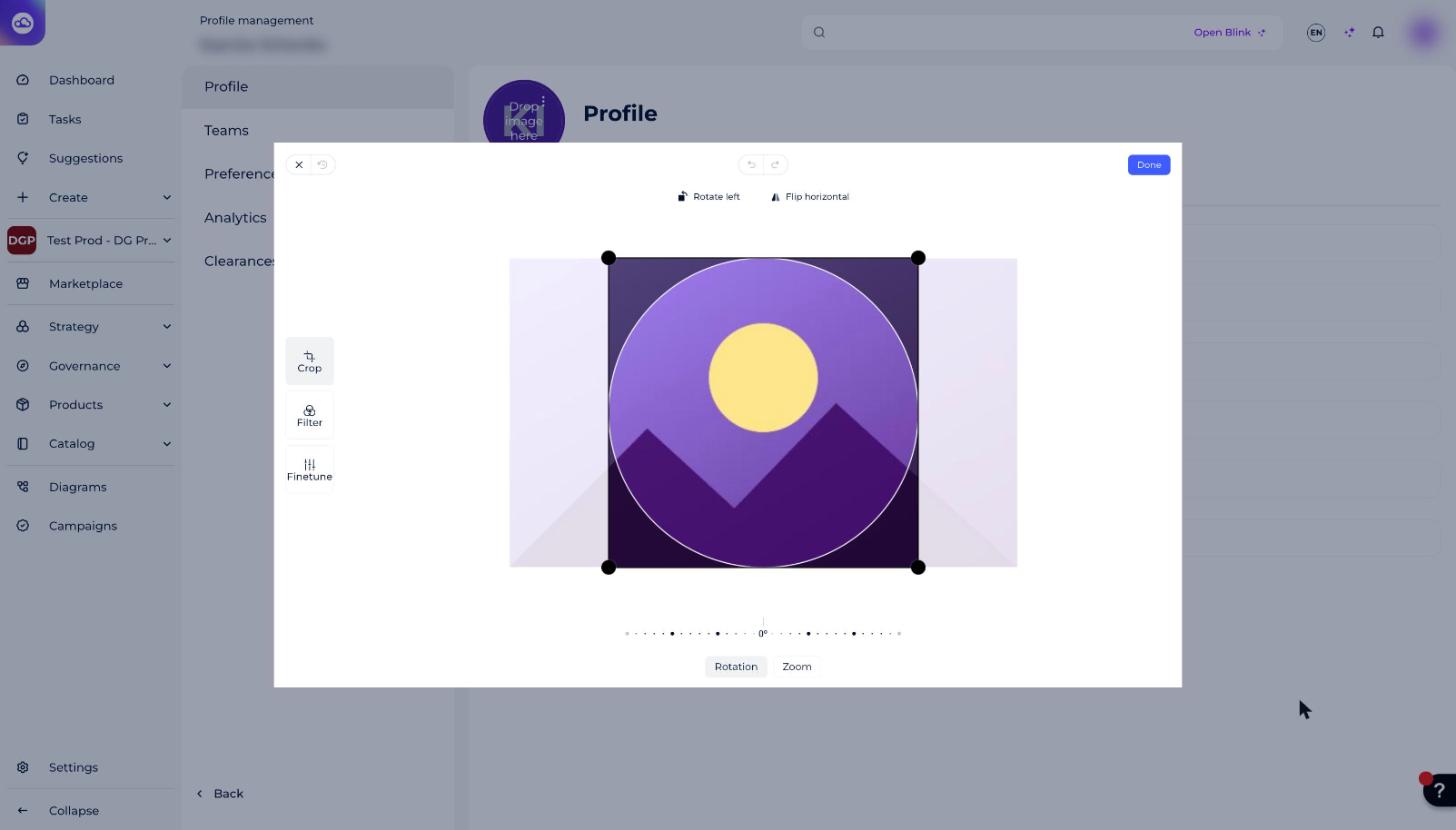
- Select the image to import. A modal opens.
- Apply the adjustments of your choice, then click Done.
How to change your current picture
- Click your icon at the top right of the screen.
- Click Profile and settings in the drop-down menu.
- Select the Profile tab.
- Hover over the image. Three dots appear.
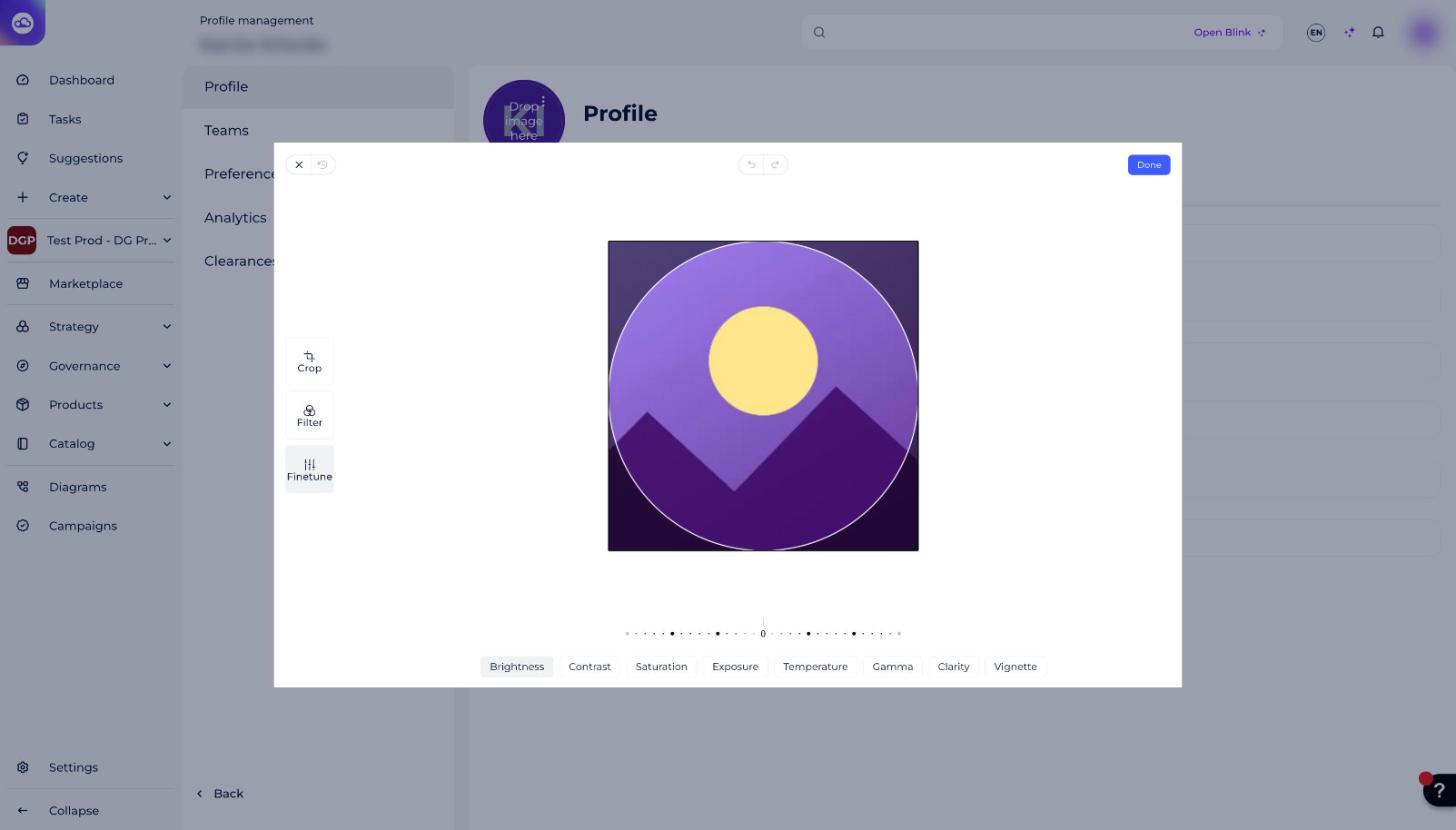
- Click the three dots and select Edit this image. A modal opens.
- Apply the adjustments of your choice, then click Done.
How to delete your profile picture
- Click your icon at the top right of the screen.
- Click Profile and settings in the drop-down menu.
- Select the Profile tab.
- Hover over the image. Three dots appear.
- Click the three dots and select Delete this image. Your avatar goes back to your initials.