Quick filters make your search easier and faster by offering you the filters most likely to be of interest, directly in the heart of your search.
Where to find the quick filters
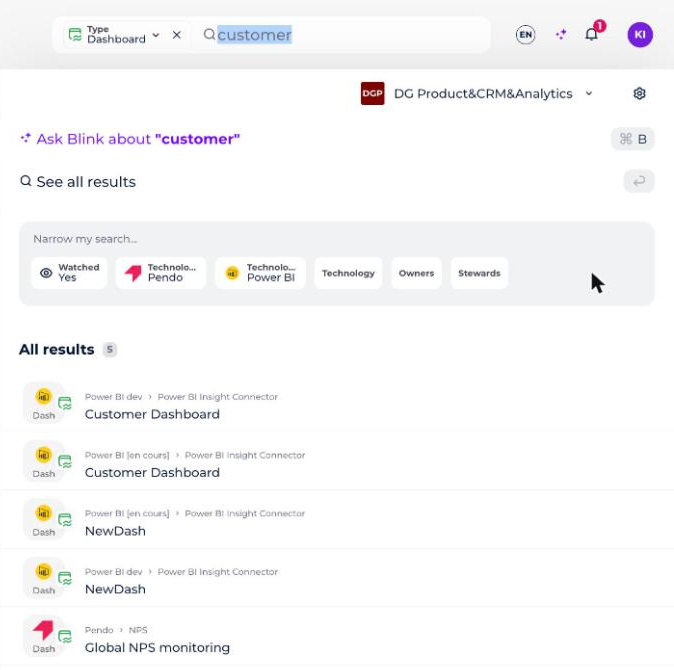
Quick filters are available in a dedicated section in the search bar on the search home page, as well as in the search field at the top right throughout the application. The arrows at the ends of the section allow you to navigate between the quick filters.

Once you click in this search bar, you are presented with quick filters based on your license level. Only quick filters that return results are displayed.
You can add as many quick filters as you have available.
What types of quick filters exist?
- Resolved quick filters: filters on an attribute (or a link) to which a value is assigned. In the example, the attribute is
Typeand the value isIndicator. Once you click on this filter, it is added to the search bar. You can then edit it by clicking on the small filter arrow.
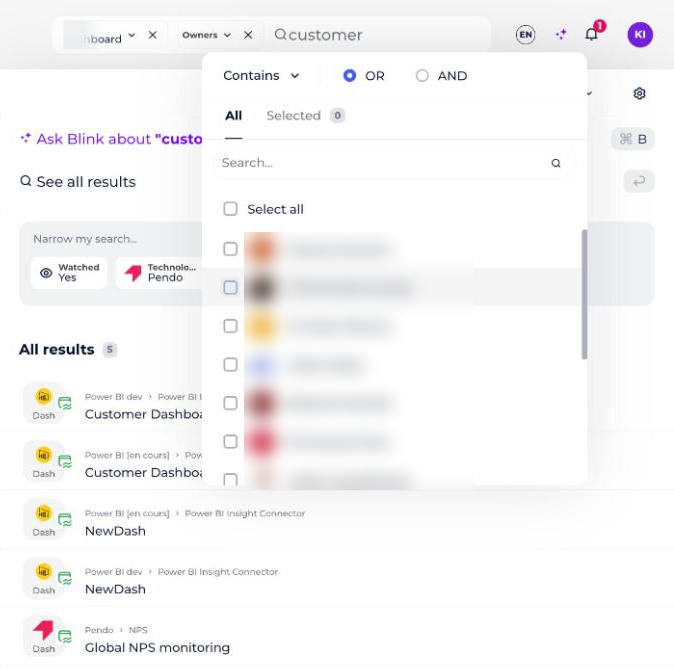
- Unresolved quick filters: filters on an attribute (or link) without an assigned value. In the example, the attribute is
Owners, and it is up to you to choose the value(s) of your choice from the drop-down list after selecting this filter.
To learn how to set up quick filters, and add quick filters on your custom attributes, see the article "Manage the quick filters" in the Administer section.