Create and manage filtered views that update as objects change.
What is a filtered view?
Filtered views are lists of objects corresponding to a certain number of filters. The list of objects is dynamically updated according to their evolution.
For example, you create a filtered view with all objects whose status is proposed. If you update the status of the business term Customer and change it from proposed to validated, the object Customer will no longer be part of your filtered view.
There are two types of filtered views:
- Module filtered views: filtered views available within a module, which only include objects from this module. They can be defined by default as the landing page of a module.
- Cross-module filtered views: filtered views available from the search, which can group objects from all modules.
Filtered views can be:
- Public: all users in the workspace have access to this filtered view
- Private: only you have access to this filtered view
Where to find your filtered views
From the home page
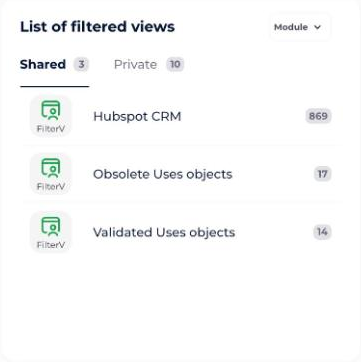
On your home page, you have a Filtered views widget, which allows you to quickly access all your filtered views of a workspace.
Thanks to the filtered view icon, you can see which module the view belongs to. You can also filter directly on the module of your choice.
From the modules
- Go to the module of your choice.
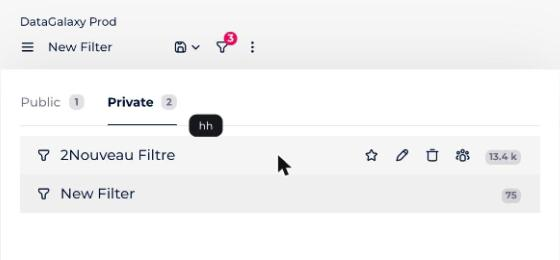
- Click on the filtered views button at the top left of your screen to open the filtered views panel.
- Choose a tab: the panel consists of two tabs, one for public filtered views and one for private filtered views.
How to filter a list of objects
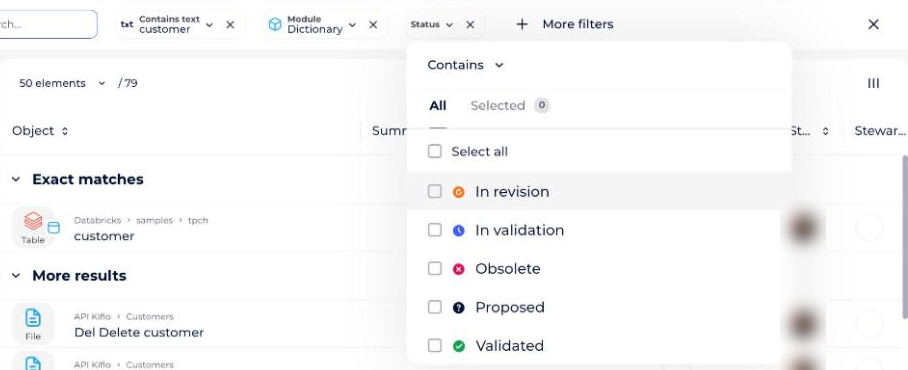
When you are in the search or in a module, you can filter the list of objects. Filters are cumulative and are available in detailed and tabular views.
- Click on the More filters button.
- In the drop-down menu, select the attribute or link on which you want to filter.
- Choose the value. The list of objects is updated and your filter appears at the top of your screen.
How to save a filtered view
In all modules and in the search, you can save filtered views.
- Filter the list of objects.
- Click on the Save button, then Save as in the drop-down list.
- In the popup window, enter a label (required), a description (optional) and the public or private character.
- Click on Create. The filtered view is saved.
How to define a default filtered view
Default filtered views allow you to go directly to the filtered view when you arrive in the module.
- Open the list of filtered views.
- Hover over the filtered view of your choice.
- Click on the star that appears when hovering. The view becomes the default one.
How to update the filters of a filtered view
- Position yourself on a filtered view.
- Update the filters.
- Click on the Save button, then Save in the drop-down list.
How to update the properties of a filtered view
The properties of a filtered view are the label and the description.
- Open the filtered views panel.
- When hovering over the line of the filtered view, click on the pencil. A modal opens.
- Modify the elements of your choice.
- Click on the Update button.
How to delete a filtered view
- Open the filtered views panel.
- When hovering over the line of the filtered view, click on the trash can. A deletion confirmation modal opens.
- Click on the Delete button.