Many data/business analysts use Python for their day-to-day analysis. Our data is also accessible via Python. Follow the steps below in order.
To get access, please reach out to your account manager.
How to enable access and copy your token
- Go to the Settings menu for Workspace administrators, or the Account/Administration menu for Client-space administrators.
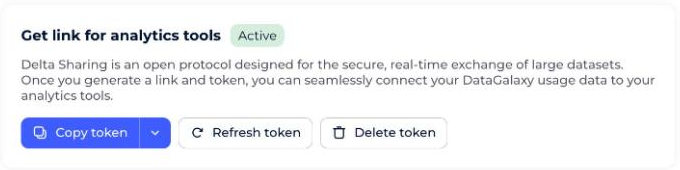
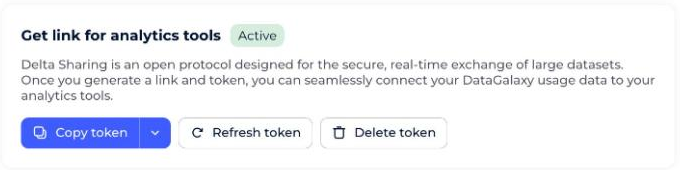
- Generate the token by clicking the Configure connection button.
- Copy your token into your tool, or into a separate file (depending on the connection type needed).
If you suspect your token has been compromised:
- Regenerate it using the Refresh button.
- Delete it using the Delete button.
How to create a profile file
The profile file is a JSON file containing your token information.
- Create a text file (e.g. via Notepad).
- Paste your token into it.
- Save the file with a
.jsonextension.
How to set up Delta Sharing for Python
- Install the Delta Sharing library.The
!pip installsyntax below is Jupyter notebook shorthand for running a shell command from a notebook cell. In a plain terminal, drop the leading!.!pip install delta-sharing pandas
- Import it.
import delta_sharing
How to access your data
Point Python at your profile file to retrieve your connection information:
profile_file = 'path'
sharing_client = delta_sharing.SharingClient(profile_file)
How to check which tables you have access to
You may want to check the list of tables you can access:
shares = sharing_client.list_shares()
print(shares)
for share in shares:
    schemas = sharing_client.list_schemas(share)
    for schema in schemas:
        tables = sharing_client.list_tables(schema)
        for table in tables:
            print(f'name = {table.name}, share = {table.share}, schema = {table.schema}')
The result of this step will look something like:
[Share(name='ccfe0e34-1bac-3425-9655-56c9d93b03be--852d8eaf-7529-455b-a34k-8d666aeb2938_platform_aggregated_usage')]

name = platform_aggregated_usage, share = ccfe0e34-1bac-3425-9655-56c9d93b03be--852d8eaf-7529-455b-a34k-8d666aeb2938_platform_aggregated_usage, schema = datagalaxy
How to retrieve your data
Load the table into a Pandas DataFrame:
# Specify the table URL
table_url = "<share>.<schema>.<name>"

# Load the table into a Pandas DataFrame
df = delta_sharing.load_as_pandas(f"{profile_file}#{table_url}")

# Preview the data
df
We're preparing a sample Python script to simplify this process.
Once you have your dataframe, you can follow your usual Python analysis workflow.
Attachment:
How_to_connect_data_with_Python.py (881 Bytes). Needs manual re-upload — not carried over by this migration.