Self-service analytics lets business users explore data and get insights independently, without relying heavily on IT or data engineering teams. By combining Delta Sharing (an open-source protocol) with Power BI, companies can provide secure, scalable, transparent access to analysis-ready datasets.
What is Delta Sharing?
Delta Sharing is an open-source protocol for securely sharing data between organizations and platforms. Its main advantages:
- Seamless interoperability with a wide range of analytics tools.
- No vendor lock-in, since it's open-source software.
- Scalable performance for large datasets.
What is Power BI?
Power BI is a Microsoft business intelligence platform that provides interactive visualizations and business analysis tools. It connects to a wide range of data sources, letting users quickly build reports, dashboards, and analyses.
How to access your data
- Go to the Settings menu for Workspace administrators, or the Account/Administration menu for Client-space administrators.
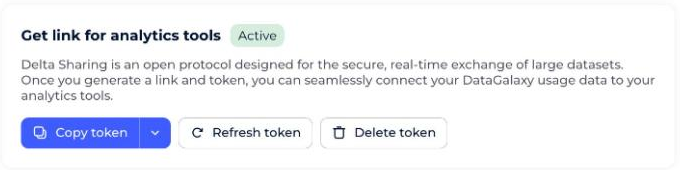
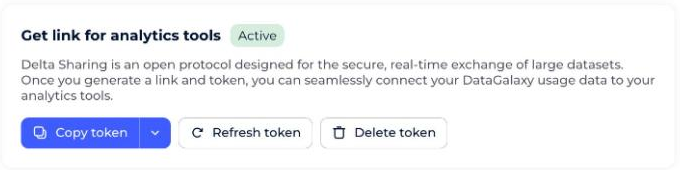
- Generate the token by clicking the Configure connection button.
- Copy your token into your tool, or into a separate file (depending on the connection type needed).
If you suspect your token has been compromised:
- Regenerate it using the Refresh button.
- Delete it using the Delete button.
How to access your data in Power BI
- Open Power BI Desktop and go to Home > Get Data > Other > Delta Sharing.Screenshot: selecting Delta Sharing under Get Data > Other. (Re-add this image here — the original Freshdesk link expires after a few days.)Screenshot: the Delta Sharing connection dialog. (Re-add this image here — the original Freshdesk link expires after a few days.)
- Paste the Delta Sharing URL, or upload the Delta Sharing token file provided by the data provider.The URL is your token's
endpointfield — the source screenshot has it redacted; use the endpoint value from your own token instead.Screenshot: pasting the Delta Sharing URL. (Re-add this image here — the original Freshdesk link expires after a few days.)
- Authenticate if prompted.The Bearer Token is your token's
bearerTokenfield — the source screenshot has it redacted; use the bearerToken value from your own token instead.Screenshot: the authentication prompt. (Re-add this image here — the original Freshdesk link expires after a few days.)
- Select the tables you want to import and load them into Power BI.
How to apply data-governance analytics best practices faster
If you already have an analytics system set up, you can connect your data and calculate/visualize the key performance indicators you need.
If you need to set up your analytics system first, we recommend following data-catalog user best practices.
We provide templates covering the most common key performance indicators (KPIs), helping you quickly set up and track your performance metrics. These templates are designed to simplify implementation and align with data governance and analytics best practices.
What to do about Power BI's row limit
To work around this limitation, we recommend using Analytics by Workspace, pre-filtering your data, or using tools like Python or other data-processing solutions that aren't subject to this restriction.
- For initial setup:Screenshot: initial setup with the row-limit parameter. (Re-add this image here — the original Freshdesk link expires after a few days.)
- For an existing connection:
- Click Transform data.
- Click the table you want, then click Advanced Editor.
- Edit the first connection line to add the parameter
[rowLimitHint=600000000].
Example line with the parameter:
Source = DeltaSharing.Contents("https://francecentral.azuredatabricks.net/api/2.0/delta-sharing/XXXX", [rowLimitHint=600000000]),