One of the goals of governance is to make data assets understandable and available to everyone. One way of achieving this is to create and maintain a glossary that serves as a functional reference for the data. An effective way to quickly set up a centralized reference base is to generate the glossary automatically from the technical data.
MetaBot uses text analysis and natural language processing techniques to extract terms and concepts from the existing technical data in your dictionary or usages. It then classifies these terms according to their relevant domain or category.
This feature is available to all users with contribution rights on the Glossary module.
Where can you start the automatic generation?
To start the automatic glossary generation, click Generate glossary:
- From the top burger menu in the Glossary, Dictionary or Usages module (when not empty)
- From the burger menu of a data source in the Dictionary
- From the burger menu of an application in the Usages module
- From the empty Glossary module
- From the Glossary tab in the suggestions panel
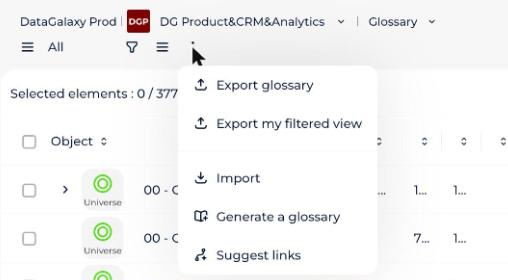
How to generate the glossary
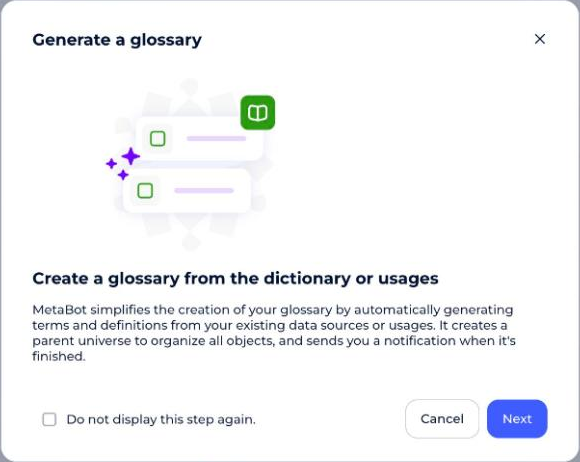
- Click Generate glossary. A modal opens (wherever you access it from) to explain the feature. You can tick the box so it isn't shown next time.
- Choose the technical data module from which you want to generate your glossary.
- Select the source technical objects. You can select several data sources (in the Dictionary) or several applications (in the Usages) at once. All selected objects and their descendants are analysed.
- Configure where the generated objects are created: under an existing universe or under a new universe.
- Click Generate to start the glossary generation by MetaBot.
- Wait for the generation to finish. It may take a few minutes, depending on the volume of data selected, and you can keep browsing the platform meanwhile.
- Open the notification MetaBot sends you once the operation is complete. It confirms the objects were created under the universe of your choice in the Glossary, and you can click the universe containing the created objects directly from the notification.
Created by filter and select MetaBot.How to keep the generated glossary up to date
To learn more about refining your glossary, read [Recipe] Refining your glossary.