DataGalaxy is the governance platform for data and AI products. Its goal is to build a 360° view of data so that everyone, business and technical users alike, can make it their own.
The building blocks below turn up everywhere in the platform: the client space, the workspace, the modules, the object card and the screens that display it, and the attributes that fill it.
What is the client space?
The client space is an instance (a closed space) that DataGalaxy puts at your disposal. It is hosted on the Azure cloud, in France and Germany, in one of two ways:
- Standard offer: a multi-customer environment.
- Enterprise offer: a dedicated environment.
Each client space holds one or more workspaces, which you are free to create according to your needs.
Through the client space administration, administrators can:
- manage users and their access rights, and their licenses;
- create and manage the platform's attributes (custom data properties);
- set the template of the platform's object screens;
- customize the data type mapping (logical versus physical);
- manage the integration tokens.
What is a workspace?
The workspace is the operational container that structures the context of a data scope. You can create workspaces to match your organization: one for an IT project, one per business or functional domain, or one per theme such as regulatory compliance.
The best granularity is the one that lets you progress one step at a time, with a reasonable volume of data to map and govern. For example, you could have one workspace for marketing, one for HR and one for finance.
Each workspace has its own administration to:
- manage access and permissions of the workspace team members;
- customize the object card (the screens);
- manage the integration with third-party tools.
What are the modules?
Each workspace is organized in modules that structure knowledge about the different aspects of your data. For a quick map, see Modules overview.
Strategy, Governance and Products (optional modules)
- Strategy: a central space where decision makers define, align and share strategic initiatives and measure their impact on objectives. It helps data and technical teams frame, refine and prioritize use cases.
- Governance: the Governance Center turns your governance model into a centralized, actionable system. It connects policies, rules and monitors directly to your data, making governance visible, navigable and operational for business and technical users.
- Products: lets teams package datasets, analyses, reports and more into reliable, documented, reusable data products, combining technical assets, metadata, governance and business alignment.
Catalog
The Catalog is made of four sub-modules that answer the four main questions about your data:
- What? The Glossary, a collection of data described in business vocabulary: business terms, indicators.
- What for, and for whom? Uses, which documents how data is exposed and used: reports, dashboards, algorithms, applications.
- Where? The Dictionary, an inventory of the data available in the organization's IT landscape: data sources, tables, fields.
- How? Data Processing, which describes the data flows and transformations across the sources in the dictionary.
The Glossary and Uses are built to document data functionally; the Dictionary and Data Processing are oriented to more technical profiles.
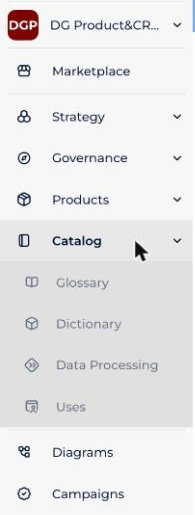
These modules contain different types of objects organized around a ready-made metamodel. See Anatomy of Your Catalog: Objects & the Metamodel.
How do the object card and the screens differ?
Each module offers several types of objects. Each object type has a set of common attributes and specific attributes that you can customize from the client space administration.
All the attributes that can be attached to an object make up its object card. These attributes are shown to users through the object's screen. Screens are configurable per workspace to show all the attributes of the object card or only some of them. The two ideas are different, and keeping them apart helps:
- the object card is the exhaustive list of attributes for an object type;
- the screen is the part of it that you decide to show, organized in categories, so users see a reasonable number of attributes and the curation workload can be sequenced.
- Start by listing all the attributes that are relevant to describe a given object, to give as much context as possible about that type of data. There is no limit on the number of attributes you can create.
- Group attributes in categories to give users a logical structure of the information around an object.
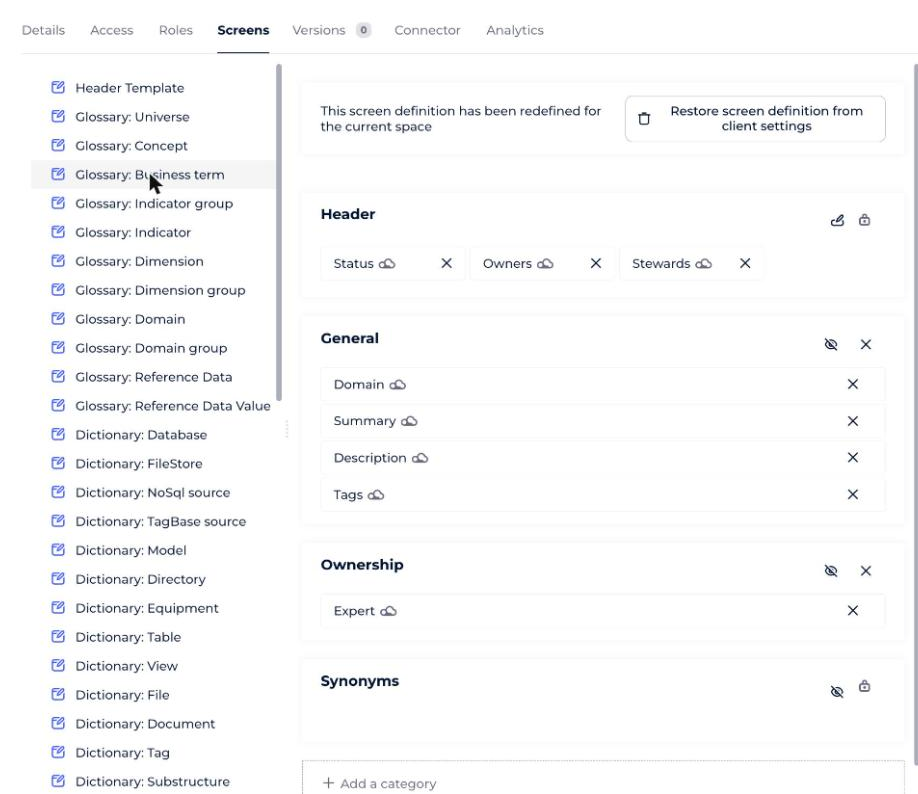
What does an object page contain?
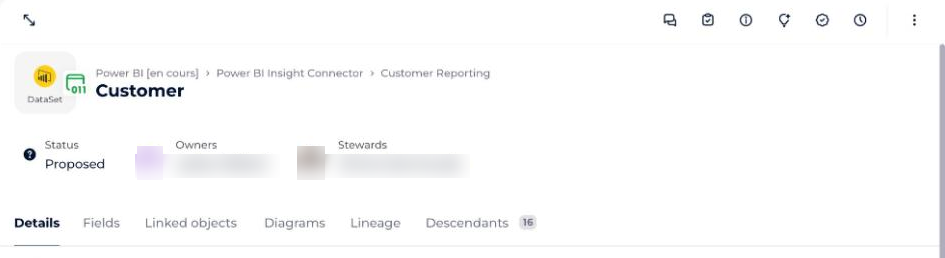
- The header: the object's path, its label, micro data and contextual actions.
- The body: tabs that depend on the module and object type, giving the primary information (attributes, relations, lineage, and so on).
- The object tools: sections giving secondary information (tasks, comments, and so on). See Which tools are available on an object? in Quickstart: Navigating the Platform for the First Time.
What types of attributes are there?
There are two kinds of attributes:
- System attributes, provided by DataGalaxy and not editable.
- Custom attributes (custom data properties, CDP), which client space administrators can create, manage and display in the categories of object screens.
See Presentation of Attributes and Manage Attributes.
How to customize screens
Client space and workspace administrators can create and manage custom categories:
- Configure Screen Settings, which explains how workspace screens inherit from the client space
Where should you start, by role?
Depending on your role, start with the matching goal:
- Business leader: define, align and share strategic objectives and initiatives (Strategy module).
- Data product owner: build use cases and catalog data and AI products.
- Governance manager: define and centralize governance (Governance module).
- Business analyst: use the platform as a functional user: search, filtered views and graphical views. Start with Quickstart: Navigating the Platform for the First Time.
- Business data steward: move from a spreadsheet catalog to DataGalaxy and start using lineage. See path B of Quickstart: Importing Your First Data into Your Catalog.
- Data steward and database manager: import technical data with the connector and use it to generate the glossary. See path A of the same quickstart.
- Analytics product manager: import your report estate with the connector, document it and exploit the links between objects.