Bulk editing is available in every module while you're in table view, and lets you change a set of selected objects at once.
How to bulk-edit attributes
The available options depend on the attribute type:
- Single-value attributes: Update replaces the existing value with the one you enter (which can be left empty).
- Multi-value attributes: Add adds the new values to the existing ones, and Update replaces the existing values with the new ones.
- Go to the module of your choice.
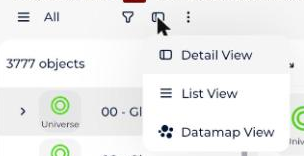
- Click Show as table.
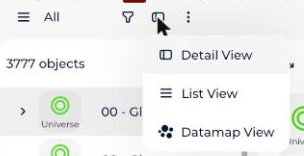
- Select the top checkbox to select all, or check the boxes for the specific objects you want to edit.
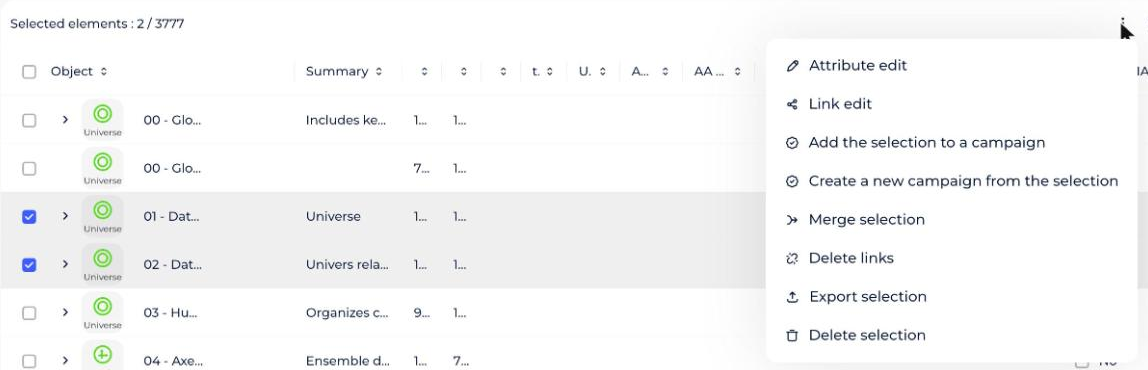
- Click the options button, then choose Edit attributes from the dropdown.
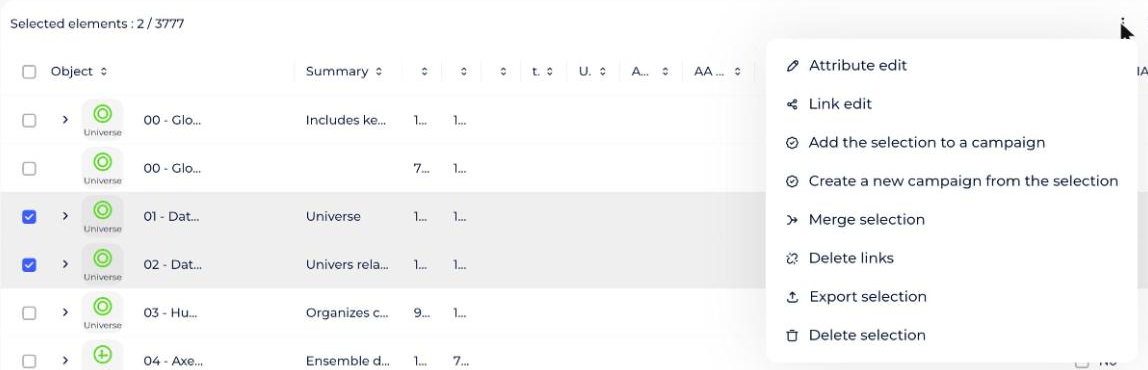
- Follow the prompts in the modal that opens, then confirm.
Bulk-editing attributes in the Dictionary module requires workspace admin rights.
How to bulk-edit links
The available options are:
- Add: adds the new links to the existing ones.
- Update: replaces the existing links with the new ones.
- Go to the module of your choice.
- Click Show as table.
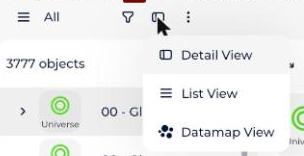
- Select the objects you want to edit.
- Click the options button, then choose Edit links from the dropdown.
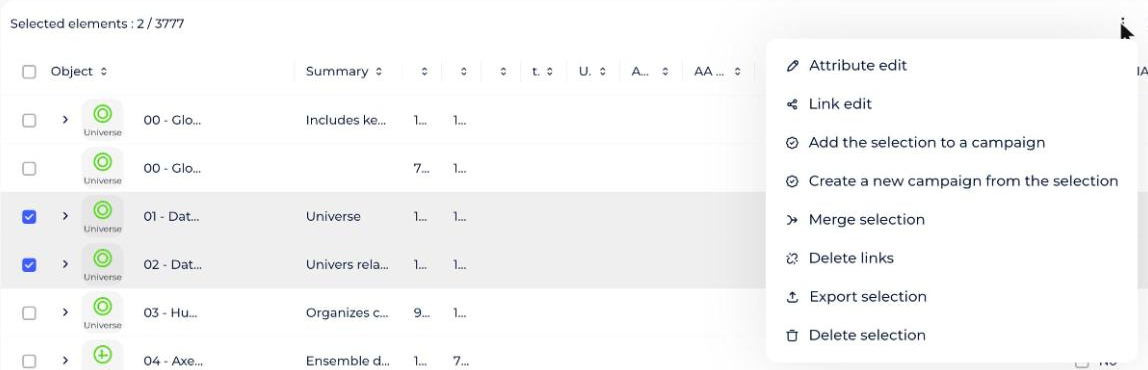
- Follow the prompts in the modal that opens, then confirm.
How to merge selected objects
You can merge several Glossary objects into a single object. The merged object keeps all the characteristics of the objects merged into it, and the source objects are deleted.
You can merge:
- Details: empty custom properties on the source object are filled in from the target object's values, and values are combined where the property supports multiple values.
- Relations: relations from the source and target objects are combined.
- Implementations: implementations from the source and target objects are combined.
After a merge, the source objects are permanently deleted.
- Go to the Glossary module.
- Click Show as table.
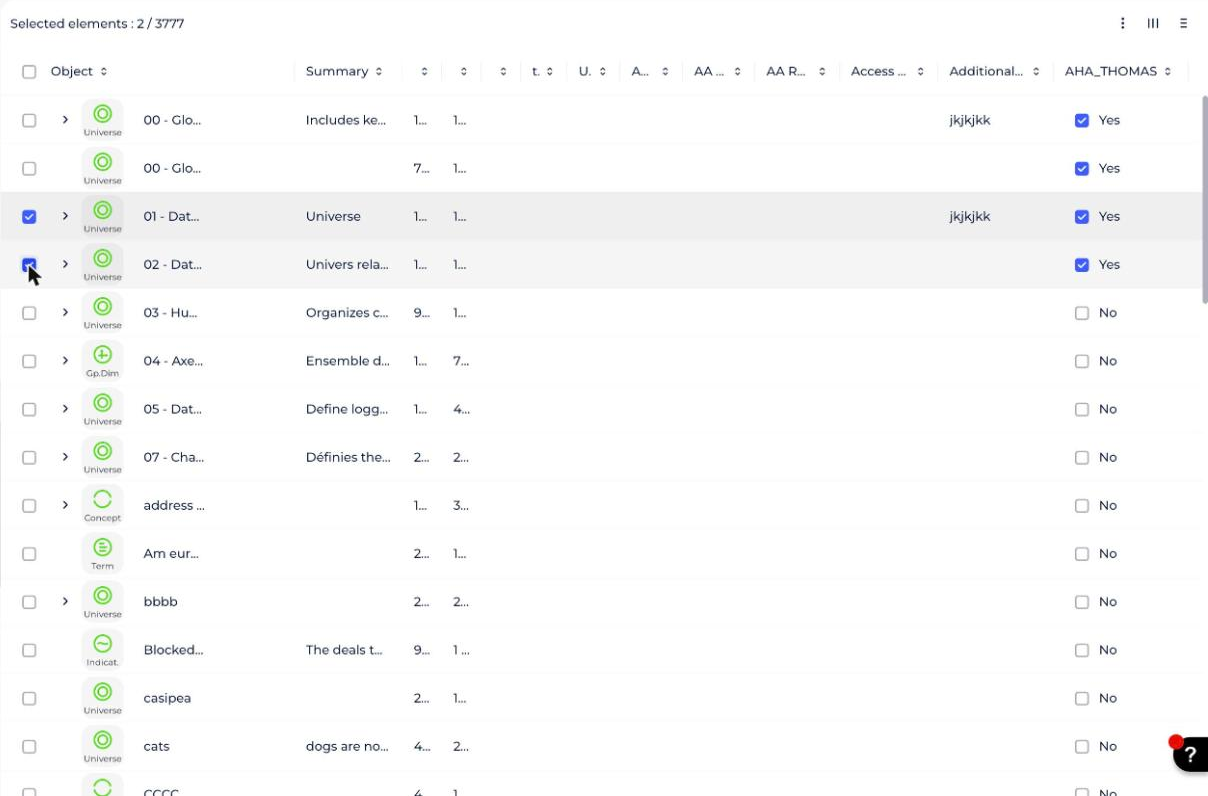
- Select the objects to merge, as source objects.
- Click the options button, then Merge selection.
- Follow the prompts in the modal that opens, then confirm.
How to delete several objects at once
- Go to the module of your choice.
- Click Show as table.
- Select the top checkbox to select all, or check the boxes for the objects you want to delete.
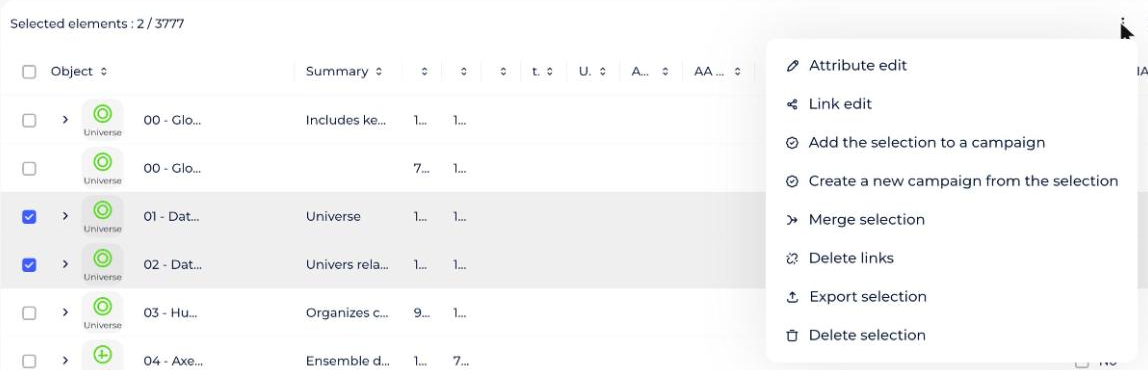
- Click the options button, then Delete selection.
- Follow the prompts in the modal that opens, then confirm.