Technologies are managed from the client-space administration area, where you can create them, edit them, and delete the ones no object uses.
For more on the concept of a Technology, see "Overview of technologies" — not yet part of this migration batch.
Who can manage technologies?
To manage technologies, you need to be a client-space administrator. To check whether you have these rights, go to your profile and open the dropdown menu — an Administration option should appear. If it doesn't, you're not an administrator.
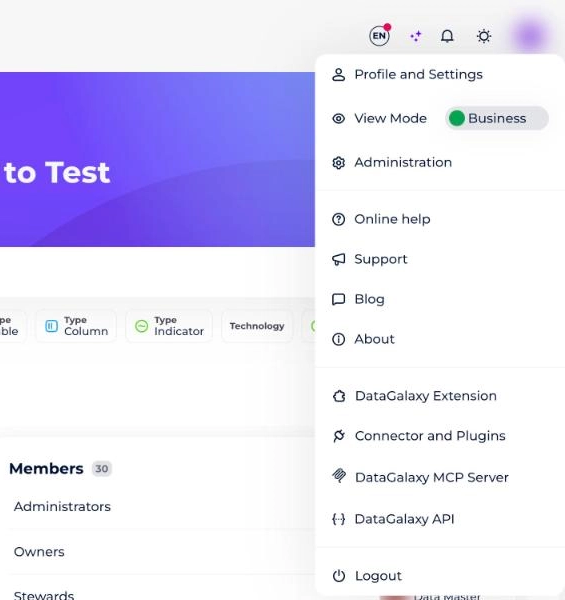
For more on the administrator profile and how DataGalaxy's permissions and licenses work, see Overview of License Management.
How do I get to the technology management page?
- Click your icon in the top right of the screen.
- Click Administration from the dropdown.
- Click the Technologies section in the left-hand menu.
- Search the technologies list for the technology you want to view, edit, or delete.
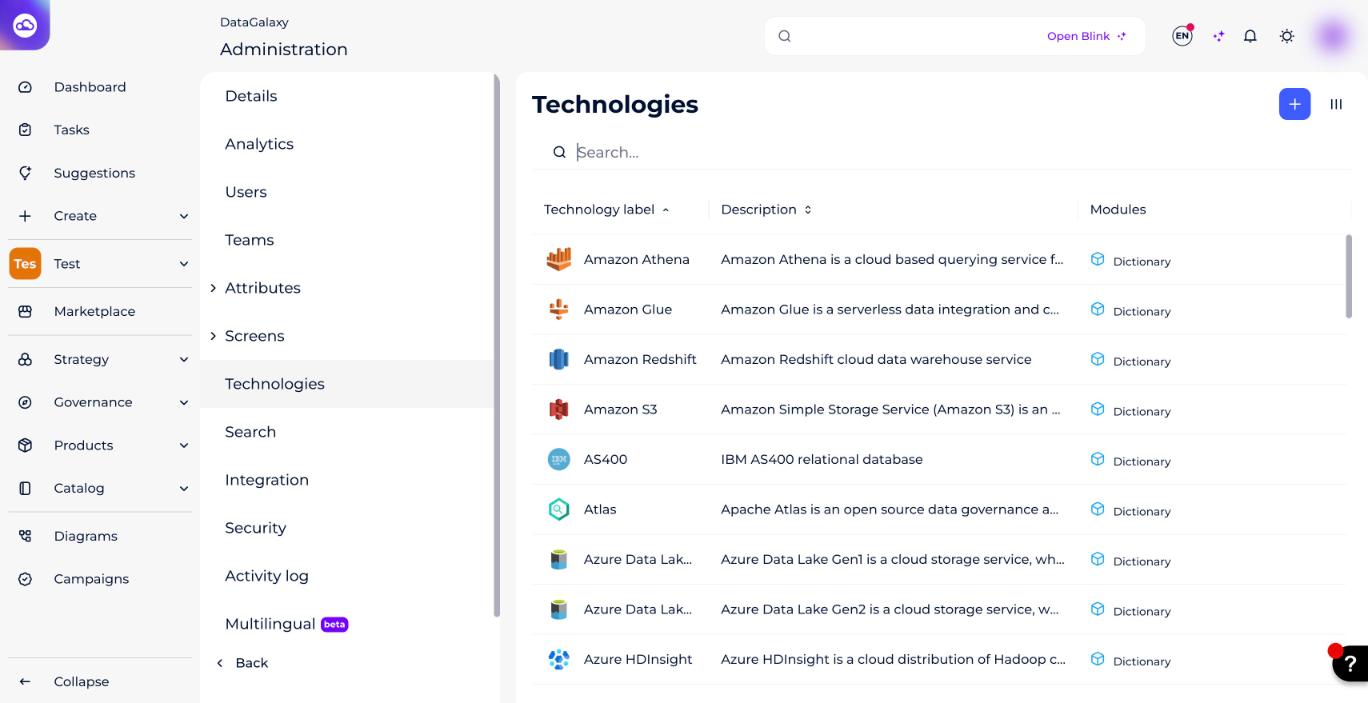
How do I manage technologies?
1 — Create a new technology
- Click the blue
+button in the top right of the technologies list (shown above).
- Fill in every field in the modal that opens, then click Create.
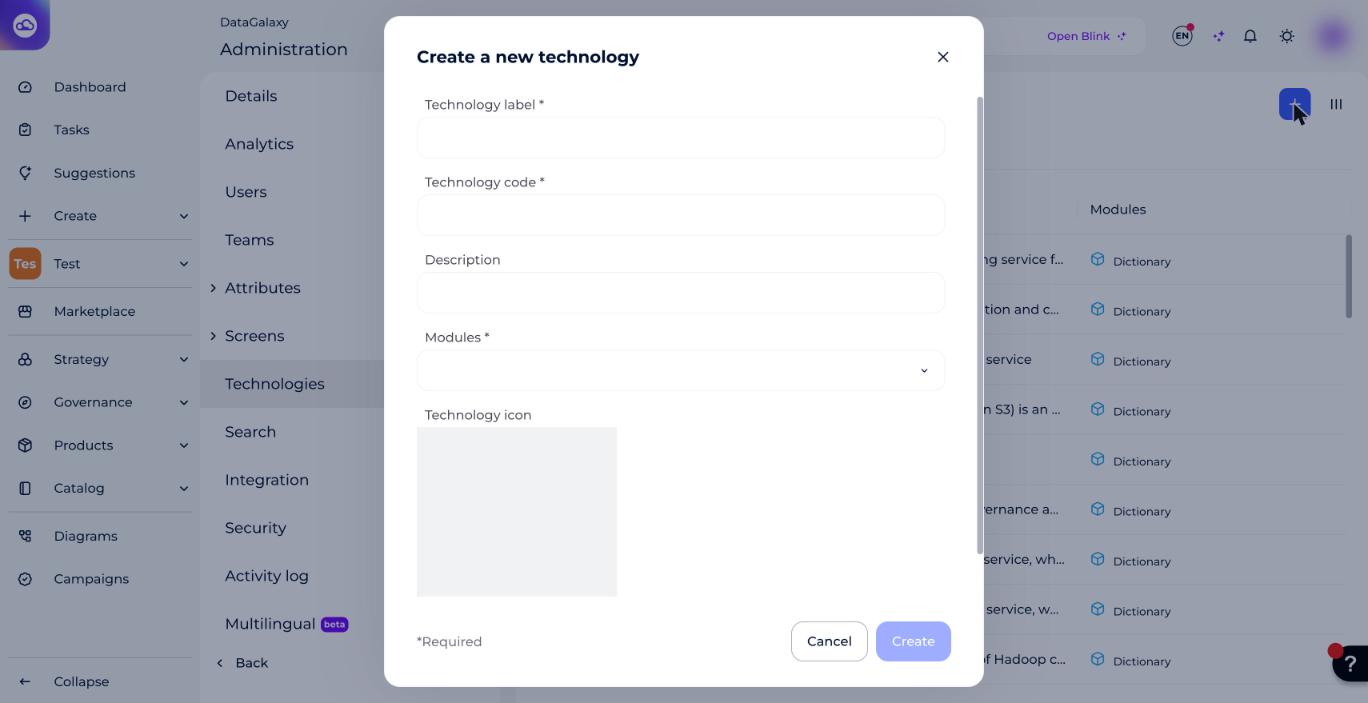
The technology's code is generated automatically from the label you enter. You can only edit it while creating the technology.
2 — Edit a technology
- Open the technology's sheet by clicking its name from the technologies list.
- Edit the sheet's attribute(s).
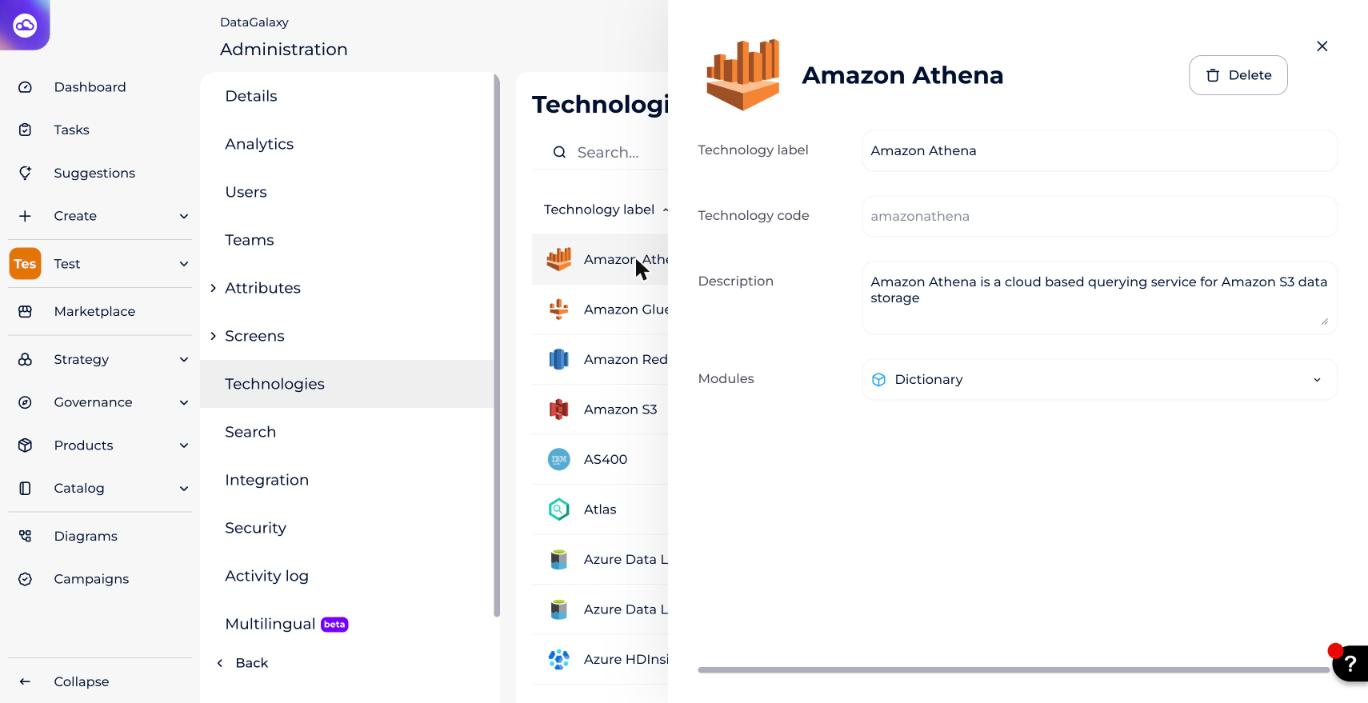
You can't edit a technology's code: the
Technology code field is grayed out on the sheet. Only its label, description, module(s), and icon are editable. You also can't remove a module a technology is already used in.3 — Delete a technology
- Open the sheet of the technology you want to delete, by clicking its name from the technologies list.
- Click the Delete button in the top right of the sheet (see the screenshot above).
You can't delete a technology that's used by one or more objects.
Screenshot: a blocked delete attempt for a technology still in use. (Re-add this image here — the original Freshdesk link expires after a few days.)