Each workspace has a single home page, visible to every user with access to that workspace. You can customize each of your workspaces' home pages to fit your use cases.
Who can customize the home page?
Any workspace administrator can customize its home page.
How do I customize the home page?
- Go to the home page you want to customize.
- Click Customize page, next to the page title.

- Make your changes.
- Click Save — your changes will then be visible to every user of the workspace. To leave edit mode without saving, click Cancel modifications.
1 — The banner
The banner image on the home page, and the welcome message on it, are both customizable.
To edit them:
- Click the image.
- Change the image and/or the message. You can also choose to hide the message.
- Click Update.
2 — Widgets
You can add, duplicate, remove, and move widgets.
Add a widget
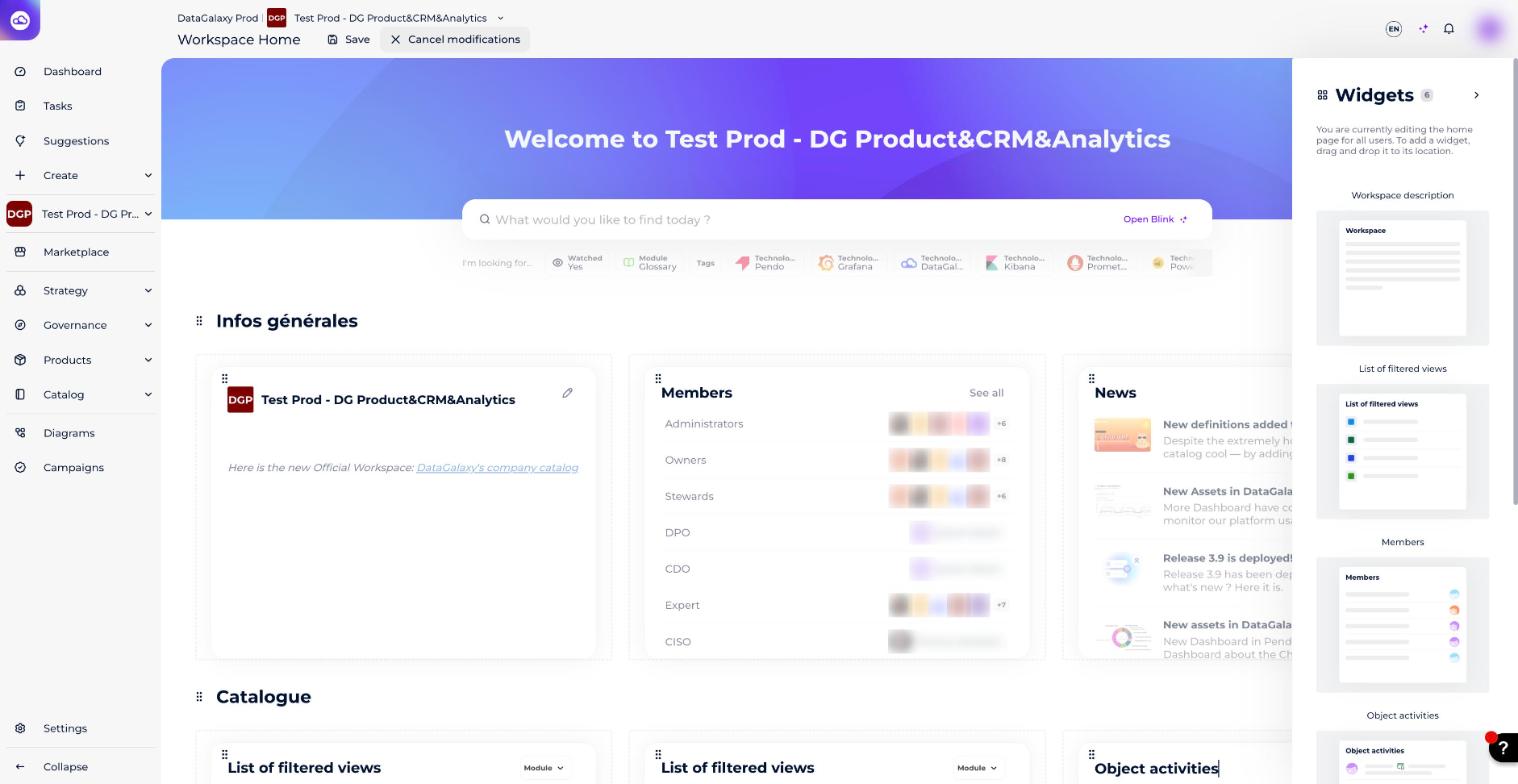
When you switch to edit mode, the Widgets gallery opens automatically on the right. From there, you can drag and drop a widget anywhere on the page.
Duplicate a widget
- Open the widget's context menu.
- Choose Duplicate. The widget is duplicated to the right of the original.
Remove a widget
- Open the widget's context menu.
- Choose Delete.
Move a widget
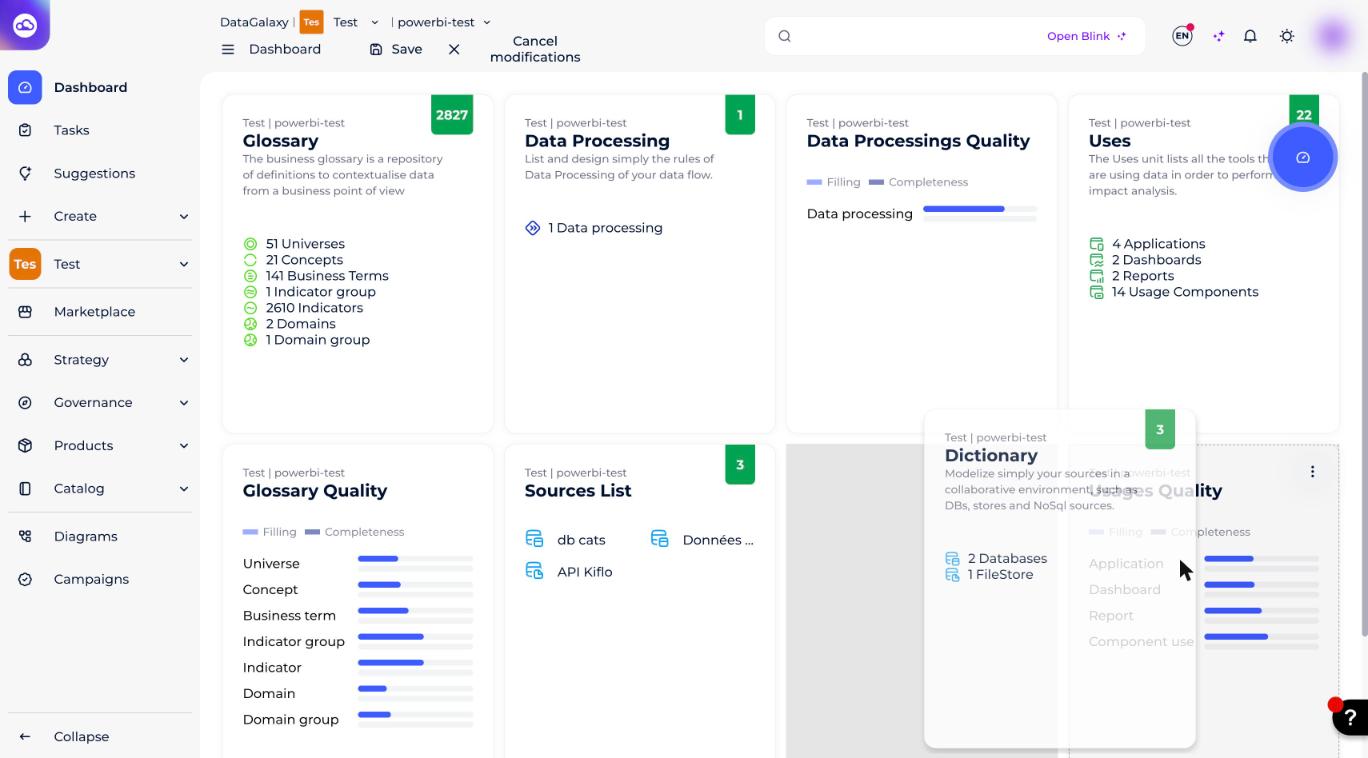
- Press and hold the widget's context menu handle.
- Drag it to the location you want.
Rename a widget
Click into the widget's title to rename it.
3 — Sections
Sections let you group widgets by category. You can create up to 6 sections, with up to 12 widgets per section. Sections can be added, removed, moved, and renamed.
Add a section
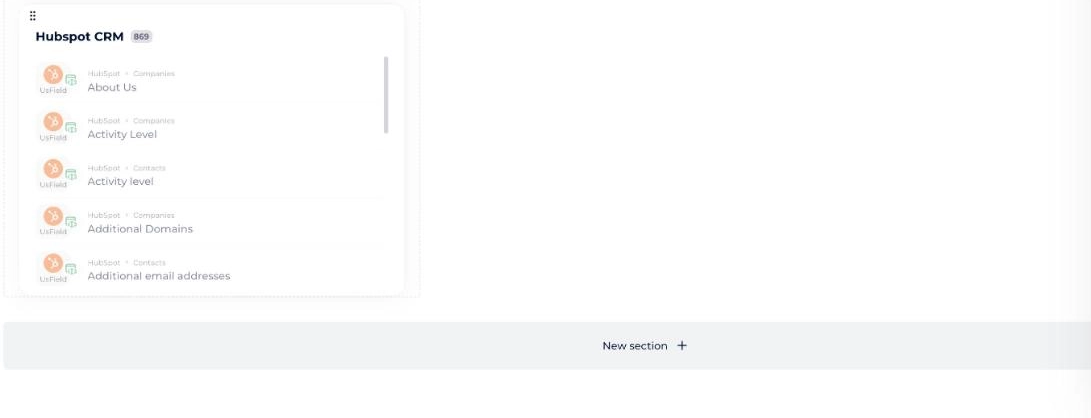
- Scroll to the bottom of the page.
- Click the New section button.
Remove a section
- Open the section's context menu.
- Choose Delete.
Move a section
Two options:
- Drag and drop the section from its context menu to the position you want.
- Open the section's context menu and choose Move down or Move up.
Rename a section
Click into the section's title to rename it.